
Editar o eliminar un flujo de mejora
Consulte cómo crear un flujo de mejora para obtener contexto. Este artículo explica cómo editar o eliminar un flujo de mejora.
Nota: Actualmente, existen 4 plantillas para tableros de mejora y flujos de mejora: PDCA, Kanban, 8D y Review. Las 4 plantillas comparten los mismos ajustes de edición. Los ejemplos en este artículo usan la plantilla PDCA.
Para acceder a cualquier acción de flujo de mejora: vaya a Continuous Improvement → Settings en el panel lateral, luego haga clic en el icono ⋮ (tres puntos) junto al flujo.
Acceder al editor del flujo de mejora
Desde el menú ⋮, haga clic en Editar flujo.
El editor tiene cinco pestañas: General, Flow Template, Advanced, Docx Reports y Parameters. Cada una se detalla a continuación.

La pestaña General
La pestaña General se abre primero. Aquí puede editar lo siguiente:

- Haga clic para abrir la pestaña General.
- Aquí puede editar el nombre del flujo de mejora.
- Seleccione si el usuario que envía un ticket queda suscrito automáticamente a la incidencia vinculada a ese ticket. Si esa persona está suscrita, recibirá una notificación por correo electrónico cada vez que esa incidencia cambie de columna.
- Inserte el número máximo de días concedidos para resolver una incidencia que esté en este flujo de mejora (si procede).
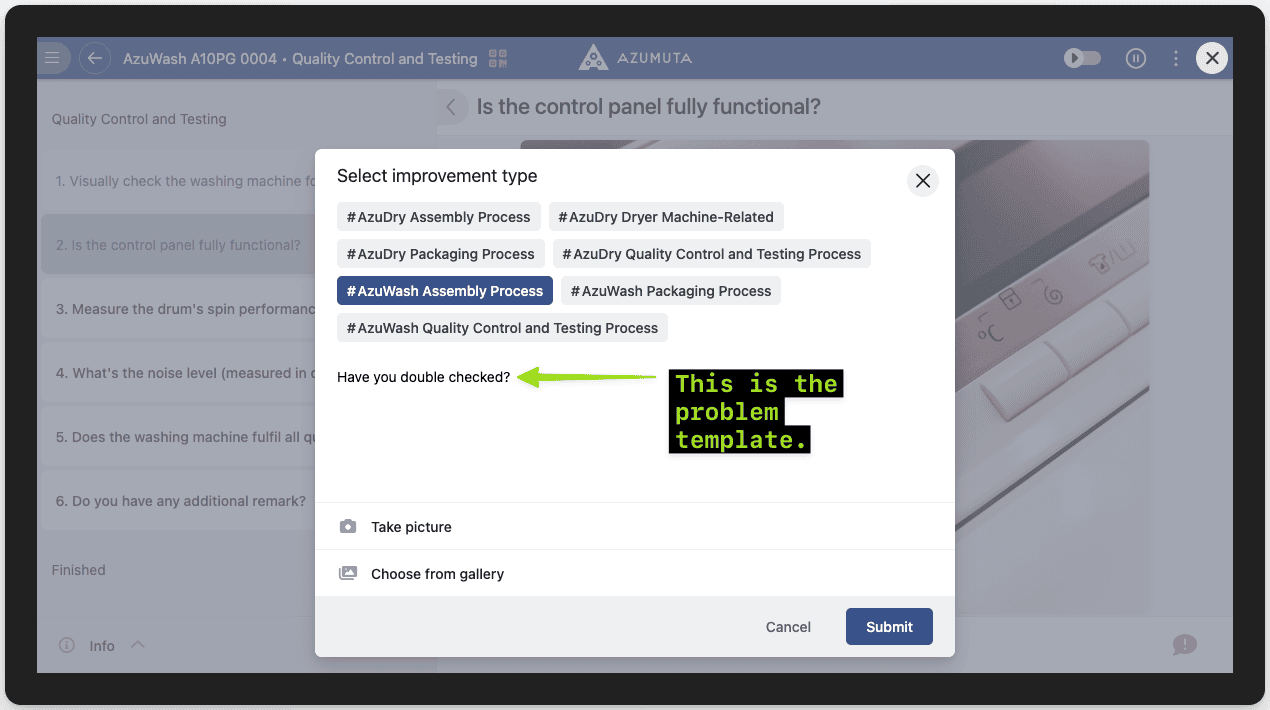
- Inserte la plantilla de problema (si procede). Una plantilla de problema es un texto que aparecerá en un ticket (como se muestra en la imagen a continuación). Generalmente se utiliza para dar una instrucción concreta a un operario que está a punto de enviar un ticket.
- Inserte una lista de verificación (si procede).
- Haga clic en Guardar, o en Cancelar para descartar los cambios.

La pestaña Flow Template
De aquí proviene la palabra “flow” en “flujo de mejora”. Un flujo de mejora consiste en varias columnas. Una columna representa un paso de acción que debe realizarse para resolver una incidencia.

Los nombres de las columnas variarán según la plantilla de flujo de mejora que esté utilizando. Por ejemplo, en la plantilla PDCA hay 6 columnas, que son:
- Plan
- Do
- Check
- Act
- Declined
- Archived (para incidencias que han sido resueltas)
Vea cómo editar el nombre de cada columna.

Puede añadir varios elementos para cada columna. Explicamos cómo añadir un elemento y cómo editarlo en las siguientes secciones.
Añadir un elemento a una columna
Para añadir un elemento a una columna:
- Haga clic en Añadir elemento en la columna objetivo.
- Seleccione el elemento.
- Introduzca los detalles.
- Haga clic en Guardar.
Estas son las opciones de elemento disponibles para cada columna:

- Haga clic para añadir una tarea. Puede escribir la descripción de la tarea directamente. Elija este tipo de elemento si la tarea no necesita firma ni lista de verificación.
- Haga clic para añadir una solicitud de firma para una persona específica. Una firma indica que un operario ha completado todos los elementos requeridos en una columna y está listo para pasar a la siguiente, normalmente solicitada a un supervisor o responsable.
- Haga clic para añadir una solicitud de firma a un grupo de usuarios.
- Haga clic para añadir una lista de verificación.
Editar un elemento en una columna
Para editar un elemento:
- Haga clic en el icono ⋮ (tres puntos) junto al elemento.
- Realice sus modificaciones.
- Haga clic en Guardar.
Las opciones difieren según el tipo de elemento, como se muestra a continuación.
Edición de una Tarea

- Edite la descripción de la tarea aquí.
- Haga clic para asignar la tarea a usted.
- Haga clic para asignar la tarea a una persona específica.
- Haga clic para asignar la tarea a un grupo de usuarios específico.
- Haga clic para eliminar la persona o el grupo asignado (esto solo se puede hacer si ya hay una persona o grupo asignado).
- Seleccione si desea que la persona o el grupo asignado reciba un correo electrónico automático de Azumuta que les informe cuando una incidencia llegue a esta columna.
- Seleccione si la persona o el grupo que complete esta tarea quedará suscrito a la incidencia vinculada. Si alguien está suscrito a una incidencia, recibirá una notificación por correo electrónico cada vez que esa incidencia cambie de estado.
- Haga clic para eliminar la tarea.
- Haga clic en Guardar, o en Cancelar para descartar los cambios.
Edición de una Solicitud de Firma a una Persona / a un Grupo de Usuarios

- Si elige esta opción, usted es la única persona autorizada a firmar esta solicitud de firma.
- Seleccione la persona autorizada para firmar esta solicitud.
- Seleccione el grupo de usuarios autorizado para firmar esta solicitud.
- Seleccione si desea que la persona o el grupo asignado reciba un correo electrónico automático de Azumuta que les informe cuando una incidencia llegue a esta columna.
- Seleccione si la persona o el grupo que firme quedará suscrito a la incidencia vinculada. Si alguien está suscrito a una incidencia, recibirá una notificación por correo electrónico cada vez que esa incidencia cambie de estado.
- Haga clic para eliminar la solicitud de firma.
- Haga clic en Guardar, o en Cancelar para descartar los cambios.
Edición de una Lista de Verificación

- Haga clic para ver las instrucciones de trabajo de la lista de verificación.
- Haga clic para asignar la lista de verificación a usted.
- Haga clic para asignar una persona específica para rellenar la lista de verificación.
- Haga clic para asignar un grupo de usuarios para rellenar la lista de verificación.
- Haga clic para eliminar la persona o el grupo asignado (esto solo se puede hacer si ya hay una persona o grupo asignado).
- Seleccione si desea que la persona o el grupo asignado reciba un correo electrónico automático de Azumuta que les informe cuando una incidencia llegue a esta columna.
- Seleccione si la persona o el grupo que rellene la lista de verificación quedará suscrito a la incidencia vinculada. Si alguien está suscrito a una incidencia, recibirá una notificación por correo electrónico cada vez que esa incidencia cambie de estado.
- Haga clic para eliminar la lista de verificación.
- Haga clic en Guardar, o en Cancelar para descartar los cambios.
La pestaña Advanced
Consulte las columnas de un flujo de mejora para obtener contexto. Esta sección explica cómo usar estas columnas entre sí.
La pestaña Advanced consta de 2 elementos: columnas y transiciones. En la pestaña Advanced, una columna representa un paso de acción que debe realizarse para resolver una incidencia (igual que en la pestaña Flow Template).
Los nombres de las columnas variarán según la plantilla de flujo de mejora que esté utilizando. Por ejemplo, en la plantilla PDCA hay 6 columnas, que son:
- Plan
- Do
- Check
- Act
- Declined
- Archived (para incidencias que han sido resueltas)
Mientras tanto, una transición funciona como un puente entre columnas. Una transición lleva un elemento a otra columna, según un escenario preconfigurado.

- Haga clic para abrir la pestaña Advanced.
- Esta es una columna.
- Esta es la lista de transiciones para esta columna.
Añadir un elemento a una columna (pestaña Advanced)
Para añadir un elemento a una columna:
- Haga clic en Añadir elemento en la columna objetivo.
- Seleccione el elemento.
- Introduzca los detalles.
- Haga clic en Guardar.
Nota: Si añadió un elemento en la pestaña Flow Template, ese elemento también aparecerá en la misma columna de la pestaña Advanced. Y, a la inversa, si añadió un elemento en la pestaña Advanced, también aparecerá en la misma columna de la pestaña Flow Template.
Estas son las opciones de elemento disponibles para cada columna:

- Haga clic para añadir una tarea. Puede escribir la descripción de la tarea directamente. Elija este tipo de elemento si la tarea no necesita firma ni lista de verificación.
- Haga clic para añadir una solicitud de firma para una persona específica. Una firma indica que un operario ha completado todos los elementos requeridos en una columna y está listo para pasar a la siguiente, normalmente solicitada a un supervisor o responsable.
- Haga clic para añadir una solicitud de firma a un grupo de usuarios.
- Haga clic para añadir una lista de verificación.
Editar un elemento en una columna (pestaña Advanced)
Editar un elemento en una columna de esta pestaña funciona de la misma manera que en la pestaña Flow Template. Consulte los enlaces a continuación para ver cómo puede editar un elemento de una columna según el tipo de elemento:
- Cómo editar una tarea
- Cómo editar una solicitud de firma a una persona / a un grupo de usuarios
- Cómo editar una lista de verificación
Nota: Si editó un elemento en la pestaña Flow Template, ese elemento también se actualizará automáticamente en la pestaña Advanced. Y, a la inversa, si editó un elemento en la pestaña Advanced, el mismo elemento también se actualizará automáticamente en la pestaña Flow Template.
Añadir una transición
- Haga clic en Añadir transición en la columna objetivo.
- Seleccione una opción del desplegable Cuando.
- Seleccione una opción del desplegable Entonces mover a.
- Haga clic en Guardar.
Los menús desplegables Cuando y Entonces mover a tienen una relación de causa y efecto.
Siempre que ocurra el evento seleccionado en el desplegable Cuando, provocará que ocurra el evento seleccionado en el desplegable Entonces mover a.
Editar una transición

- Para añadir una transición adicional a esta columna, haga clic en Añadir transición.
- Haga clic para cambiar el contenido del desplegable Cuando.
- Haga clic para cambiar el contenido del desplegable Entonces mover a.
- En Azumuta, todas las incidencias avanzarán automáticamente a la siguiente columna si no quedan elementos pendientes (ya sea porque todos los elementos de esta columna se han completado o porque no se añadieron elementos a esta columna). Si desea evitar que una incidencia avance automáticamente a la siguiente columna porque no se añadieron elementos a esta columna, entonces marque esta opción.
- Haga clic en Guardar, o en Cancelar para descartar los cambios.
Configurar recordatorios de plazo
Use un recordatorio de plazo para enviar un correo electrónico antes de la fecha límite de una incidencia.
- Abra el editor del flujo de mejora.
- Abra la pestaña General.
- Establezca Default deadline in days from creation.
- Establezca Default days before deadline to send reminder.
- Guarde el flujo de mejora.
El correo de recordatorio contiene una sección Tareas abiertas por completar. Esta sección lista cada tarea, lista de verificación y firma abiertas. Cuando hay una persona asignada o una etiqueta de elemento disponible, el correo incluye esa información.
Puede establecer un intervalo de recordatorio diferente en una incidencia individual. El intervalo de la incidencia reemplaza el valor predeterminado del flujo para esa incidencia.
La pestaña Docx Reports
Puede añadir informes Docx a un flujo de mejora. Vea las guías de Docx reporting with ticket information.
La pestaña Parameters
Puede añadir parámetros a un flujo de mejora. Estos parámetros se mostrarán en todos los tickets que pertenezcan a este flujo de mejora, así como en todas las listas de verificación vinculadas a esos tickets.
Esta función es útil si tiene un flujo de mejora para cada artículo en su espacio de trabajo.
Añadir un parámetro a un flujo de mejora
- Haga clic en Añadir campo.
- Introduzca la Clave y el Valor del parámetro.
- Haga clic en Guardar.
Editar un parámetro en un flujo de mejora
Edite la Clave o el Valor del parámetro y, a continuación, haga clic en Guardar.
Eliminar un parámetro en un flujo de mejora
- Haga clic en el parámetro que desea eliminar.
- Haga clic en el icono de la papelera.
- Haga clic en Guardar.
Eliminar un flujo de mejora
Desde el menú ⋮, haga clic en Eliminar flujo, y confirme con Eliminar.