Azumuta Knowledge Base

Get started quickly or discover Azumuta in detail.

Quick Start

  • What Are the Quick Start Guides?
  • Quick Start: Azumuta Basics
  • Quick Start: The Freely Consultable Work Instructions Module
  • Quick Start: The Quality Management Module
  • Quick Start: The Audits & Digital Checklists Module
  • Quick Start: The Skill Matrix & Trainings Module
  • Quick Start: The Dashboards Add-on
  • Quick Start: The Continuous Improvement Add-on

How to Use Azumuta

  • Introduction to Azumuta
  • Welcome to Azumuta
    • Introduction to Azumuta
    • Navigating the Homepage (Admin View/Azumuta on Web)
    • Navigating the Sidebar (Admin View/Azumuta on Web)
    • The Navigation Breadcrumb
    • The Search Bar
    • How to Edit Your Azumuta Profile
    • Glossary
  • Work Instructions
    • What Is a Work Instruction?
    • What Is a Freely Consultable Work Instruction?
    • How to Create a Work Instruction
      • How to Create a Work Instruction
      • How to Add an Instruction Block to a Work Instruction
      • How to Add an Instruction Step to a Work Instruction
    • How to Edit a Work Instruction
      • How to Edit an Instruction Block
      • How to Edit an Instruction Step
      • How to Edit or Delete a Work Instruction or a Folder
      • How to Preview a Work Instruction
      • How to Improve a Work Instruction With Azumuta Intelligence
    • How to Use the Instruction Step Editor
      • Navigating Through the Work Instruction Step Editor
      • General
      • How to Add a Visual Page to a Work Instruction Step
      • How to Add an Image to a Work Instruction
      • How Does the Image Library Work?
      • Visuals in a Work Instruction
      • Parts
      • Equipments & Symbols
      • Videos
      • 3D Files
      • Link to Another Work Instruction or Instruction Step
      • SharePoint PDF
      • Time Study
    • Product Checks
      • What Is a Product Check?
      • Adding a Product Check to a Work Instruction
      • Basic Product Checks
      • Advanced Product Checks
      • Mandatory Product Checks and Fast Forward Mode
      • Double-Checks for an Instruction Step
      • Rules: Basic
      • Rules: Advanced
      • Peripherals
    • Variants
      • What Is a Variant?
      • How to Add a Variant and Use It in a Work Instruction
      • How to Edit a Variant
    • How to Create the Official Version of a Work Instruction
      • How to Create an Official Version of a Work Instruction
      • Single Person Approval
      • Multi Person Approval: Creating an Approval Board and an Approval Flow
      • The Approval Board Layout
      • Multi Person Approval: How to Edit or Delete an Approval Board
      • Multi Person Approval: How to Edit or Delete an Approval Flow
      • How to Enable Multi-Person Approval
      • How to Submit, Accept, and Decline an Approval Request
      • Triggers for Approval Boards and Approval Requests
    • How to See a Work Instruction's Revision History
      • Revision History
    • How to Add an Attachment to a Work Instruction
      • How to Add an Attachment to a Work Instruction
    • How to Print a Work Instruction or Save it as a PDF File
      • How to Print a Work Instruction or Save It as a PDF File
      • How to Print an Instruction Step or Save It as a PDF File
    • How to Share a Work Instruction
      • Sharing a Work Instruction/Folder/Article Category/Article (Public Sharing & Private Sharing)
    • Azumuta App: Work Instructions
      • Creating a Work Instruction via the Azumuta App
      • Editing a Work Instruction via the Azumuta App
      • Viewing a Work Instruction as an Operator
      • Work Instructions Layout from the Operator’s Perspective
      • How to Open an Attachment on the App
    • How to Export and Import a Work Instruction
      • What Is Exporting and Importing a Work Instruction?
      • How to Export and Import a Work Instruction
      • Converting a Microsoft Office Document into an Azumuta Work Instruction
      • Converting a Video or an Audio File Into an Azumuta Work Instruction
  • Quality Management
    • What Is the Quality Management Module?
    • How to Create a Work Instruction on the Quality Management Module
      • How to Create a Work Instruction on the Quality Management Module
      • How to Populate a Work Instruction on the Quality Management Module
      • How to Edit a Work Instruction on the Quality Management Module
      • Recordings in the Quality Management Module
    • Articles and Article Categories
      • What Is an Article Category? What Is an Article? And What’s the Difference?
      • How to Create and Edit an Article Category (via Azumuta on Web)
      • How to Create and Edit an Article Category (via the App)
      • How to Create and Edit an Article
      • How to Share an Article or An Article Category Publicly
    • How to Create a Product Order
      • What Is a Product Order?
      • What Are the Available Methods on Creating a Product Order?
      • How To Create a Product Order Manually
      • How to Create a Product Order Automatically Based on ERP Configuration
      • How to Create a Batch Order
      • How to View Created Product Orders
    • How to Activate a Product Order
      • How to Activate a Product Order
    • How to Edit a Product Order
      • How to Edit a Product Order (Basic)
      • How to Edit a Product Order (Advanced)
    • How to Execute a Product Order
      • How to See Product Orders from the App
      • How to Execute a Product Order
    • How to Filter a Product Order
      • Filtering, Sorting, and Searching for Product Orders and Batch Orders
    • Product Order Linking
      • Product Order Linking
    • Parameters
      • What Is a Parameter?
      • How to Link Parameters to an Article
      • How to Create a Product Order Based on an Article That Has Pre-Configured Parameters
      • How to Link Parameters to a Manually Created Product Order Based on Article Category
      • How to Link Parameters to a Product Order Automatically Created In Azumuta Based on ERP Configuration
      • How to Check Which Parameters Are Linked to a Product Order?
      • How to Use Parameters on an Image in a Work Instruction
      • How to Use Parameters in a Work Instruction Step
      • How to Use a Parameter in a Product Check
      • Performing Calculations With Parameters
    • How To Monitor A Product Order
      • How to Download the Microsoft Excel Report of a Specific Product Order or Multiple Product Orders
      • How To Monitor The Status Of A Product Order
      • How to View the Work Instruction Report for a Product Order in Azumuta
      • Triggers for Product Orders and Article Categories
    • Docx Reporting for Product Orders
      • Introduction to Docx Reporting for Product Orders
      • How to Add a Docx Report to an Article Category
      • How to Download a Docx Report from a Product Order
      • How to Update a Docx Report on an Article Category
      • How to Edit or Delete a Docx Report on an Article Category
      • Basic Tags on a Docx Report
      • Answer Tags (Basic)
      • Answer Tags (Advanced)
      • Variant Tags
      • Displaying Images on a Docx Report
      • Ticket Tag
      • Parameter Tags
      • Conditional Parameter Tags
      • Recap Tags
    • Andon
      • What is Andon in Azumuta?
      • Getting Started With Andon
        • Getting Started With Andon
        • Creating the Ideal Andon System Structure
        • Creating an Andon Board
        • Creating an Andon Flow
        • Activating an Andon on a Device
      • Using Andon
        • How to Use an Andon System
        • Displaying Andon on a Dashboard
      • Editing or Deleting an Andon
        • Editing or Deleting an Andon Board
        • Editing or Deleting an Andon Flow
  • Audits & Digital Checklists
    • What Is the Audits & Digital Checklists Module?
    • How to Create an Audit
      • How to Create an Audit
      • How to Populate an Audit
      • How to Edit an Audit
      • Recordings in the Audits & Digital Checklists Module
    • How to Use the Planning Tool for Audits
      • Introduction to the Planning Tool for Audits
      • Planning Tabs for Audits
      • The Planning Tab’s Sidebar Settings (for Audits)
      • Events in a Planning Tab (for Audits)
      • How to Adjust the Time Zoom and Navigate to a Specific Date in the Planning Calendar (for Audits)
    • How to Plan an Audit
      • How to Plan an Audit via the Planning Calendar
      • How to Plan an Audit Based on Automatic Triggers
    • How to Execute an Audit
      • How to Execute an Audit as an Operator
      • How to Execute an Audit as an Admin
    • How to Edit a Scheduled Audit
      • How to Edit and Delete a Scheduled Audit
    • How to View an Audit Report
      • How to View and Download an Audit Report
    • Docx Reporting for Audits
      • Introduction to Docx Reporting for Audits
      • Tags to Use on a Docx Report (for Audits)
      • How to Add a Docx Report to an Audit
      • How to Download a Docx Report for an Audit Event
      • How to Update a Docx Report on an Audit
      • How to Edit or Delete a Docx Report (for Audits)
  • Skill Matrix & Trainings
    • What Is the Skill Matrix & Trainings Module?
    • How to Create a Work Instruction on the Skill Matrix & Trainings Module
      • How to Create a Work Instruction on the Skill Matrix & Trainings Module
      • How to Populate a Work Instruction on the Skill Matrix & Trainings Module
      • How to Edit a Work Instruction on the Skill Matrix & Training Module
      • Recordings in the Skill Matrix & Trainings Module
    • Competence Management
      • Skill Matrix: The Basics
      • How to Input the Competency Level of an Employee
      • How to View an Employee’s Personal Profile Page
      • Mandatory Training Indicator on a Work Instruction
    • How to Use the Planning Tool for Training Activities
      • Introduction to the Planning Tool for Training Activities
      • Planning Tabs for Training Activities
      • The Planning Tab’s Sidebar Settings (for Training Activities)
      • Events in a Planning Tab (for Training Activities)
      • How to Adjust the Time Zoom and Navigate to a Specific Date in the Planning Calendar (for Training Activities)
    • How to Plan, Execute, Edit, and Delete a Training
      • How to Plan a Training as an Admin
      • How to Plan a Training via the App as an Operator
      • How to Execute a Planned Training
      • How to Edit and Delete a Scheduled Training
    • How to View a Training Report
      • How to View a Training Report
  • Continuous Improvement
    • What Is the Continuous Improvement Add-on?
    • What Is a Ticket and an Issue?
    • How to Create an Improvement Board and an Improvement Flow
    • The Improvement Board Layout
    • How to Edit or Delete an Improvement Board
    • How to Edit or Delete an Improvement Flow
    • How to Add a Checklist to a Ticket
    • How to Submit a Ticket as an Operator
    • How to See the List of Issues and Open an Issue in the App
    • How to Follow up on a Submitted Ticket
    • How to Do Docx Reporting with Ticket Information
      • Introduction to Docx Reporting for Tickets
      • Tags to Use on a Docx Report (for Tickets)
      • How to Add a Docx Report to an Improvement Flow
      • How to Download a Docx Report from a Ticket
      • How to Update a Docx Report (for Tickets)
      • How to Rename or Delete a Docx Report (for Tickets)
  • Dashboards
    • What Is a Widget and a Dashboard?
    • How to Add a Widget and a Dashboard
    • Continuous Improvement Widgets
      • Amount of Issues per Status Over Time (Bar Chart)
      • Amount of Issues per Improvement Flow (Pie Chart)
      • Amount of Issues per Improvement Flow (Bar Chart)
      • Lost Hours Tracking Based on the Issue’s Improvement Flow (Pareto Chart)
      • Lost Hours Tracking Based on Checklist Answer (Pareto Chart)
      • Amount of Issue Checklists per Flow (Pareto Chart)
      • Amount of Issue Checklists per Answer (Pareto Chart)
    • Audit Widgets
      • Audit Report Widget
      • Answers on Number Checks Over Time (Line Chart) – for Audits
      • Audit Scores per Zone (Bar Chart)
      • Audit Scores Over Time per Zone (Line Chart)
      • Audit Scores Over Time per Zone (Heatmap)
      • Amount of Audits Over Time (Timeline)
      • Chosen Audit Answers
      • Amount of Finished Audits per User
    • Product Order Widgets
      • Product Order Report Widget
      • Answers on Number Checks Over Time (Line Chart) for Product Orders
      • Product Order Status Widget
      • The Amount of Product Orders per Status Table Widget (Grouped Based on Articles)
      • The Amount of Product Orders per Status Table Widget (Grouped Based on Batches)
      • Product Order Kanban Board Widget
      • Control Chart
      • Control Board (Individual Zones)
      • Control Board (Grouped Zones)
    • General Widgets
      • Notes Widget
    • How to Configure a Widget
      • Adjusting a Widget’s Timespan
      • Editing a Widget
    • How to Configure a Dashboard
      • How to Configure a Dashboard
  • Login
    • How to Login to Azumuta on Web
      • How to Login to Azumuta on Web as an Admin
    • How to Login to the Azumuta App
      • How to Login to the Azumuta App
      • How to Login to the Azumuta App With an Identifier
      • How to Login to the Browser Version of the App
      • How to Login to the Browser Version of the Azumuta App Using an Identifier
    • How to Reset Your Password
      • How to Reset Your Password
  • Azumuta App/Operator View
    • Introduction to the Azumuta App
    • How to Install the Azumuta App
    • The Azumuta App Homepage
    • How to Pin a Module/Folder/Article Category/Zone to the Homepage and the Sidebar on the App
    • Translating a Work Instruction as an Operator
    • The App's Sidebar
      • Using the Sidebar on the App
      • How to Switch Between Different User Accounts on the App
      • How to Sign Out from the App
  • Management
    • Variants
      • How to See the List of Variants on Your Workspace
      • How to Edit, Unlink, and Delete a Variant
    • Resources
      • What Is a Resource?
      • How to See the List of Parts in Your Workspace
      • How to Add, Edit, and Delete a Part
      • How to See the List of Equipment on Your Workspace
      • How to Add, Edit, and Delete an Equipment
      • How to See the List of Symbols in Your Workspace
      • How to Add, Edit, and Delete a Symbol
    • Users
      • How to Add a User Account to Azumuta
      • How to Manage User Accounts on a Workspace
      • How to Manage User Groups
      • User Rights
        • What Is a User Right?
        • How to Hide and Unhide a Module/Add-On/Functionality from Your Workspace
        • User Rights: The Management Tab
        • User Rights: The Explore Tab
        • User Rights: The Work Instructions Tab
        • User Rights: The Quality Management Tab
        • User Rights: The Audits & Digital Checklists Tab
        • User Rights: Skill Matrix & Trainings
        • User Rights: The Continuous Improvement Tab
    • Devices
      • How to See the List of Devices That Are Logged in on Your Workspace
      • How to Add, Edit, and Delete a Device
      • How to Set a Device to Automatically Open the First Pinned Item
      • Device Settings: The Basics
      • Device Settings: Work Instructions-Related
      • Device Settings: Product Order-Related
      • Device Settings: Peripheral-Related
  • Azumuta Connectivity
    • Introduction
    • Peripherals
      • What Is a Peripheral Device?
      • How to Add a Peripheral Device to Your Azumuta Workspace
      • How to Use a Peripheral Device
      • How to Configure a Peripheral Group or a Peripheral Device
      • Peripheral Presets
      • Digital Torque Wrench
        • Why Should You Integrate Your Digital Torque Wrenches to Azumuta?
        • How to Integrate a Digital Torque Wrench to Your Azumuta Workspace
        • Using a Digital Torque Wrench (Torque Check)
          • What Is a Torque Check?
          • How to Add a Torque Check to an Instruction Step
          • How to Perform a Torque Check
          • Peripheral Presets for a Digital Torque Wrench
      • DYMO Label Printer
        • Why Should You Integrate Your DYMO Label Printers to Azumuta?
        • How to Integrate a DYMO Label Printer to Azumuta
        • How to Use a DYMO Label Printer With Azumuta
        • Peripheral Presets for a DYMO Label Printer
    • Integrating With an ERP
      • ERP Integration
      • Azumuta’s REST API
      • Using Your Data in the REST API
      • Simple Entry Integration
    • Triggers
      • What Is a Trigger?
      • How to Edit an Delete a Trigger
      • Triggers for Article Categories and Product Orders
      • Triggers for Continuous Improvement Issues and Approval Requests
      • Triggers for Improvement Boards and Approval Boards
      • How to See the List of Triggers in Your Workspace and Each Trigger’s Usage History
  • Azumuta Intelligence
    • What Is Azumuta Intelligence?

What's New?

  • What Are the “What’s New” Guides?
  • 2025
    • November 2025 [Release v0.538.0 – v0.540.0]
    • October 2025 [Release v0.532.0 – v0.537.0]
    • September 2025 [Release v0.524.0 – v0.531.0]
    • August 2025 [Release v0.521.0 – v0.523.0]
    • July 2025 [Release v0.517.0 – v0.520.0]
    • June 2025 [Release v0.515.0 – v0.516.0]
    • May 2025 [Release v0.509.0 - v0.514.0]
      • Live Job Order & Workstation Tracking
      • Jump Rules Interpretation in Flow Charts
      • Show and Export Parameters from Linked Product Orders
      • Converting a Video or an Audio File into an Azumuta Work Instruction
      • Product Order Search Based on Parameter Values
      • Multi-Answer Number Check
    • April 2025 [Release v0.503.0 - v0.508.0]
      • Image Padding on Docx Reports
      • New API Docs for Batch Orders
      • New Filter to Distinguish Product Orders and Batch Orders
      • Enhancements to the Public Sharing Functionality
      • Importing Work Instructions from Microsoft Office
      • Card View for Items
      • Official Microsoft Word, Excel, and PowerPoint Icons
      • Higher Precision Timeslots for Training Events
      • Enhanced UI for Linked Work Instructions and Instruction Steps
    • March 2025 [Release v0.500.0 - v0.502.0]
      • Instant Work Instruction Translation
    • February 2025 [Release v0.493.0 - v0.499.0]
      • Using REST API Endpoint to Upload & Remove Attachment on Issues
      • Updated Video Editor
      • Parameters Can Now Be Included on Microsoft Excel Product Order Reports
      • Plan Training Activities Directly from a Skill Matrix
      • The Approval Workflows Are More Accessible Now
      • Unlimited Product Orders Selection
    • January 2025 [Release v0.491.0 - v0. 492.0]
      • Work Instruction UI Enhancement: Expandable Tag Lists
      • Keyboard Shortcuts in Editing Work Instructions
      • In-Line Text Editing in Work Instructions
      • Webhook on Peripheral Integrations
      • Regular Expressions (RegEx) on Rules
  • 2024
    • 2024 Updates Recap
    • December 2024 [Release v0.490.0]
      • Confirmation Pop-up Menu to Prevent Unwanted Edits in Variant Configurations
    • November 2024 [Release v0.485.0 - v0.489.0]
      • Improved UI for Top-Level Items
      • Filtering Product Orders Based on Their Parameters
      • Enhanced Docx Reporting Capabilities for Torque Checks and Parts Checks
      • Choosing a Peripheral Group to be Used by Quality Controllers in Double-Checks
      • New UI for Article and Article Category Search
    • October 2024 [Release v0.481.0 - v0.487.0]
      • Quick Access Options on the Items in the App’s Search Bar
      • Print Multiple Labels in One Go Using Dymo Printers
      • Upload Date Filter on the Image Library
      • Duplicate Instruction Steps
      • Accidental Deletion Deterrent
      • New Toggle to Prevent the Automatic Transition of Issues Between Columns in Improvement Boards
    • September 2024 [Release v0.480.0]
      • Simple Entry Integrations
      • Automatically Proceed to the Next Instruction Step After Finishing the Parts Check
      • Filtering Product Orders Based on Execution Date
    • August 2024
      • Attachment on Parts
      • Timer for Instruction Steps
      • 3 New Audit Widgets
      • The “Show Archived” Option Has Been Moved
    • July 2024
      • Permissions Tab in Improvement Boards and Approval Boards
      • Variants Are Now Displayed on the Work Instruction Approval Menu
    • April 2024
      • Configurable JSON Body When Using Webhooks
      • Trigger Usage History
      • Tooltip Shortcut for the 3D File Viewer
      • New Integration Possibility: BarTender
      • Parts Check
    • June 2024
      • Issues Will Now Automatically Move to the Next Column When There Are No Remaining Outstanding Actions
      • Comparison Tool in Work Instruction Approval Requests
      • Reassigning Signature Requests
      • Global Triggers for Article Categories and Issues
    • March 2024
      • Symbol-Based Workflow Automation
      • Company Logo and Corporate Color Scheme on PDF Templates
    • February 2024
      • The Torque Check Now Has a Torque Angle Gauge
      • 2 New Endpoints for Our REST API Have Been Added
      • 2 New Triggers Were Added
  • 2023
    • 2023 Updates Recap
    • December 2023
      • Preview Specific Instruction Steps in PDF Format
      • Filtering Work Instructions Based on Their Status in the Search Bar
      • Standardized Color Palette
    • November 2023
      • Microsoft Excel Report for Batch Orders
      • New Interface for Part Selection
  • Azumuta
  • Knowledge Base
  • What's New?
  • 2025
  • November 2025 [Release v0.538.0 – v0.540.0]
View Categories

November 2025 [Release v0.538.0 – v0.540.0]

Reusable Work Instruction Library + Restricted Access #

Azumuta now includes a reusable work instruction library, a dedicated space where you can store master versions of steps, blocks, and full instructions that teams can reuse across products, lines, or sites. Instead of rebuilding the same procedures again and again, engineers can pull from a single source of truth, cutting duplication and keeping standards consistent everywhere.
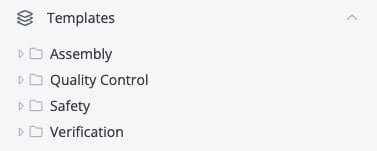
“Sidebar view showing the Templates section in Azumuta, with folders for Assembly, Quality Control, Safety, and Verification.”

Thanks to role-based access, you stay in full control of your source material. Process owners can update templates once and instantly strengthen quality everywhere they’re used, while the rest of the organization builds confidently on top of aligned, up-to-date instructions. The result: faster creation, cleaner governance, and far fewer inconsistencies to chase.
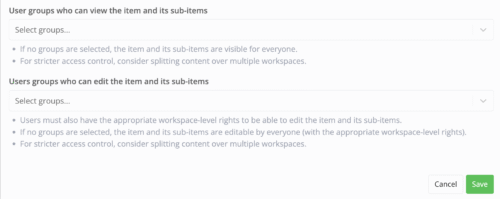
A permissions settings screen in Azumuta showing two sections: one for selecting user groups that can view an item and its sub-items, and another for selecting user groups that can edit them. Each section includes a dropdown labeled “Select groups…” and explanatory notes about visibility, edit rights, and stricter access control. Buttons for “Cancel” and “Save” appear at the bottom right.

The template library appears as a dedicated node in your Explore tree.

Learn more about work instructions in Azumuta.

Time Estimates in Work Instructions (Time Study Module) #

The Time Study module lets you sketch out estimated durations directly in your work instructions. Whether you’re planning a new line or refining an existing process, you can enter expected times per step, per workstation block, or for the full instruction, without affecting what operators see on the shop floor. These estimates give engineers a clean space to prepare upcoming time studies and balance workloads.

You can add or adjust estimates from the new Time Study tab or through the Time Study column in the balance table.
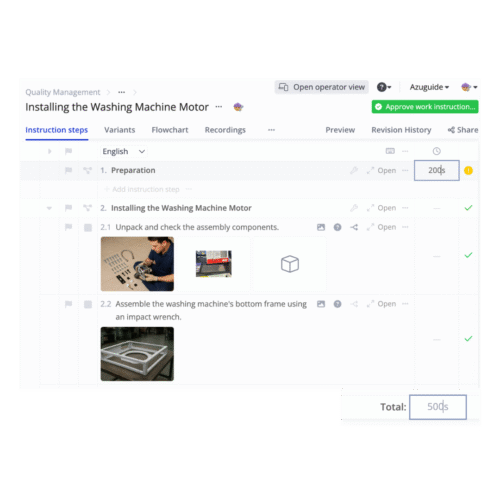
Screenshot of a work instruction editor for “Installing the Washing Machine Motor” in a quality management system. The Instruction steps tab is active, showing steps like unpacking components and assembling the bottom frame, each with images and icons. Time estimates appear on the right—one step set to 20 seconds, with a calculated Total: 50 seconds displayed at the bottom. Green check marks indicate completed or validated steps.

Learn more about Time Study in Azumuta.

Scheduled Releases for Work Instructions (Approval Workflows) #

Set an effective release date when approving a work instruction version. Approve updates ahead of time, choose exactly when they should go live, and let Azumuta handle the switch automatically. This prevents early visibility on the shop floor, removes last-minute coordination, and gives you a clean audit trail of who approved what and from when it applies.

Only versions whose release date has passed are shown to operators, while future versions stay approved but hidden until their scheduled activation. This makes planned rollouts and phased changes far easier to control.

When you set a future effective date when approving a version, Azumuta will activate it automatically at that moment, with the date visible in Revision history and adjustable later through Approval Workflows.
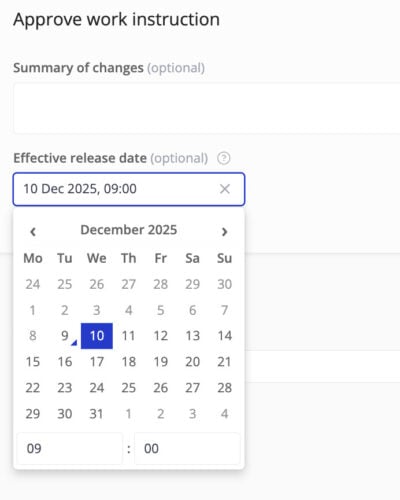
Screenshot of the “Approve work instruction” modal in Azumuta. It includes two optional fields: Summary of changes (empty) and Effective release date, where the selected date is 10 Dec 2025, 09:00. A date and time picker is open below, displaying a monthly calendar for December 2025 with the 10th highlighted in blue.

Learn more about Approval Workflows in Azumuta.

Audit Review Flow #

Send every completed audit recording straight into a structured review flow on your improvement boards. Each run gets its own issue with a unique audit number, making approvals, rework, and follow-up fully trackable. This turns audit compliance into a clear, controlled process rather than something teams have to chase manually.

Set an audit trigger to send each finished audit run to a Review flow on an Improvement Board, where it’s approved or sent back for rework; approved runs are marked as such, while declined ones trigger a rework cycle that returns for review.
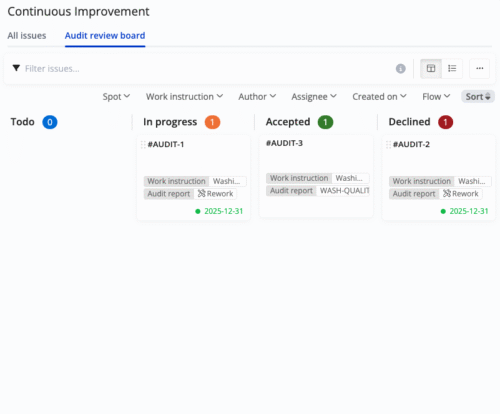
“Screenshot of the Continuous Improvement module in Azumuta, showing the Audit Review Board with four columns: Todo (0 items), In Progress (1 item), Accepted (1 item), and Declined (1 item). Each issue card displays tags for work instructions and audit reports, a status indicator, and a due date. Filters and sorting options are visible at the top.”

Learn more about Improvement Boards in Azumuta.

Do you have further questions? Click here and send us a message!

How can we help?

Updated on 11 December 2025
October 2025 [Release v0.532.0 – v0.537.0]
Table of Contents
  • Reusable Work Instruction Library + Restricted Access
  • Time Estimates in Work Instructions (Time Study Module)
  • Scheduled Releases for Work Instructions (Approval Workflows)
  • Audit Review Flow