See product orders from the app
In Azumuta, a product order is generally executed via the app from an operator’s device. Here’s how an operator can see the product orders that exist in their workspace:
See the list of product orders on the app
There are two ways to see the list of product orders on the app: accessing it from the homepage and from the sidebar.
From the Homepage
- Click View product orders on the homepage.
From the Sidebar
- Click the sidebar icon on the top left corner of the screen.
- Click Product Orders.
Displaying all Product Orders vs Displaying Product Orders That Are Assigned to You Only
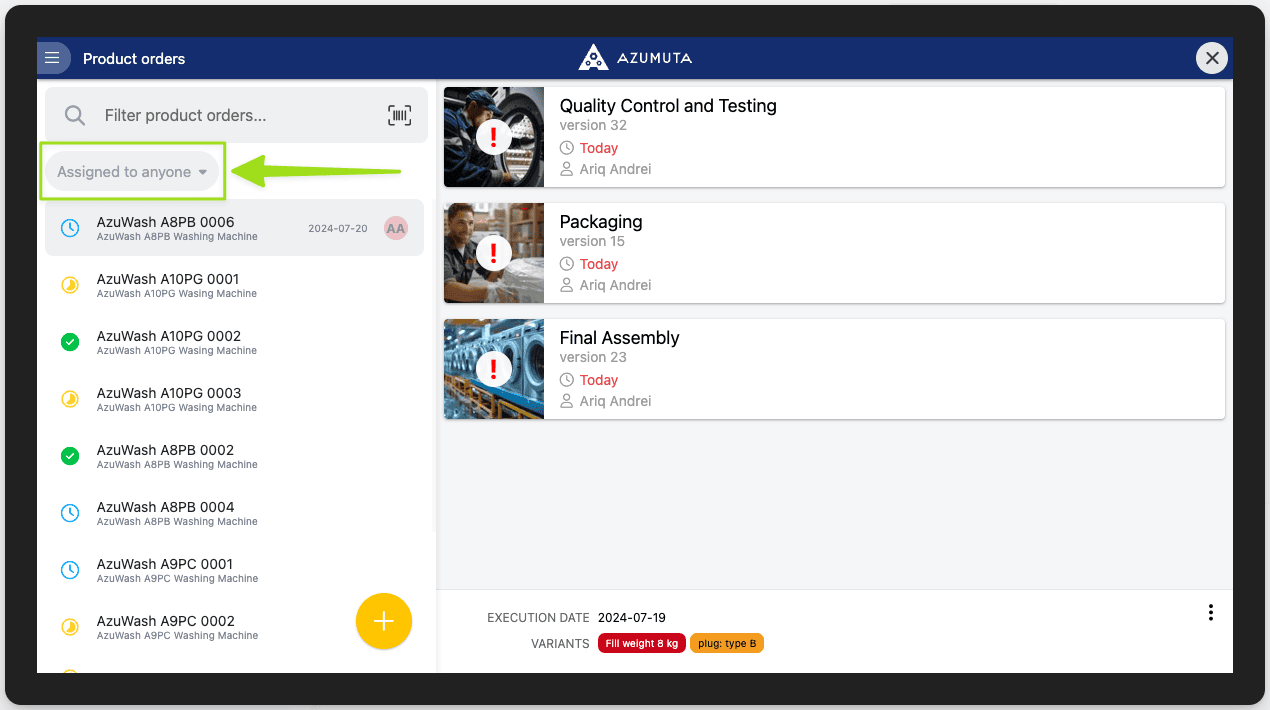
You can click the dropdown menu shown below, to choose whether:
- To display all product orders, or
- To display product orders that are assigned to you only
How an Admin Can Hide the List of Product Orders on the App
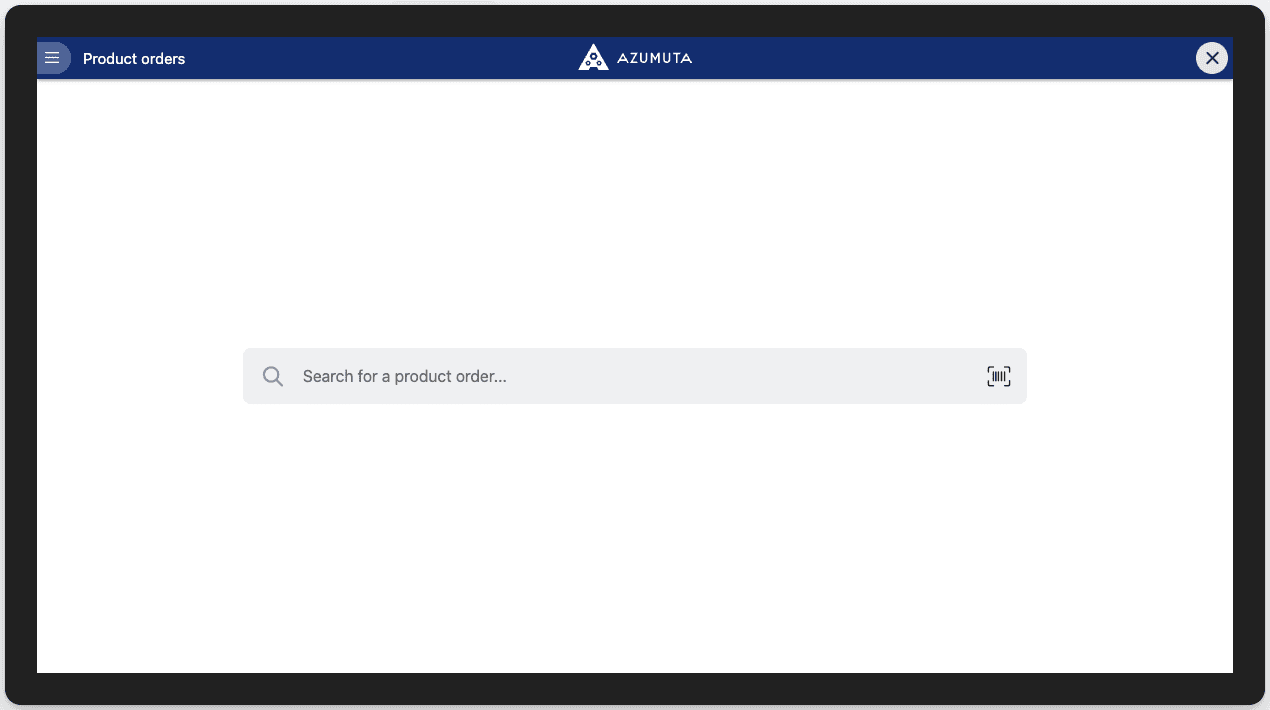
An admin can also hide the list of product orders from the operator’s screen. Thus, in order to reach a product order, an operator must either:
- Type in the product order number/name
- Scan that product order’s QR code
The rationale is:
- To ensure that the operator can’t select a product order that they’re not supposed to work on.
- To minimize the clutter on the operator’s screen
Here’s how to implement this feature as an admin:
- Click Devices under Management.
- Click the ⋮ (three-dot) icon next to the device where you would like to use this feature.
- Click Edit device.
- Click the Product orders tab
- Tick the boxes next to Fullscreen product select and Hide product order list.
- Click Save.
And this is how the Product Orders menu will appear on the operator’s screen:
Access a product order on the app
There are two ways to reach a product order: by navigating to it or by scanning a QR code.
By Navigating to It Directly
- Click View product orders on the homepage.
- Click the targeted product order.
By Scanning a QR Code
It’s also possible to access a specific product order using a QR code. In this method, the operator must scan a QR code using their device. Afterward, their screen will be redirected to the product order that is linked to that QR code.
This method ensures that the operator will always open the correct product order. In addition, it also saves the operator’s time, as they will no longer need to look for the product order manually every single time.
This method is very advantageous for workspaces that must handle a large volume of product orders every day.
Using this method requires two phases:
An Admin Generates the QR Code and Shares it to an Operator
In the first phase, an admin must generate a QR code for the targeted product order and share it with the operator. This phase can only be done from the admin view.
- Click Quality Management on the homepage sidebar.
- Click Product orders.
- Click the targeted product order.
- Click the ⋮ (three-dot) icon next to the deadline date of that product order.
- Click Get QR Code.
- Click the print icon.
- Save it as a PDF or print it. Then, share it with an operator that needs that QR code.
The Operator Scans The QR Code
After the operator has scanned that QR code, they will need to scan it in order to reach that product order. Here’s how to open the product order QR code scanner:
- Click View product orders on the homepage.
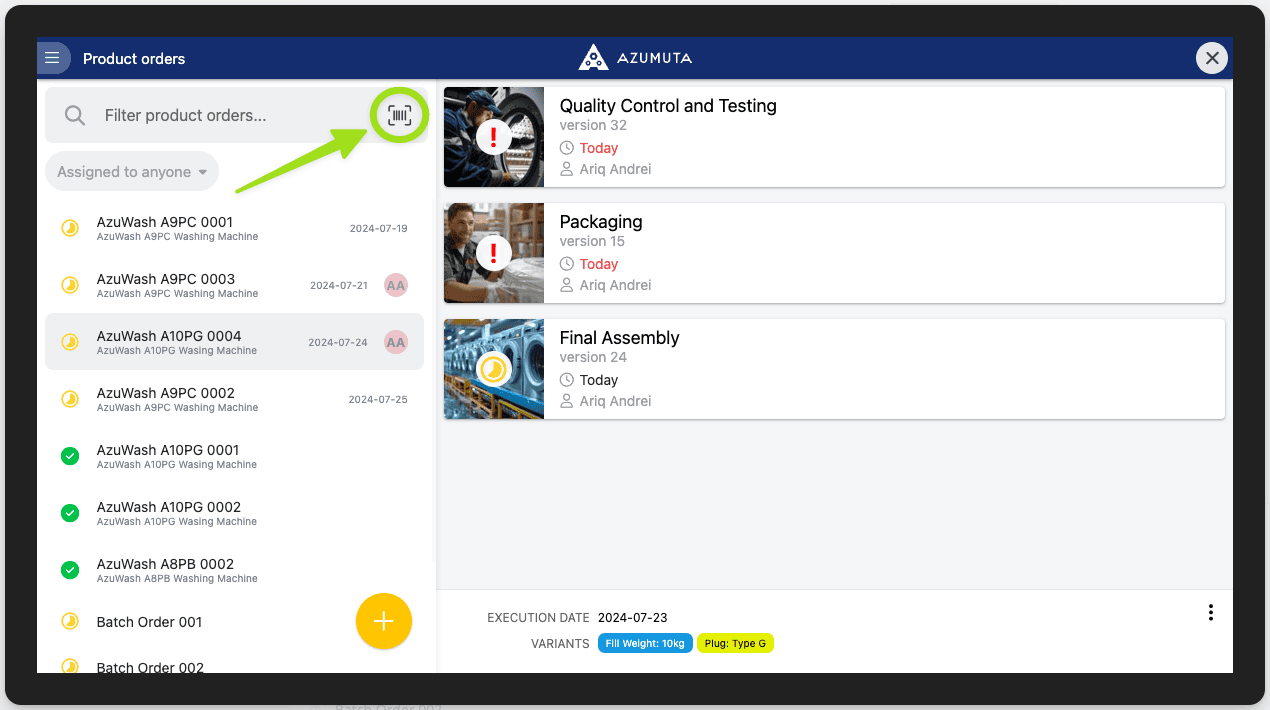
- Click the scanner icon.
Click the scanner icon (as pointed out below) to open the scanner on your device.