Basic Product Checks
Within Azumuta it is possible to add different kinds of product checks to a work instruction. Below, you’ll find an overview of the basic product checks that you can use in Azumuta.
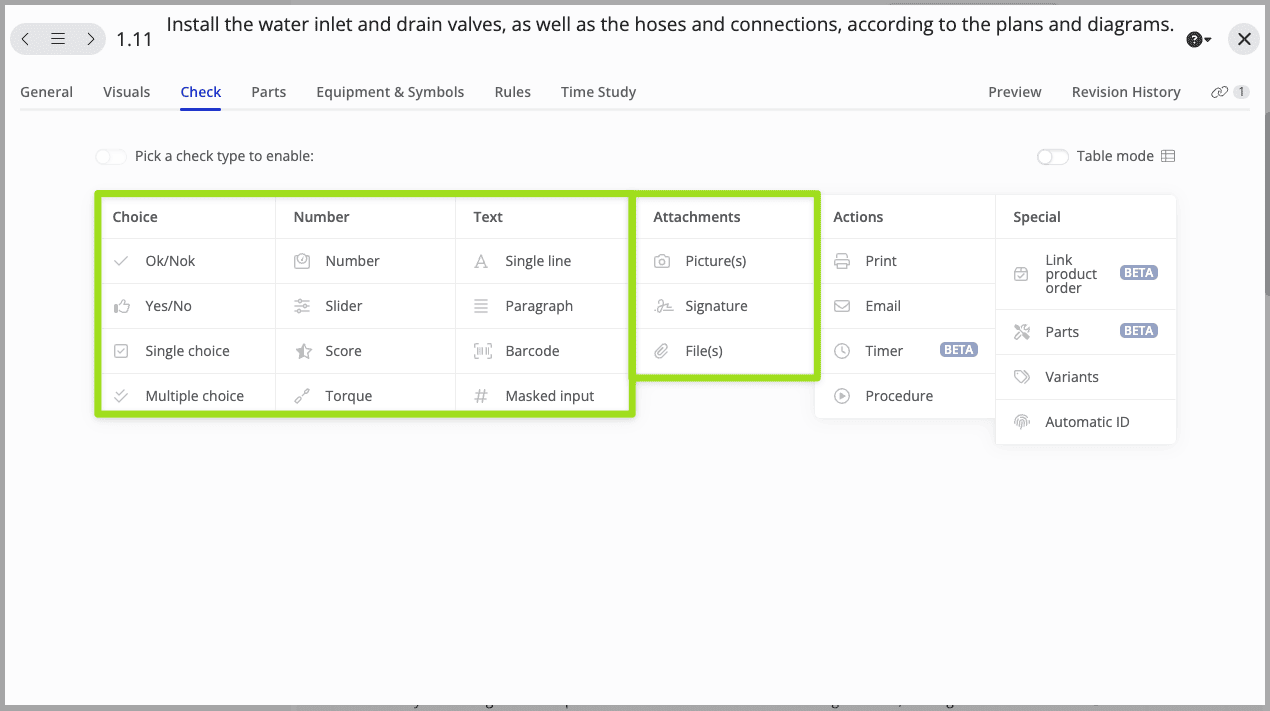
The product checks that we consider as “basic” are the ones that we highlighted below.
Choice-Based Checks
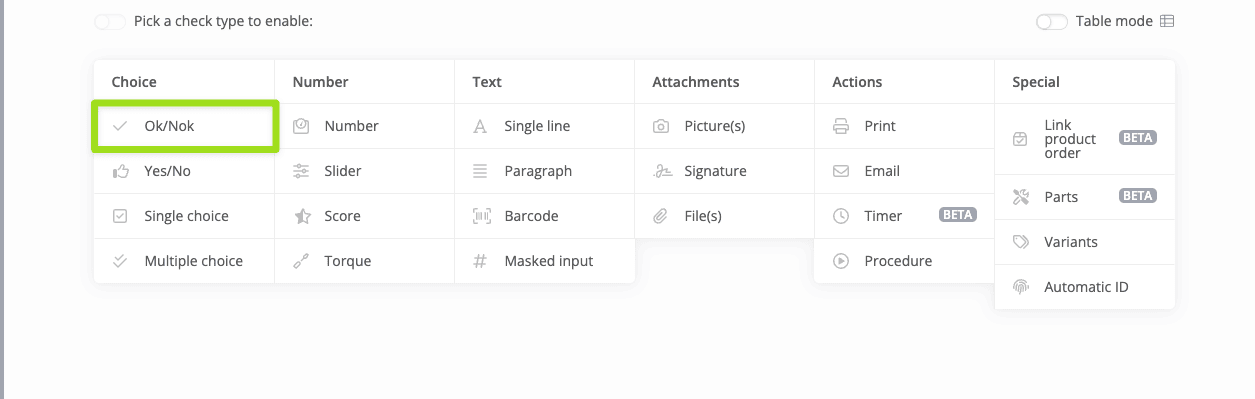
OK/NOK Check
The operator selects an OK or Not OK answer.
This is how this check appears on the operator view: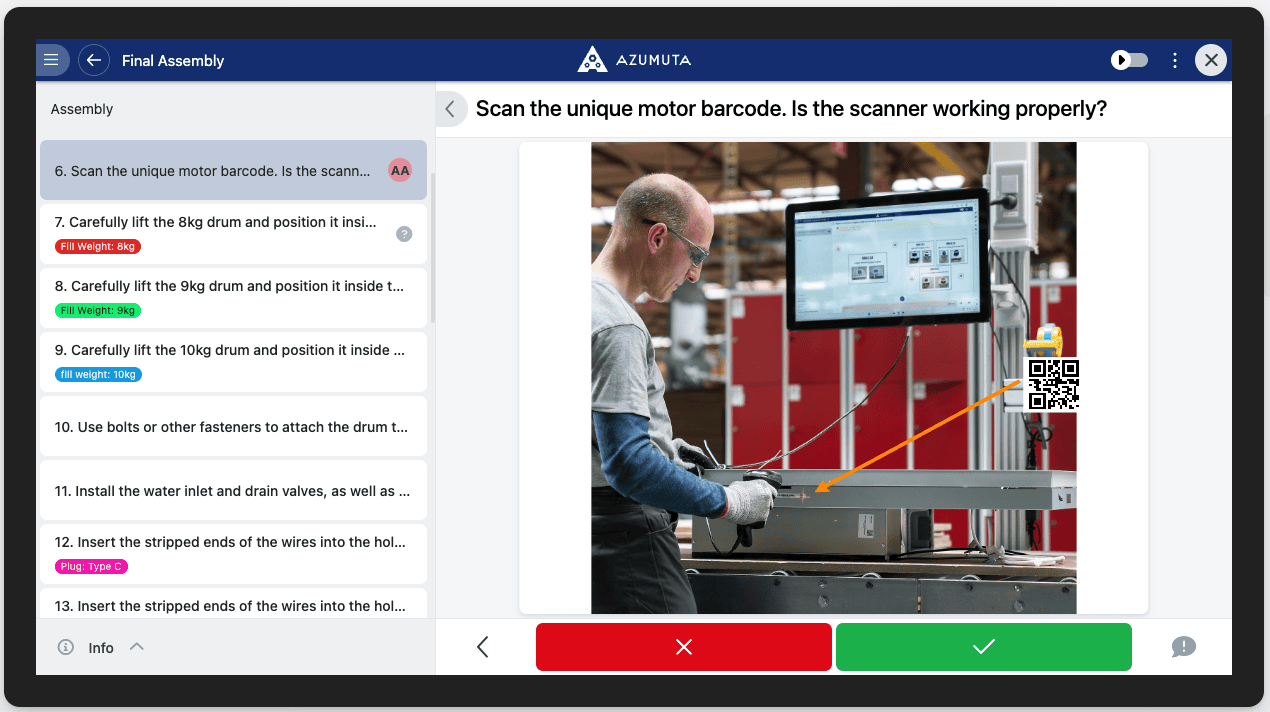
Yes/No Check
The operator selects a Yes or No answer.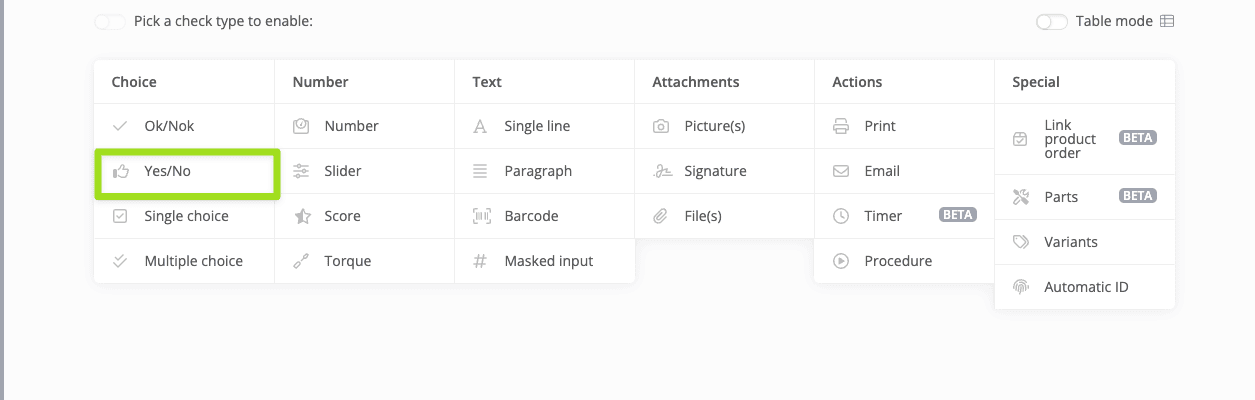
This is how this check appears on the operator view: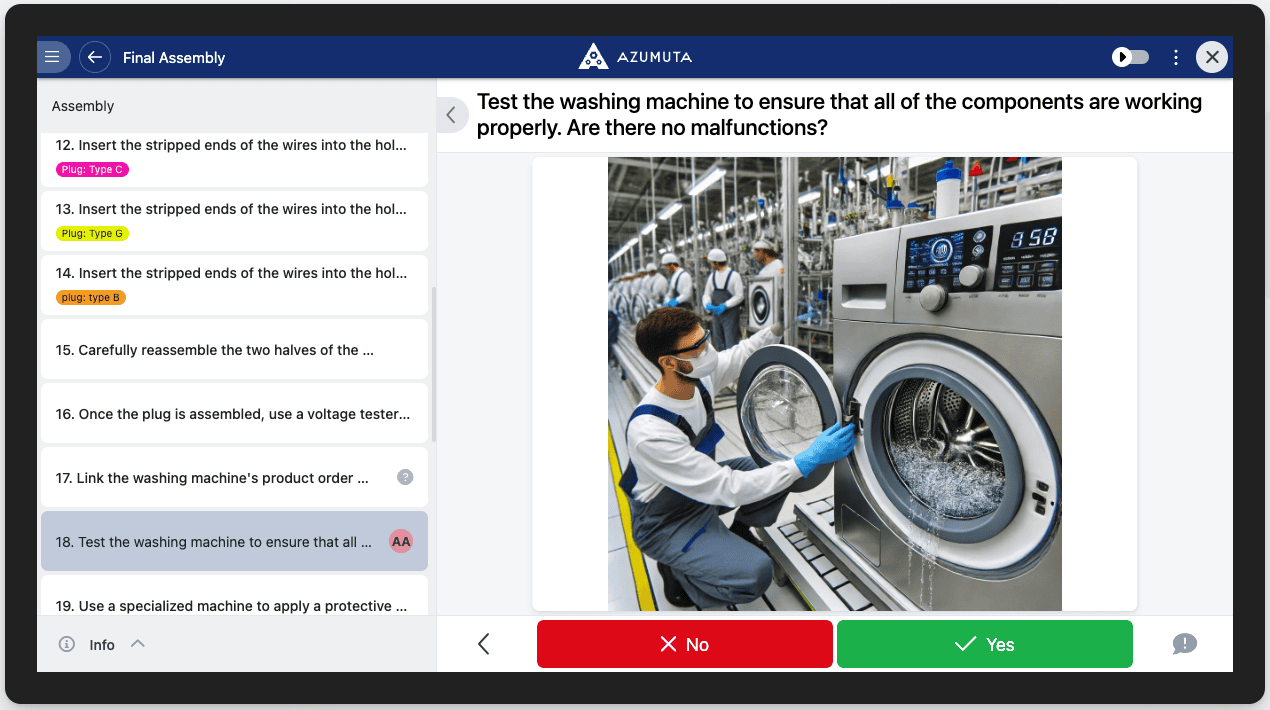
Single Choice Check
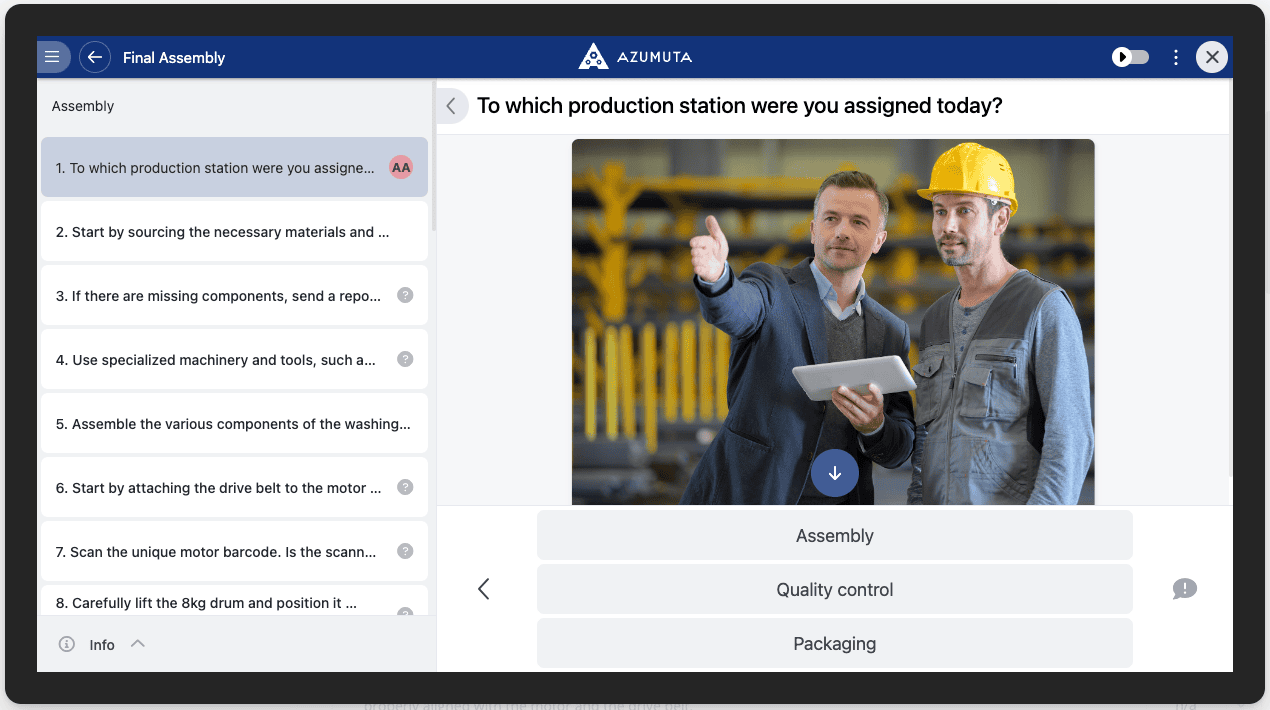
With Single Choice, predefined values are displayed to the operator, who selects a single answer from the available options.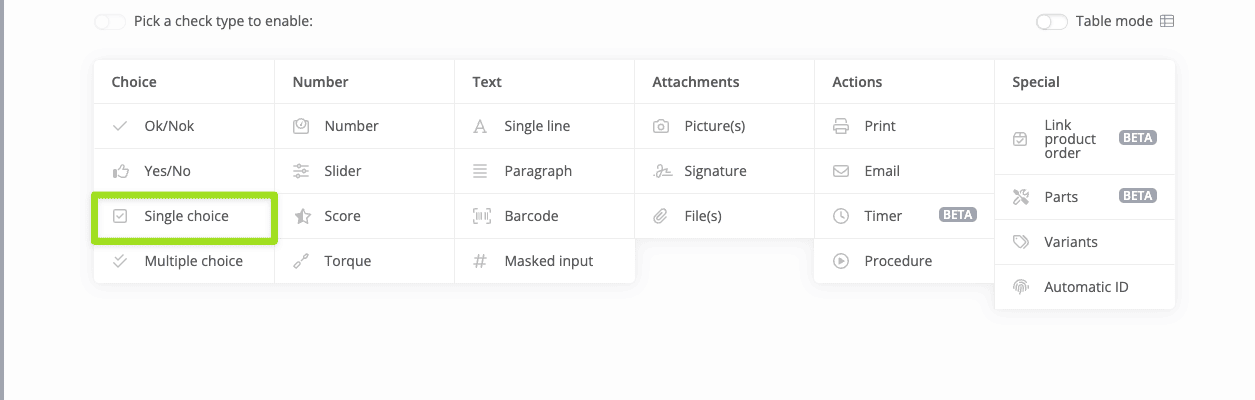
This is how this check appears on the operator view:
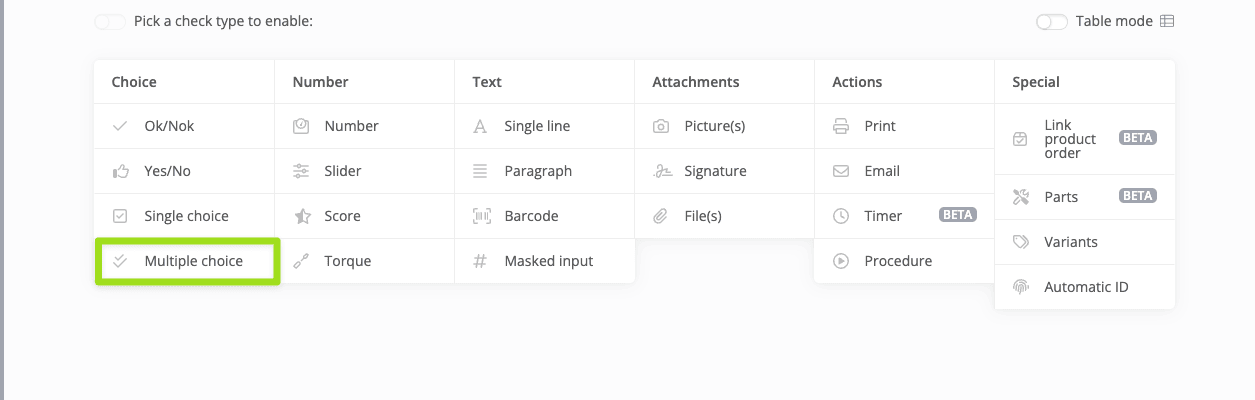
Multiple Choice Check
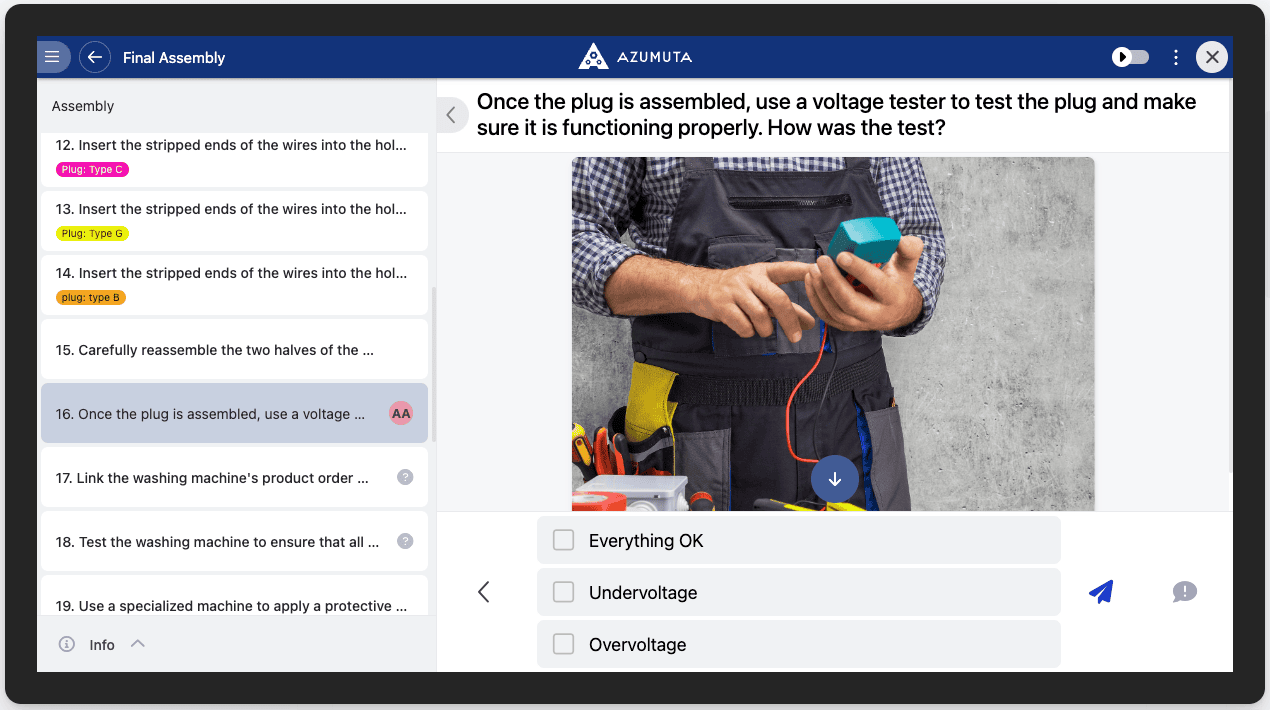
With Multiple Choice, predefined values are displayed to the operator, who can select multiple answers from the available choices.
This is how this check appears on the operator view:
Number-Based Checks
Tip: For number-based checks, you can specify a range that the operator's response must fall within to be deemed acceptable.
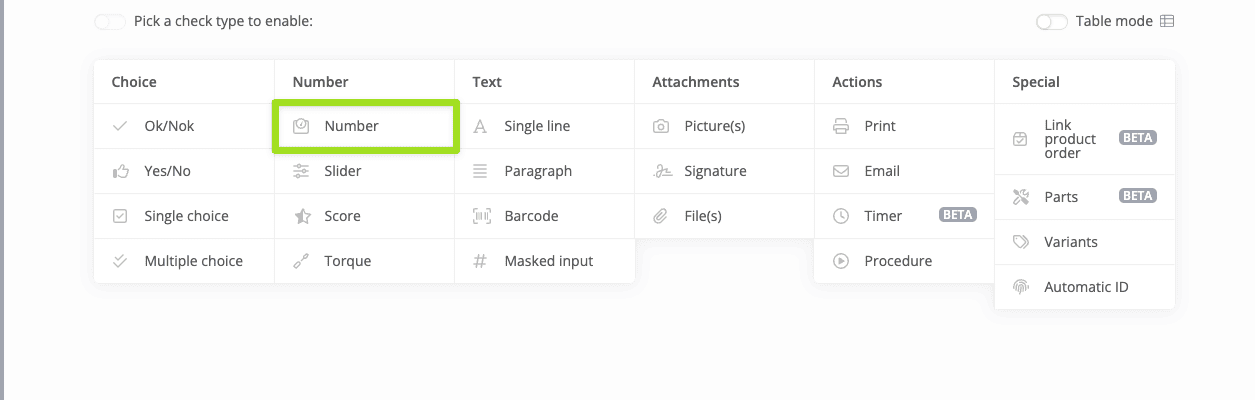
Number Check
The operator enters a number as the answer.
This is how this check appears on the operator view: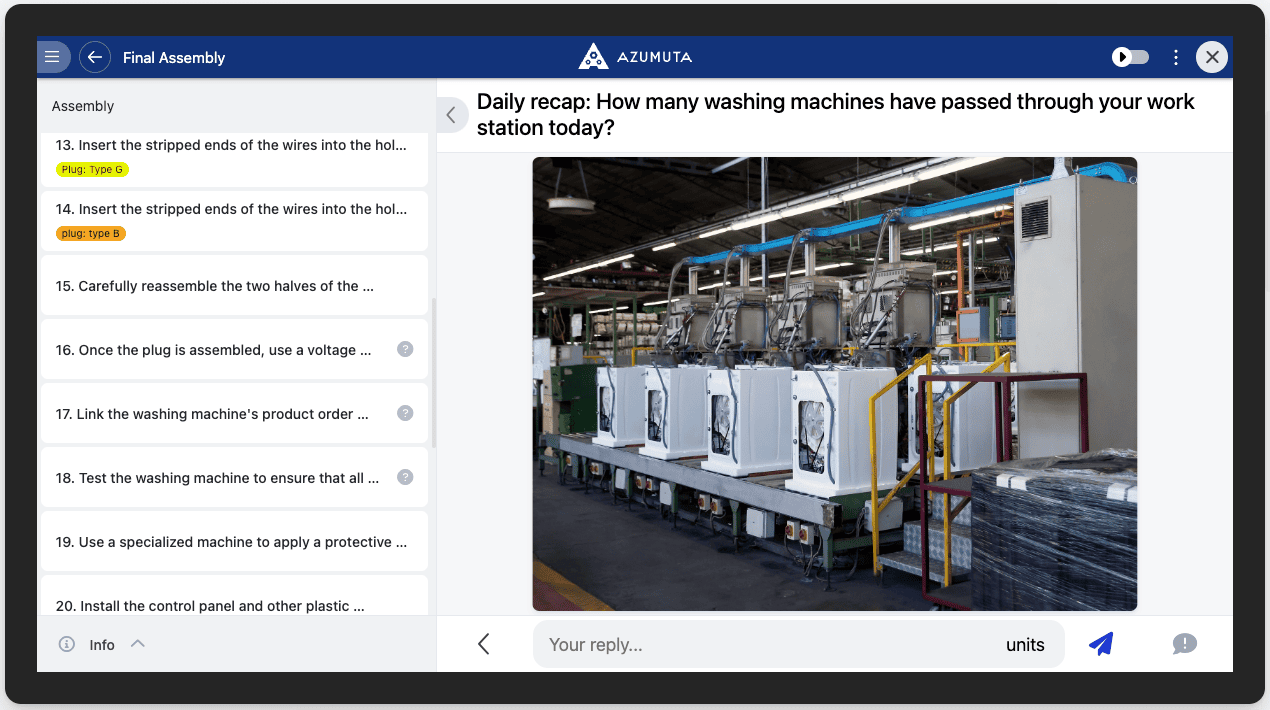
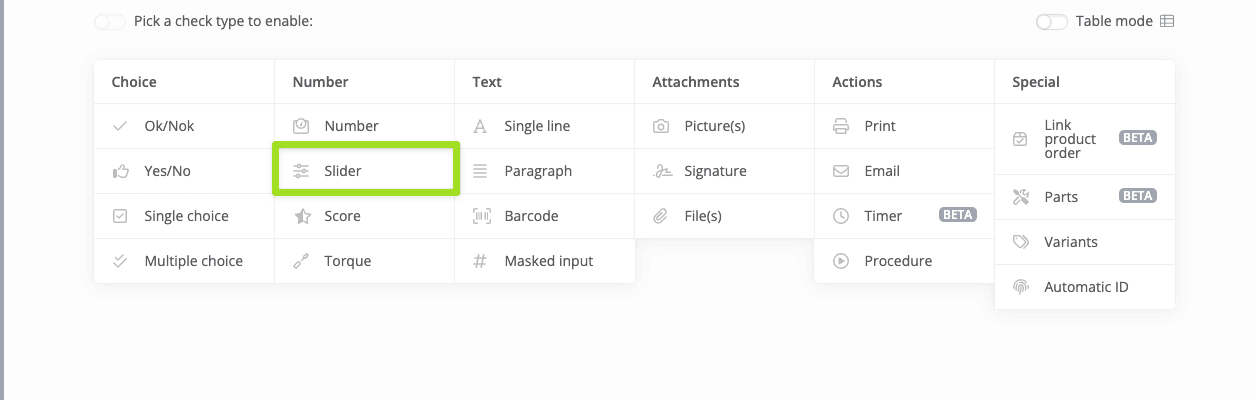
Slider Check
In a slider check, the operator drags the slider to enter a value as the answer.
This is how this check appears on the operator view: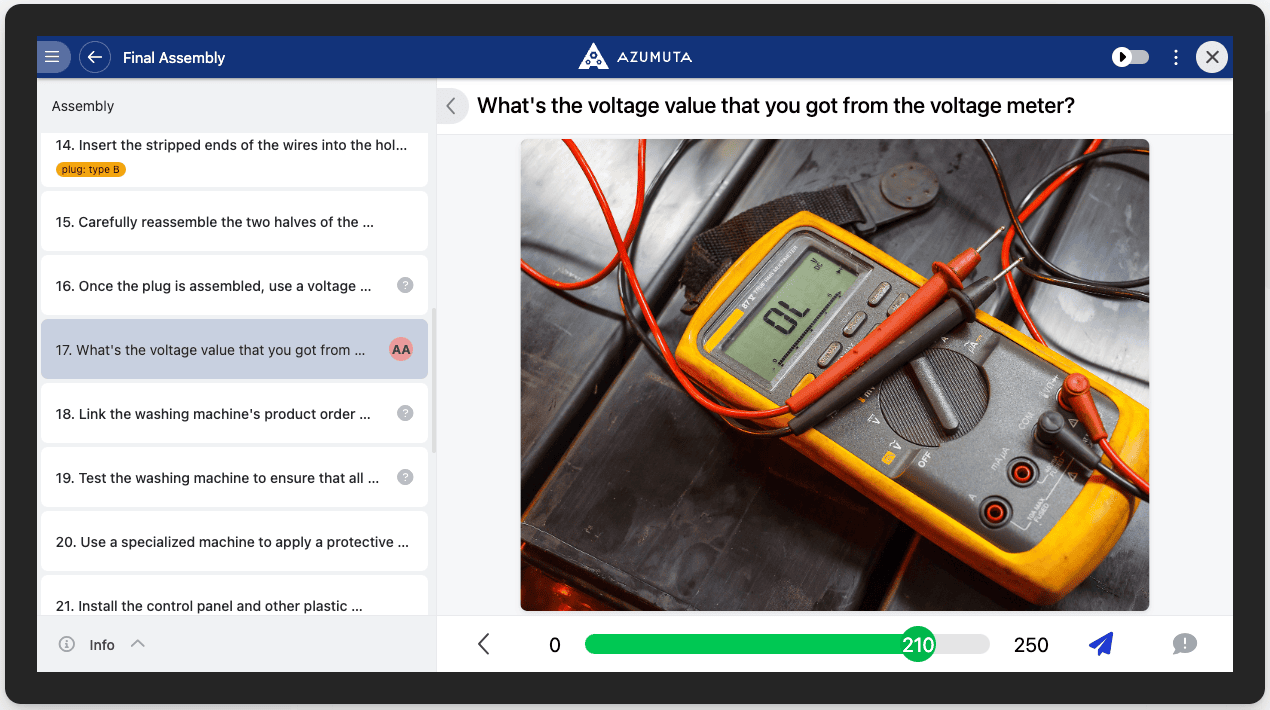
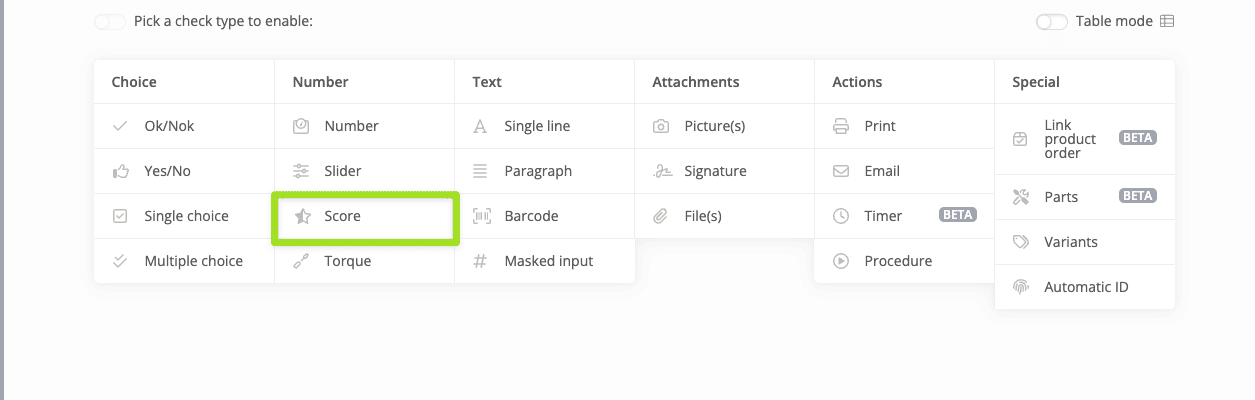
Score Check
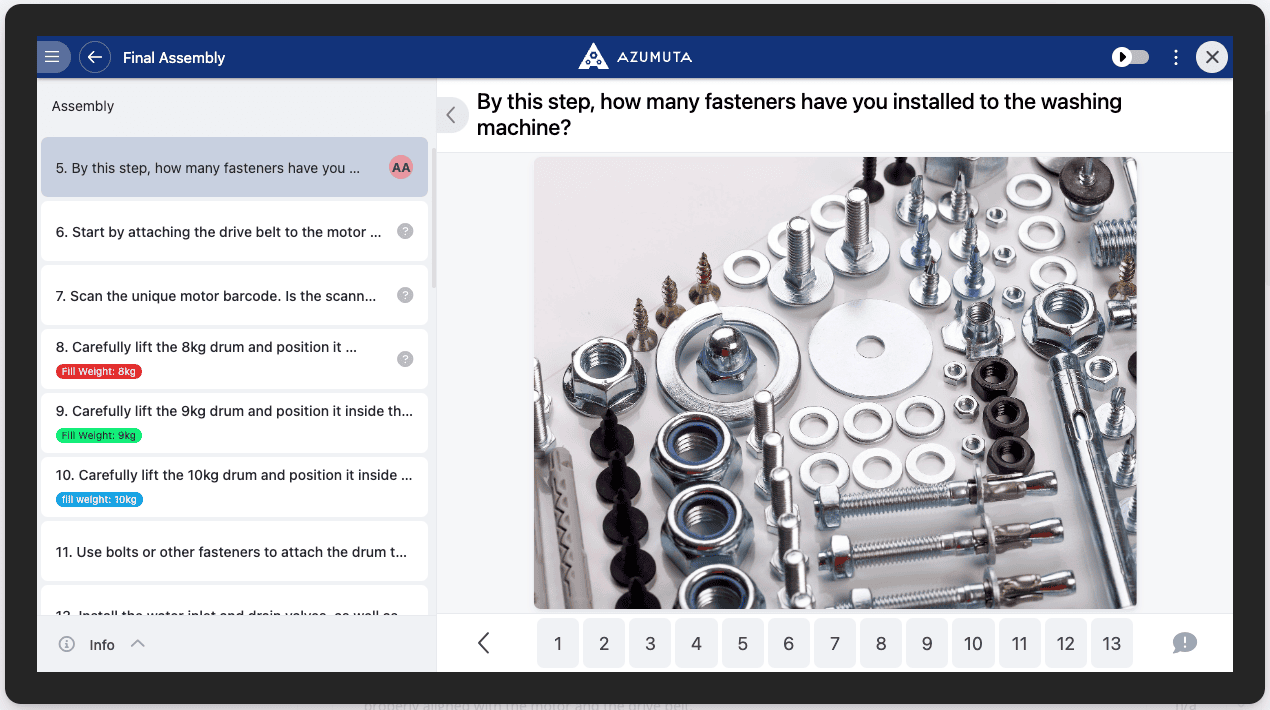
In a score check, predefined numerical values are displayed to the operator, who selects a single value from these.
This is how this check appears on the operator view:
Torque Check
Learn more about the torque check.
Text-Based Checks
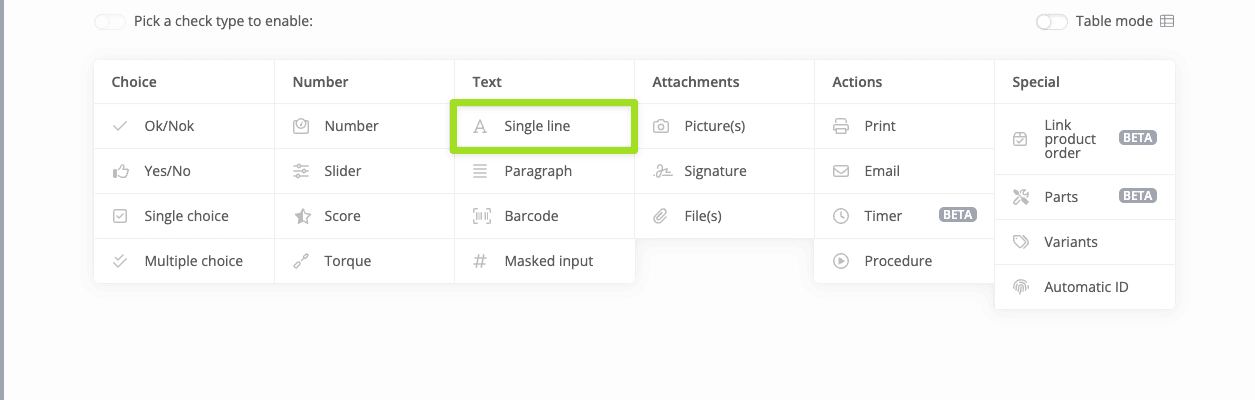
Single Line Check
In a single line check, the operator enters a free single-line text as the answer.
This is how this check appears on the operator view: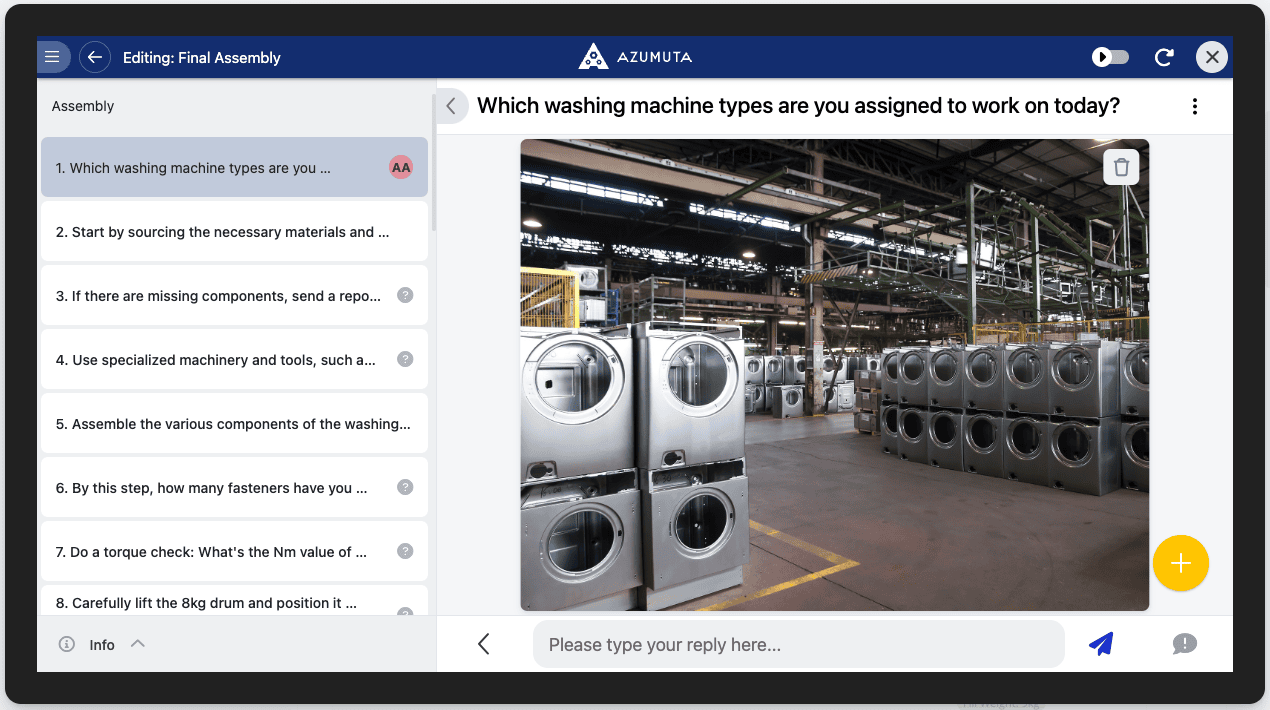
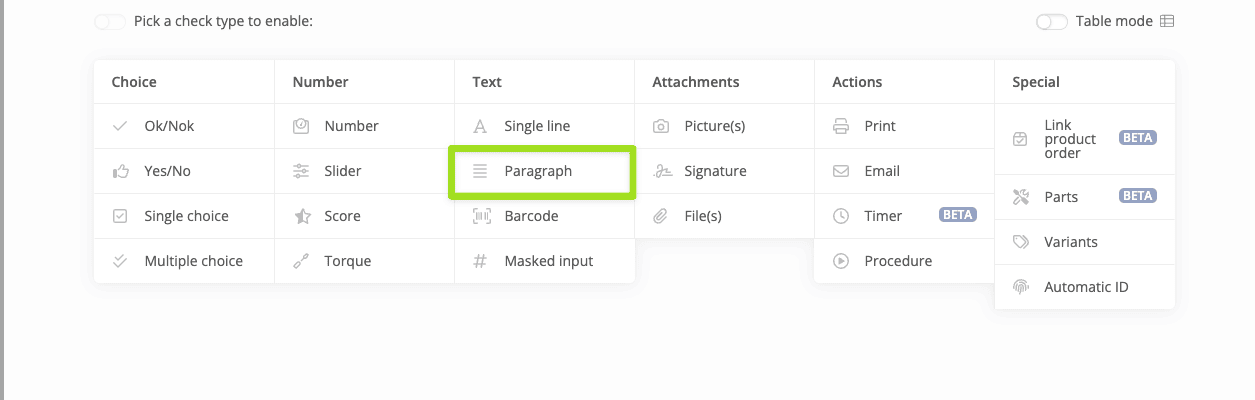
Paragraph Check
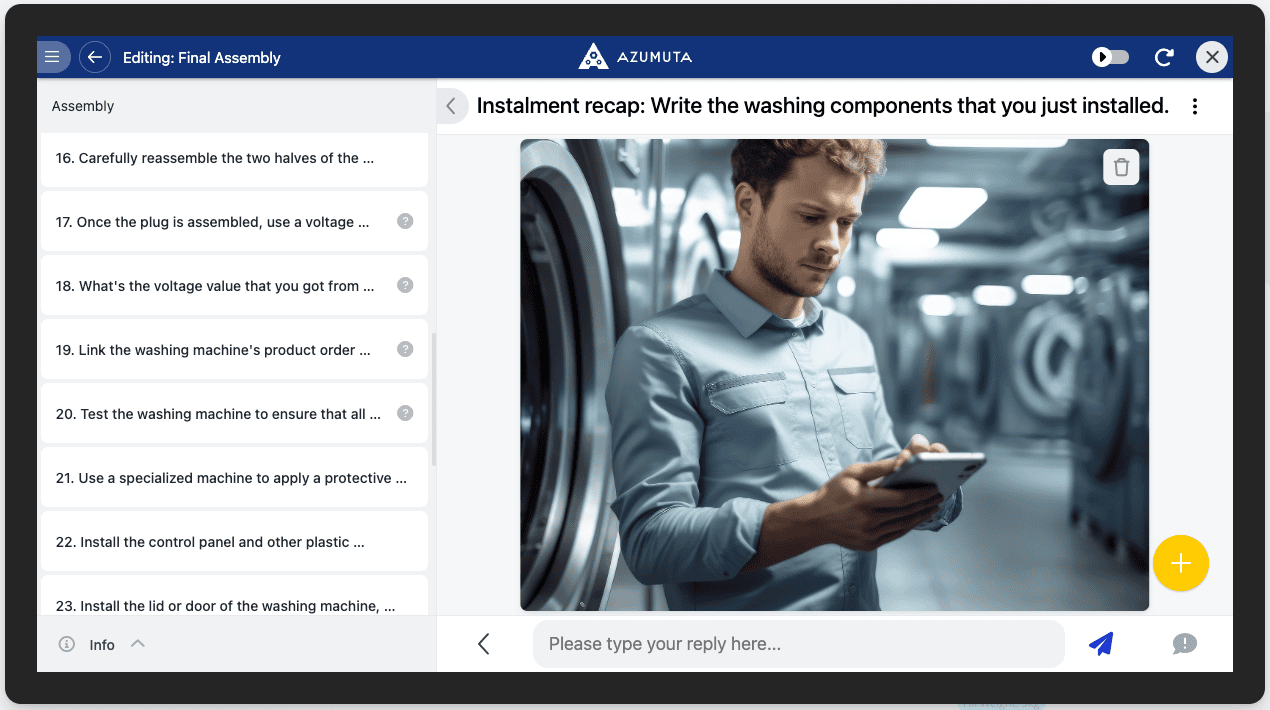
In a paragraph check, the operator enters free text as the answer. This text can span multiple lines.
This is how this check appears on the operator view:
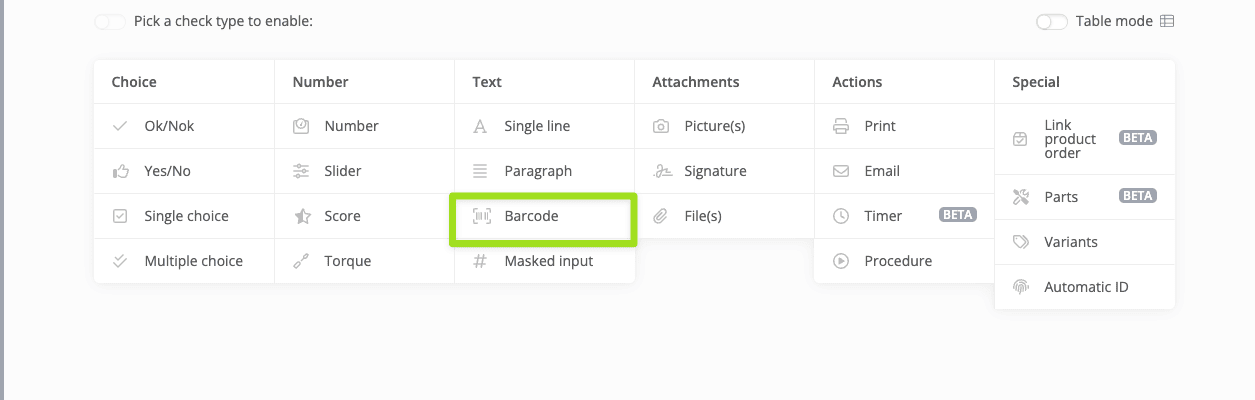
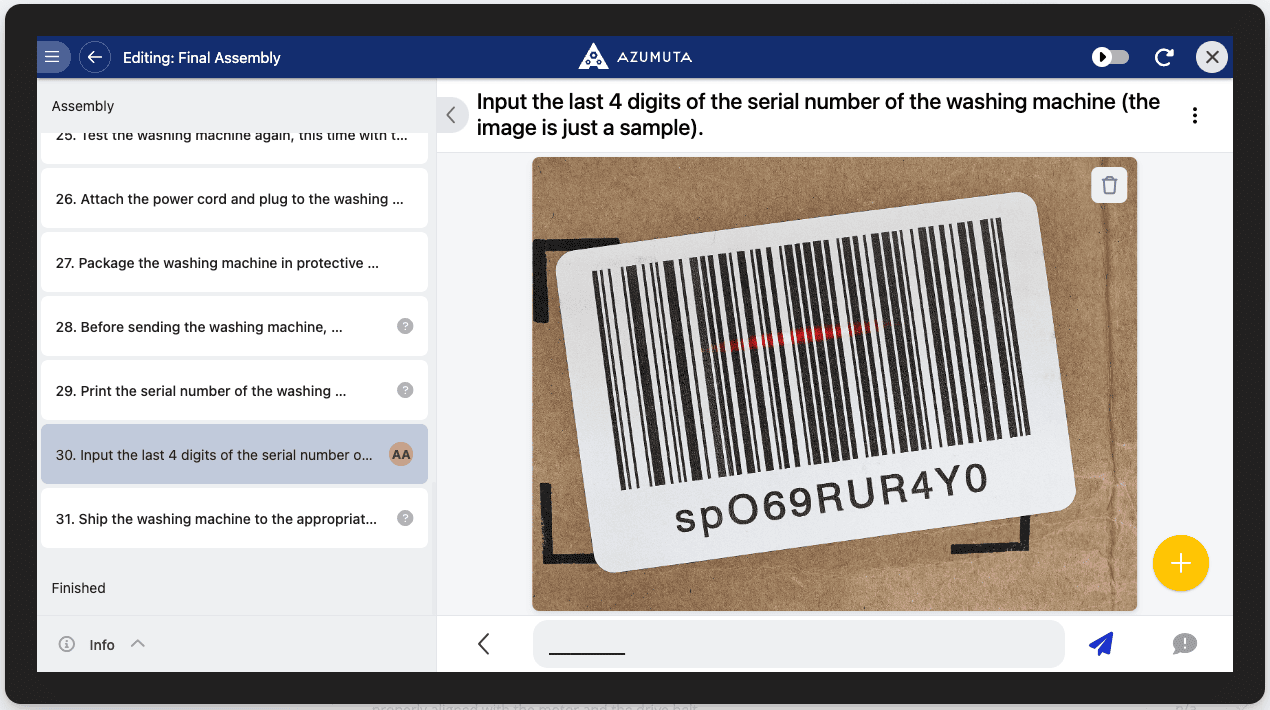
Barcode Check
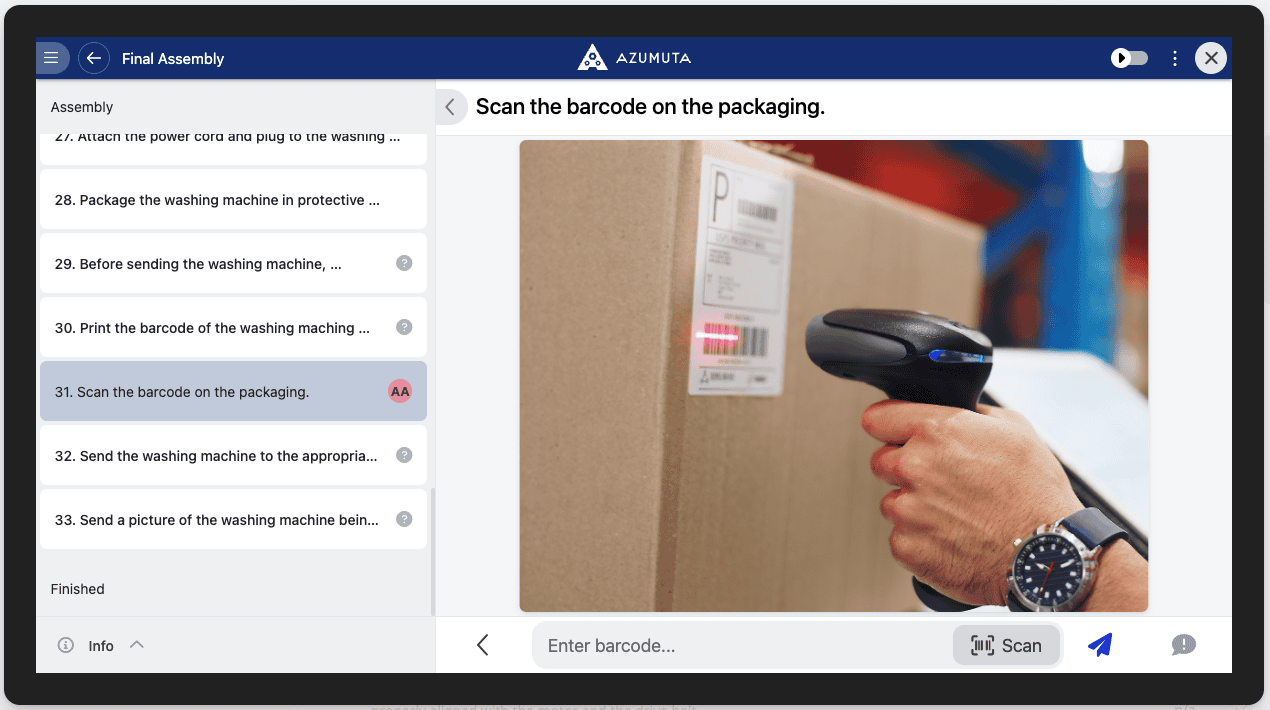
In a barcode check, the operator scans a barcode, or manually types in the barcode’s readable data string. The scanned values are saved as the answer in the product order work instruction report.
This is how this check appears on the operator view:
Barcode Options
Here are the possible configuration options that are exclusive for this product check:
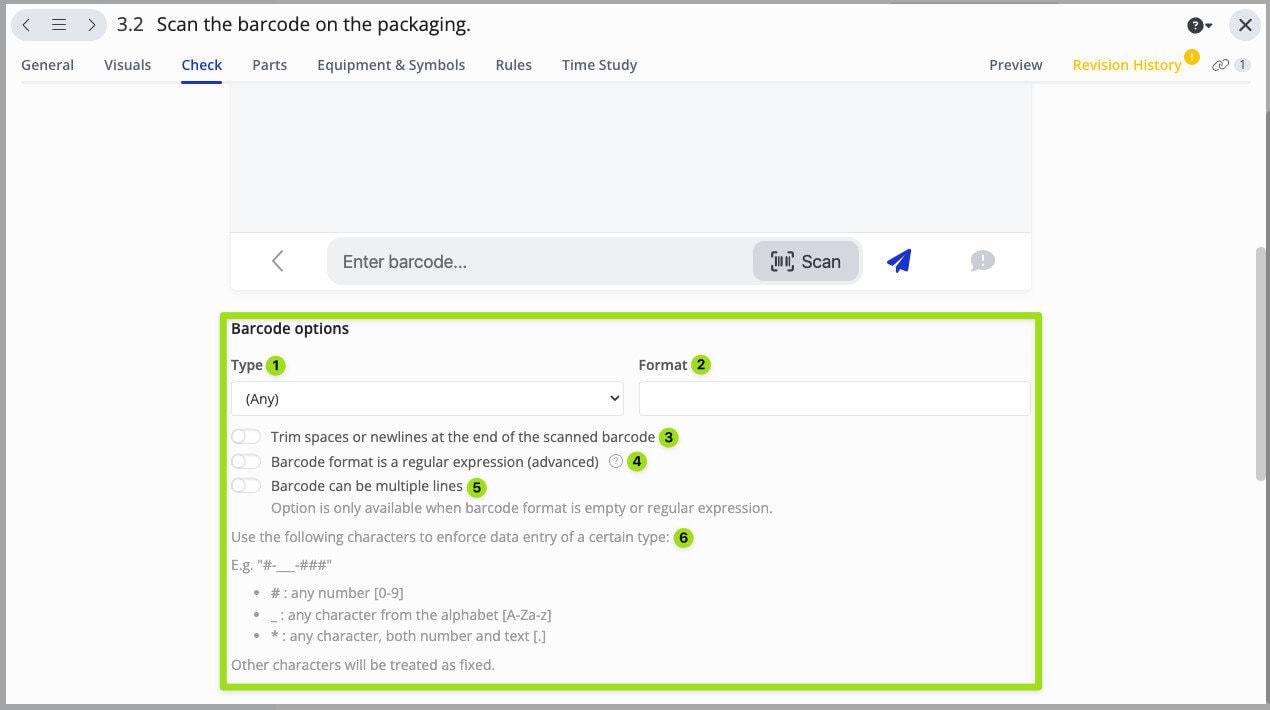
- Select the barcode type that will be used.
- If you want the values extracted from the barcode to follow a specific format, then you can input the format here. Please consult No.6 to see the characters that you can use to create a specific format. For example, you want the values extracted from the barcode to consist of 5-digit numbers. Thus, in this field, you should write “#####” (since the hashtag symbol represents a number, as shown on No.6). If the values extracted from the barcode do not consist of 5-digit numbers, then the instruction step will signal that the extracted values are invalid, and the operator won’t be able to proceed to the next instruction step. This feature helps to prevent any unwanted deviation.
- If this toggle is activated, then all spaces and newlines at the end of the values extracted from the barcode will be automatically deleted. This feature is useful to ensure data consistency across all product orders in your workspace.
- If this toggle is activated, then you can add a requirement for the values extracted from the barcode. For example, if you choose to only accept values in the form of numbers on No.2, you can add the requirement that the numbers must be bigger than 3 but smaller than 8. Thus, only the numbers 4-7 are accepted on the product check, and other numbers will be deemed invalid. To use this feature, please contact us via our support@azumuta.com email.
- If this toggle is activated, then the values extracted from your barcode can have multiple lines (rows). If this toggle is not activated, then only the first line of values from the barcode is extracted.
- These are the characters that you can use to adjust the format in No.2.
Masked Input Check
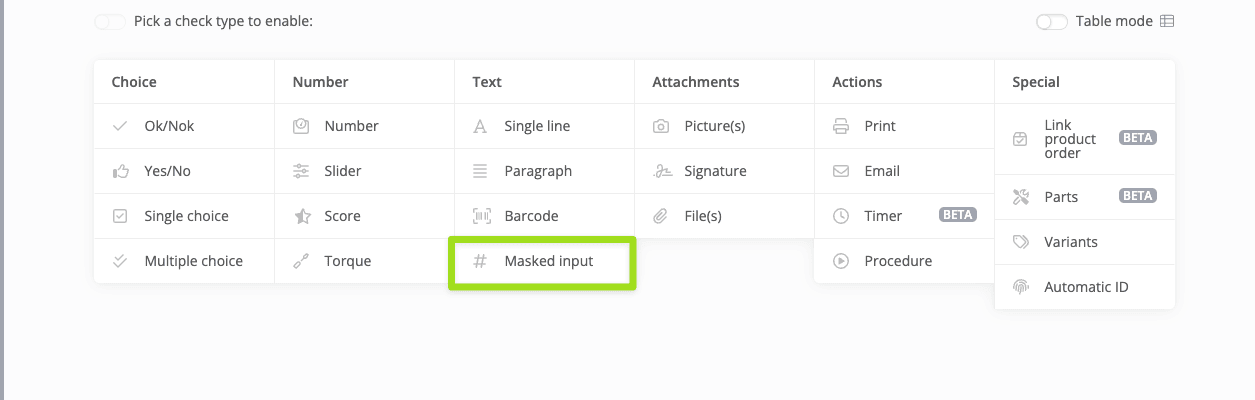
In a masked check, you set restrictions on the shape of the value the operator enters. This check is mainly used to prevent typing errors.
Note: Please note that when defining a masked input check, the entered value will always have to conform to this form. Therefore, it is recommended to use this check only when this form is always the same when an operator enters it.
This is how this check appears on the operator view:
Attachment-Based Checks
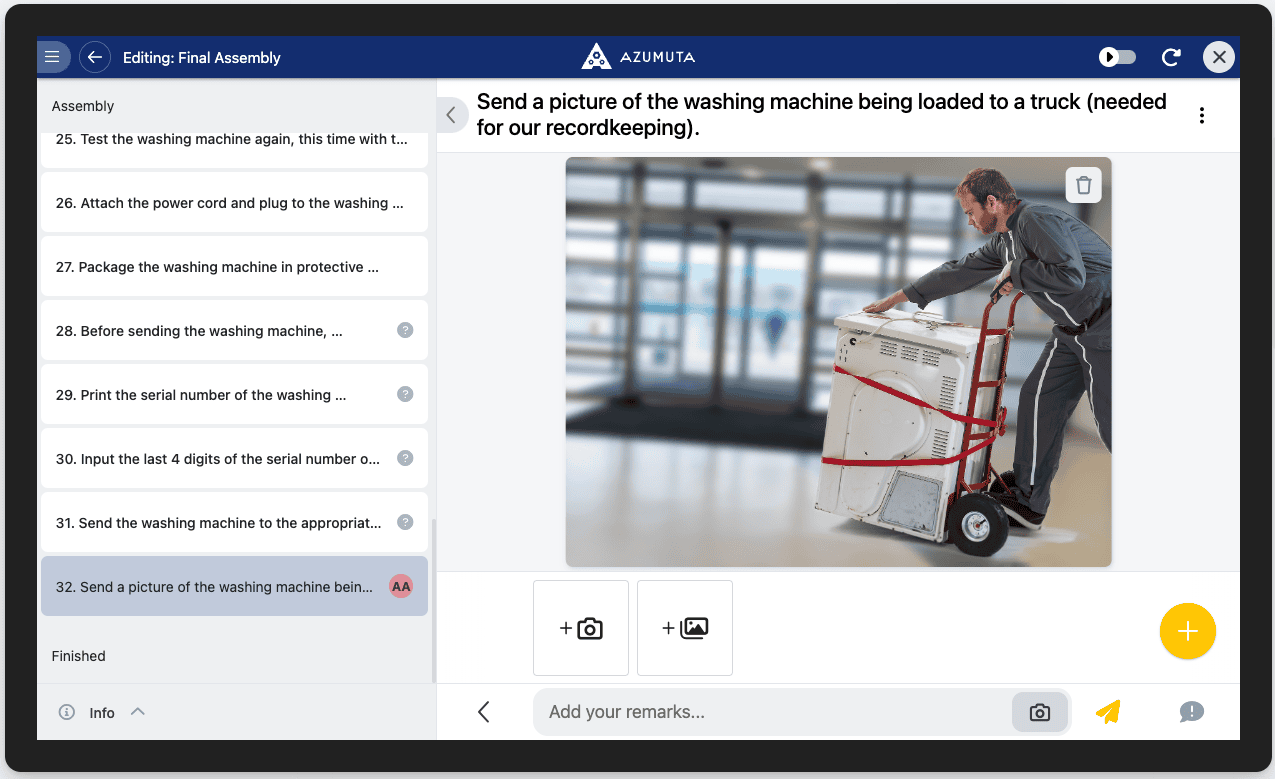
Pictures Check
In a picture check, the operator uploads a picture as the answer.
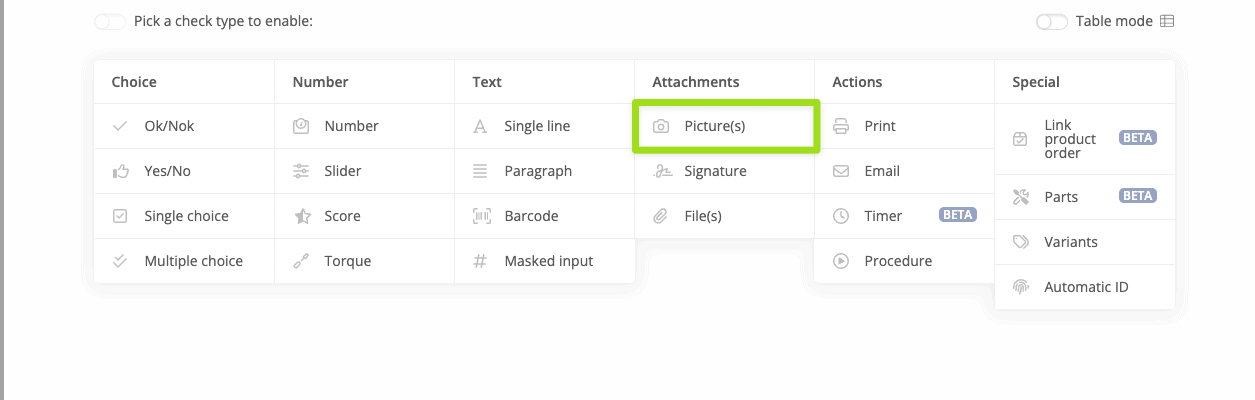
This is how this check appears on the operator view:
Electronic Signature Check
An electronic signature check asks the operator to confirm their identity before the answer is recorded, instead of drawing a signature. This is useful when a step needs proof of who approved it, with an audit trail, rather than just a name and a doodle.
You configure:
- Electronic signature allowed by: choose who can provide the signature, the current user, specific users, or specific user groups. If you choose user groups, you can also exclude the current user from signing even if they belong to a selected group.
- Signature is requested automatically when reaching this check: when enabled (default), the authorization prompt opens as soon as the operator reaches this step. When disabled, the operator must tap Request signature to open it.
- Send email notifying the selected users or groups when signature is requested: sends a notification email when the check is reached.
- Authorization method: choose whether the operator can sign with a login identifier (if allowed by the device’s security settings) or must always sign with email and password.
On the operator view, the operator (or the selected person or group) proves their identity with a badge or login identifier, email and password, or single sign-on, depending on your configuration and device settings. Once authorized, the check records who signed.
Note: To require this check before an operator can continue to the next instruction step, use the Required to be filled in before proceeding to next instruction step setting, the same general option available on every check type.
Handwritten Signature Check
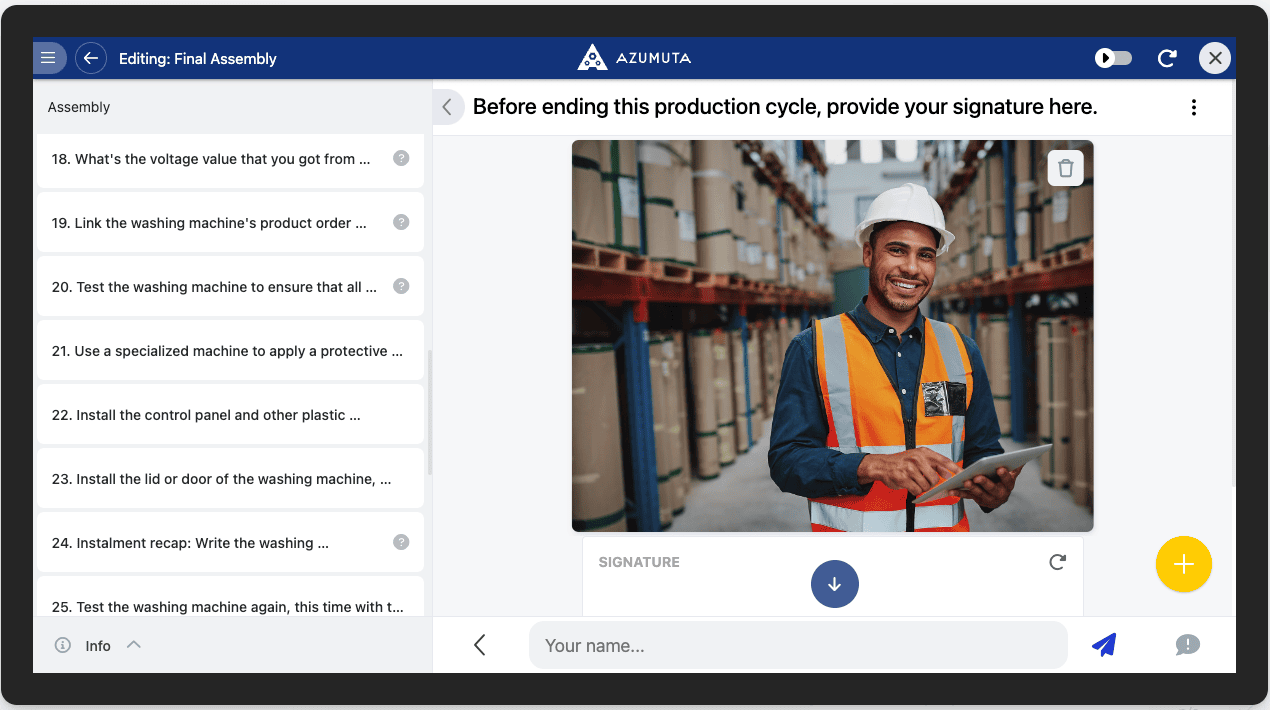
In a handwritten signature check, the operator enters a signature and/or a name as the answer.
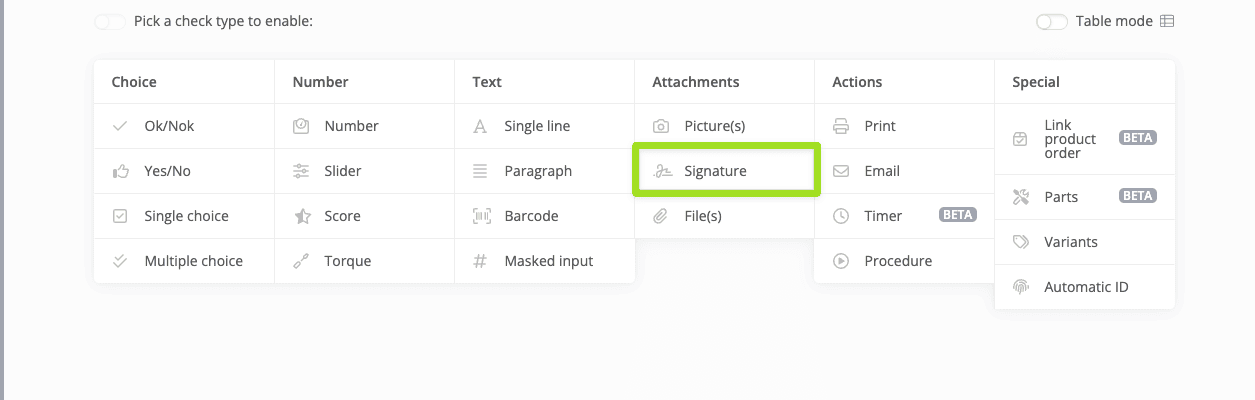
This is how this check appears on the operator view:
Files Check
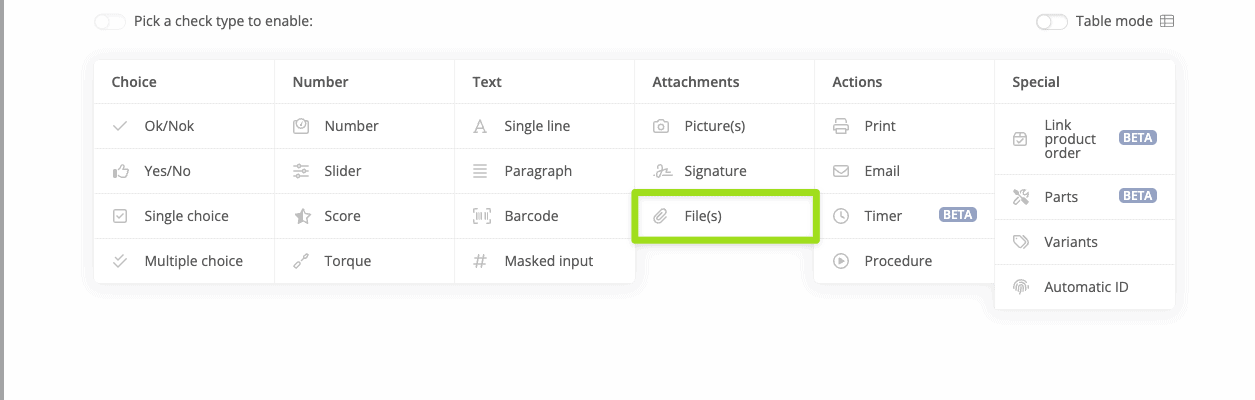
In a file check, the operator adds an attachment file.
This is how this check appears on the operator view: