
Manage user groups
What Is a User Group?
A user group is a collection of Azumuta user accounts within a workspace. Accounts are typically grouped by a shared characteristic, such as their role (admin or operator), expertise level, or department.
Add a new user group
- Click Users under Management.
- Click Groups.
- Click the yellow plus button.
- Type in the group’s name.
- If this is a group for admins, then tick the box. If this is a group for operators, then don’t tick the box. You can’t change this setting later on.
- Choose the group’s color.
- When you’re done, click Add.
Add a user to a user group
- Click Users under Management.
- Click Groups.
- Click Assign to Groups.
- Tick the appropriate boxes as desired.
Edit a user group
Here’s how to open the user group editor:
- Click Users under Management.
- Click Groups.
- Click the ⋮ (three-dot) icon next to the group that you would like to edit.
- Click Edit group.
- When you’re done, click Save.
Here’s what you can edit:
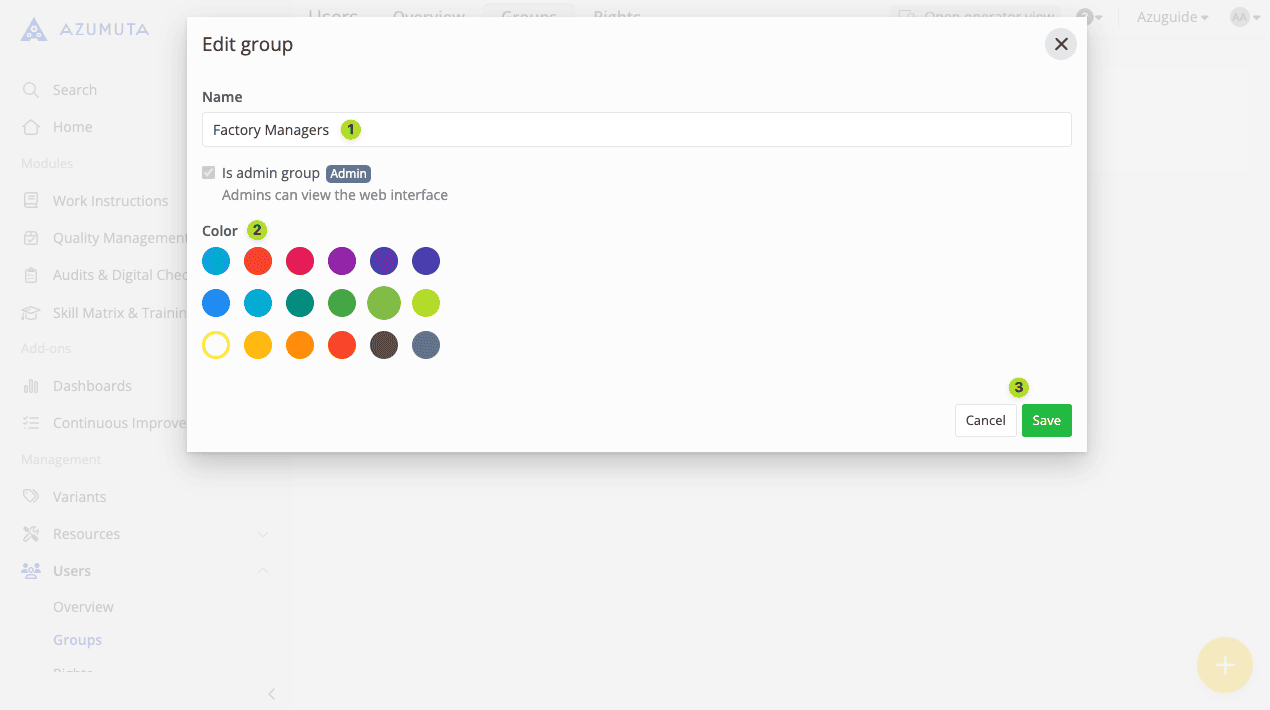
- Edit the user group’s name here.
- Edit the user group’s color here.
- When you’re done with your edits, click Save. However, if you would like to cancel your edits, click Cancel.
Delete a user group
- Click Users under Management.
- Click Groups.
- Click the ⋮ (three-dot) icon next to the group that you would like to edit.
- Click Delete group.
- Click Delete.