The Search Bar
Using the search bar is the quickest way to locate anything in Azumuta, whether it’s work instructions, images, articles, or other items. To use it:
The Search Bar on Admin View
Where Is It Located? (Admin View)
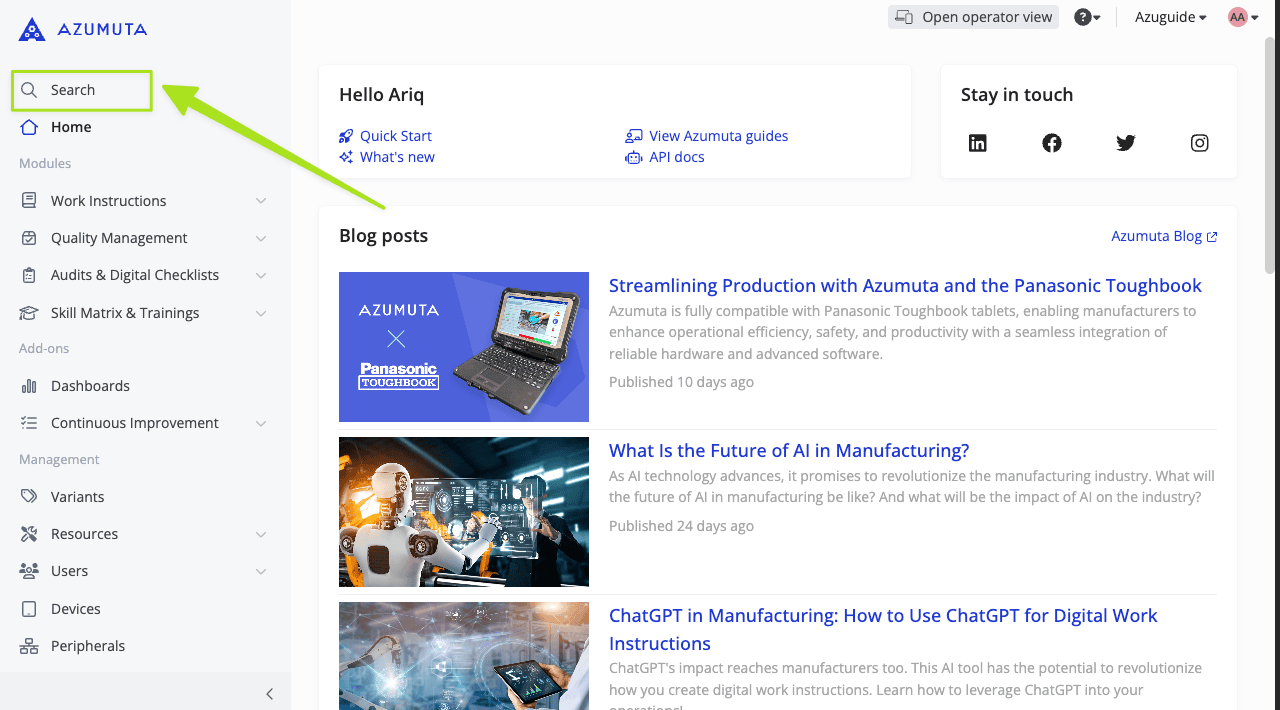
The search bar is located in the top right corner of the screen, just under the Azumuta logo, as shown in the image below. Click it to access it.
Use It (Admin View)
- Click the search bar.
- Type in the name of the object that you are looking for.
- The list of objects with the corresponding name will appear underneath.
- Once you’ve found what you’re looking for, click it. You will be redirected to its location.
Narrowing Your Search Based on Object Category
You can further specify your search by clicking on one of these object categories.
By typing your targeted object’s name and then clicking on one of the object categories, the search bar will only display search results from that selected object category, and not from any other category.
Which Object Categories Can You Choose from?
You can choose from the following object categories on the search bar:
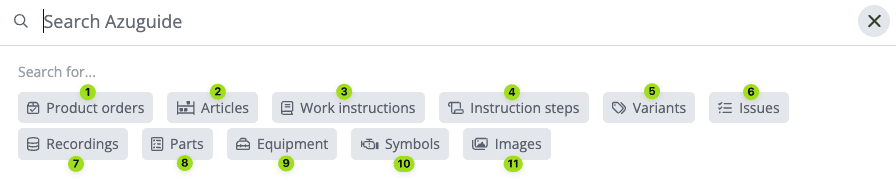
- Product orders
- Articles
- Work instructions
- Instruction steps
- Variants
- Issues
- Recordings (only available in the Quality Management, Audits & Digital Checklists, and Skill Matrix & Trainings modules)
- Parts
- Equipment
- Symbols
- Images
The Search Bar on the App
Operators can also use the search bar via the app.
Where Is It Located? (the App)
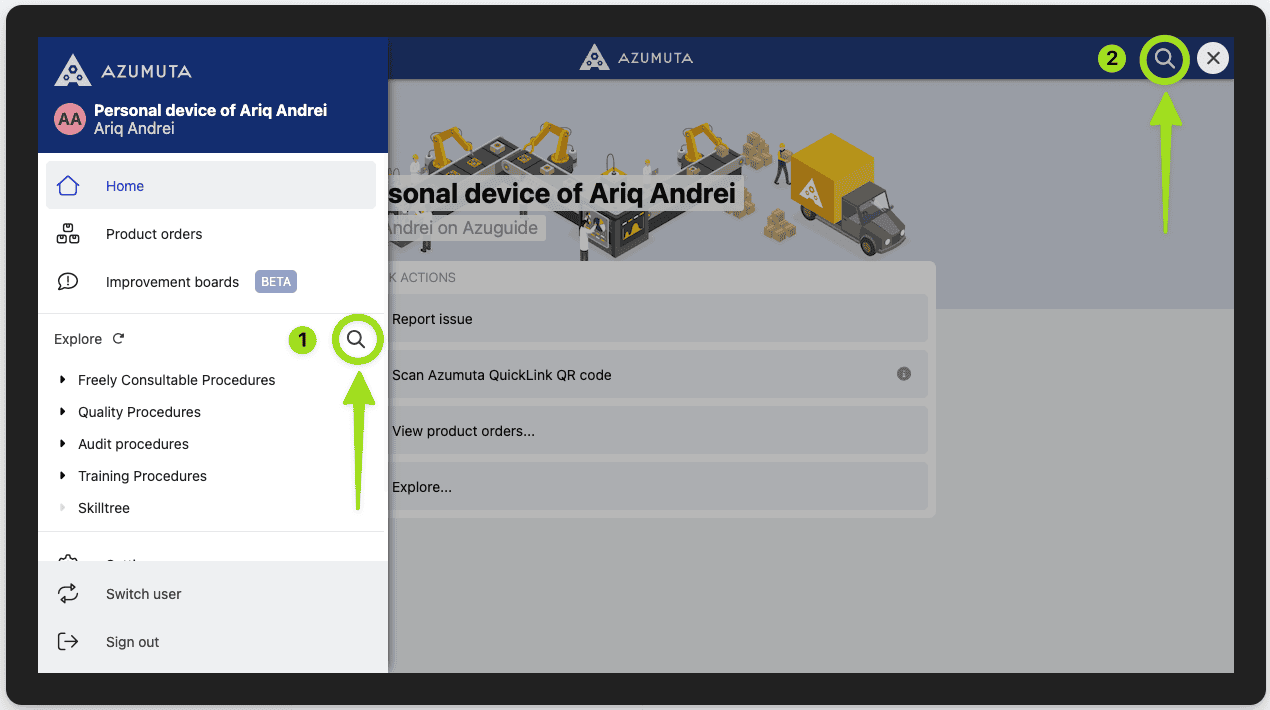
There are two search bars on the app:
- On the sidebar
- On the top right corner of the screen
Use It (the App)
The search bar on the app works in the same way as in the admin view. However, in the app, you can’t narrow your search results based on their object category.
Nonetheless, a feature makes up for it: the ability to scan a QR code, which can automatically redirect your screen to a predestined location.
- Click the search bar.
- Type in the name of the object that you are looking for.
- The list of objects with the corresponding name will appear underneath.
- Once you’ve found what you’re looking for, click it. You will be redirected to its location.
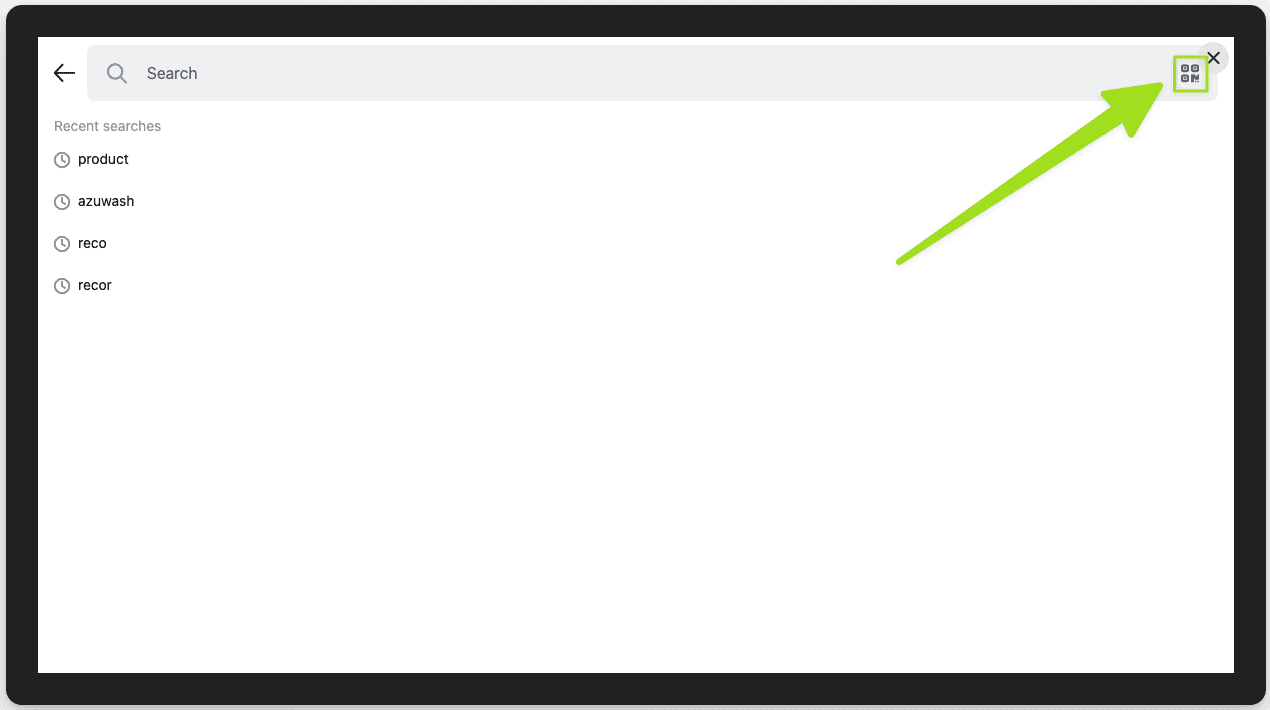
Meanwhile, if you choose to scan on a QR code instead, then click the QR code icon at the top right corner of the screen: