
Attachment on Parts
With this new feature, you can now add attachment files to a part in Azumuta. This feature is commonly used to attach:
- A part’s instruction manual
- A part’s warranty card
- Images & videos on how to assemble/use that part
- And many other useful files
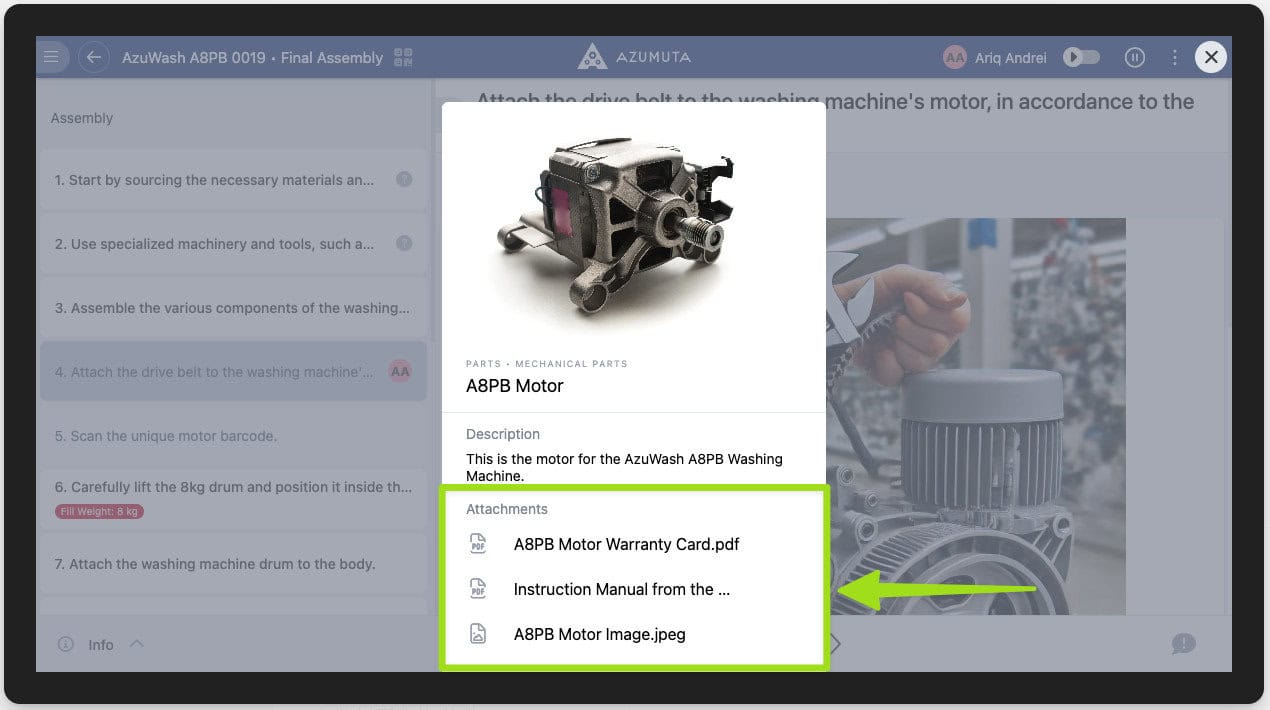
At the moment, we support the following file types:
- Images
- Videos
- .Docx
- .Stl
- .Xlsx
- .Pptx
Add an attachment to a part
- Click Resources under Management.
- Click Parts.
- Click the ⋮ (three-dot) icon next to the part that you wish to add an attachment into.
- Click Edit part.
- Under Attachments, click Choose files.
- Add the file that you would like to attach (you can attach multiple files).
- When you’re done, click Save.
- Wait until the file upload process is complete.
View a part’s attachment as an operator
As an operator, here’s how you can see an attachment that has been added by an admin to a part within an instruction step:
- Click the paperclip icon next to the part that contains the attachment file that you would like to view.
- Click the attachment file.