
Editing or Deleting an Andon Flow
Previously, we’ve elaborated on how to create an andon flow. Now, we will explain how to edit it or delete it.
Get to the Andon flow editor
Here’s how you can access the andon flow editor:
- Click Quality Management on the homepage sidebar.
- Click Andon.
- Click Settings.
- Click the ⋮ (three-dot) icon next to the andon flow that you would like to edit.
- Click Edit flow.
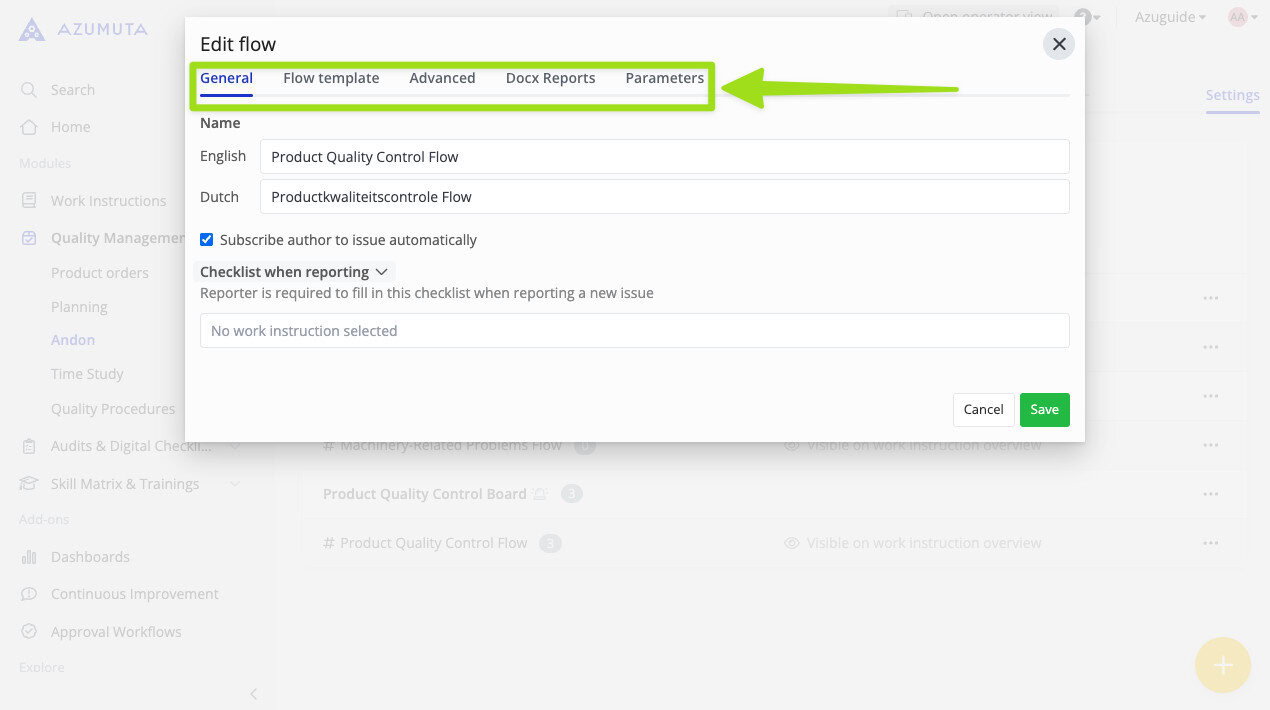
There, you will see 5 editor tabs: the General, Flow Template, Advanced, Docx Reports, and Parameters tabs. Click a tab to open it. We will cover each tab further in the sections below.
The General Tab
The General tab is the first tab that will appear whenever you open the andon flow editor. Here’s what you can edit on this tab:
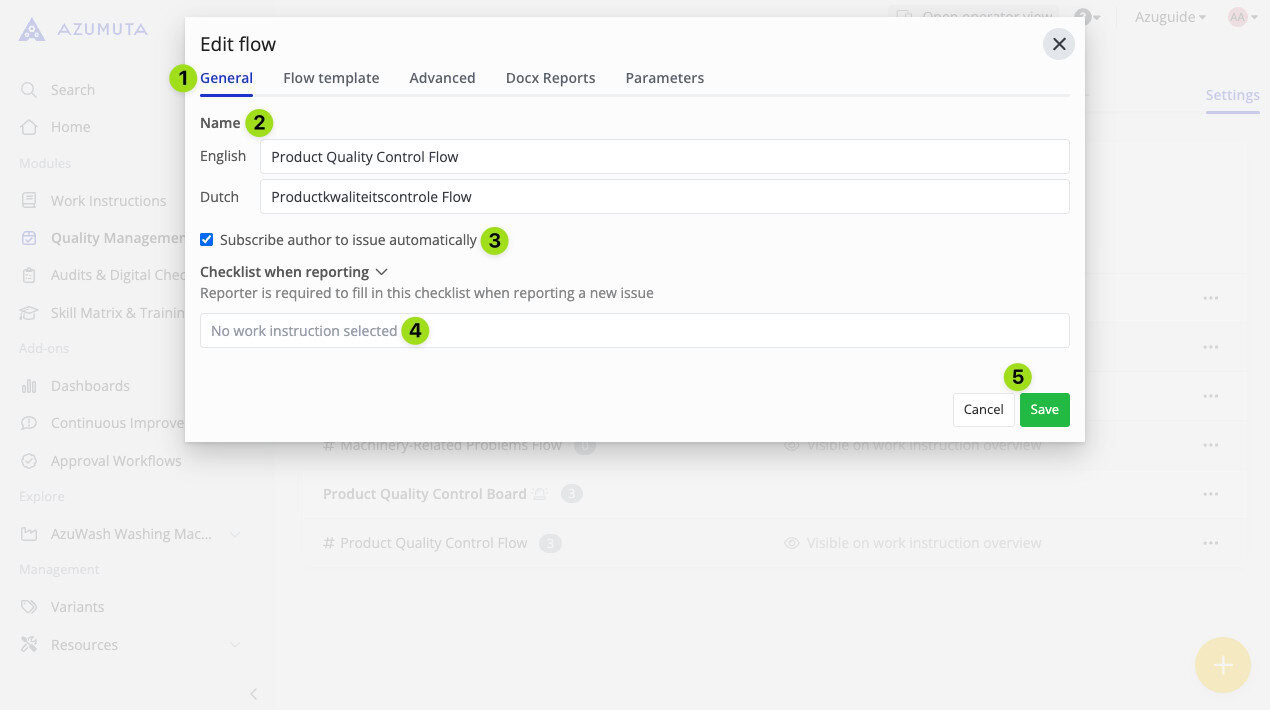
- Click to open the General tab.
- You can edit the andon flow’s name here.
- Select whether the user who submits an andon issue is automatically subscribed to that andon request. If that person is subscribed, then that person will receive an email notification whenever that andon request changes columns.
- Insert a checklist (if needed). A checklist in an andon request works the same way a checklist in a ticket. See how to add a checklist to a ticket for more about checklists.
- When you’re done editing, click Save. However, if you would like to proceed without saving the changes that you’ve made, click Cancel.
The Flow Template Tab
This is where the word “flow” in “andon flow” is derived from. An andon flow consists of several columns. A column represents an action phase that needs to be taken in order to solve an andon issue.
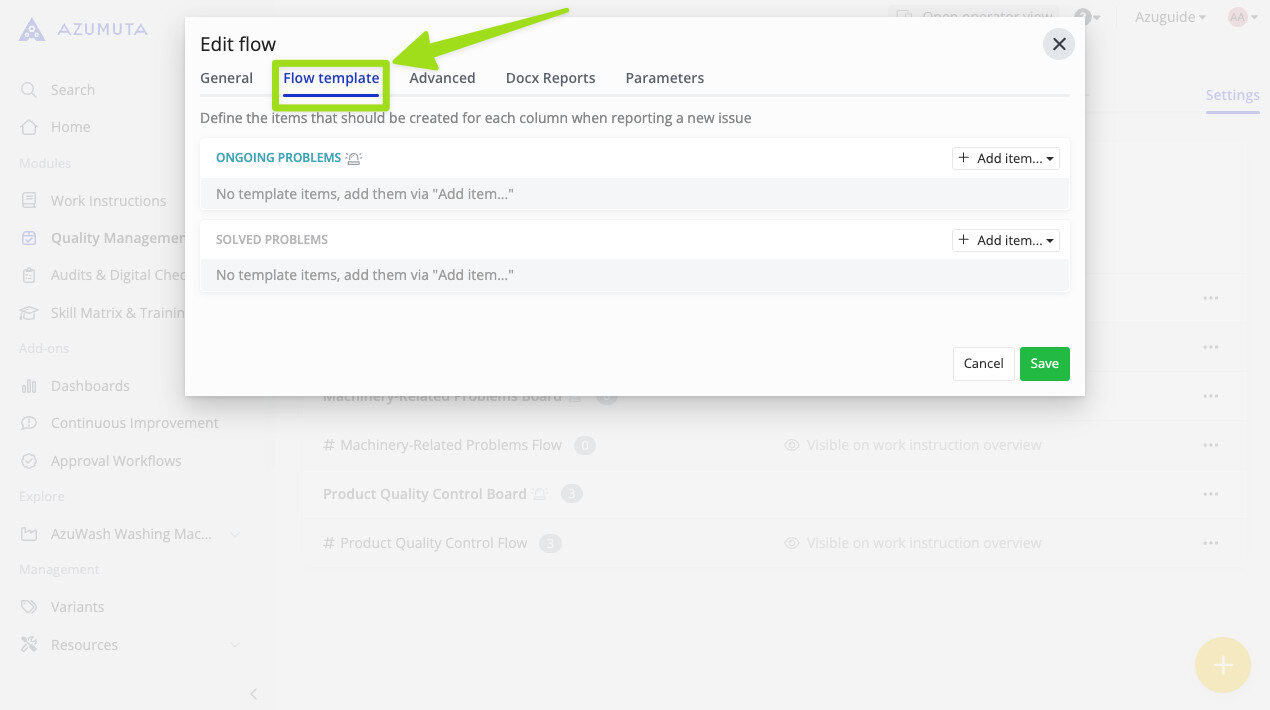
For example, in the image below, there are 2 columns: Ongoing Problems and Solved Problems.
See how to edit a column’s name for details.
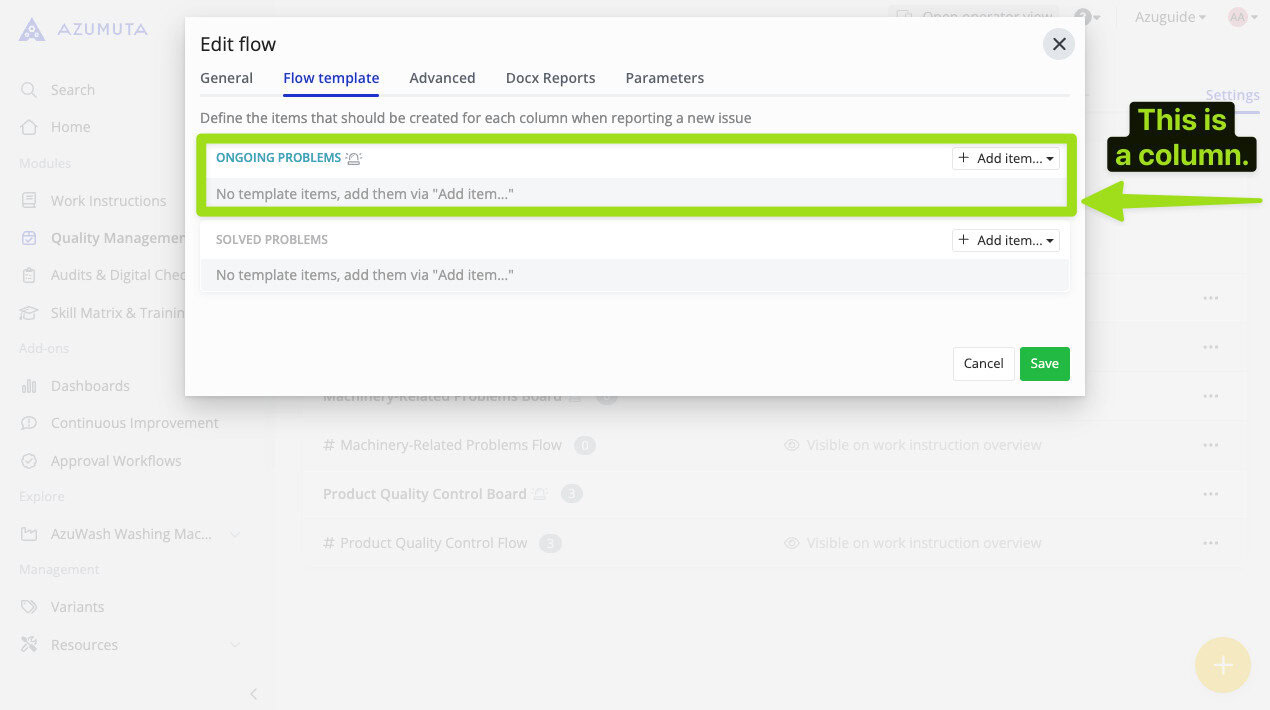
You can add multiple items for each column. We will explain how to add an item and how to edit it in the next sections.
Add an item to a column
You can add various items to an andon flow column. Here’s how to add one:
- Click Add Item in the targeted column.
- Select the desired item.
- Input the necessary details.
- When you’re done, click Save.
Here are the available item options for each column:
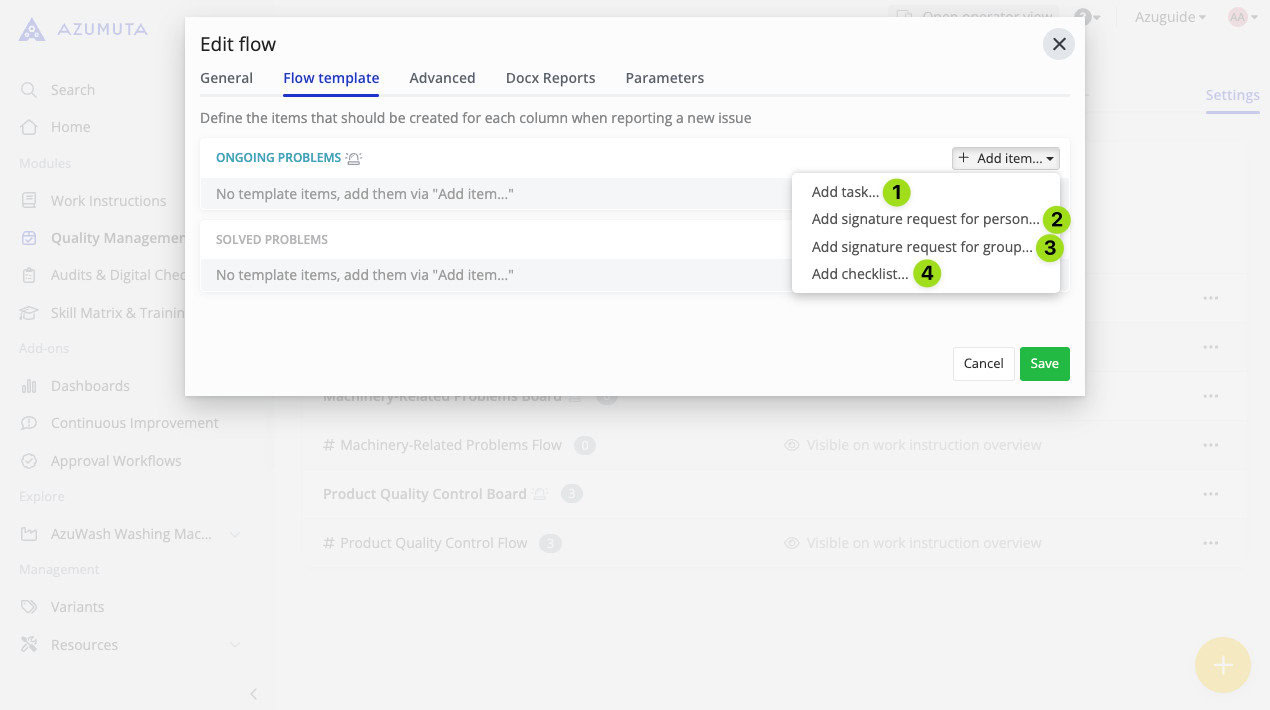
- Click to add a task. You can type the task’s description directly. Choose this item type if the item doesn’t need a signature or a checklist.
- Click to add a signature request for a specific person. A signature signifies that all of the required actions have been taken and the andon issue is ready to move to the next column, usually requested from a supervisor or a manager.
- Click to add a signature request to a user group.
- Click to add a checklist (a checklist in an andon issue works the same way a checklist in a ticket).
Edit an item in a column
In order to edit an item in a column, do the following:
- Click the ⋮ (three-dot) icon next to the item that you would like to edit.
- Do the desired edits.
- When you’re done, click Save.
The configuration options differ slightly based on the item type. Here are the item configuration items based on each type:
Editing a Task
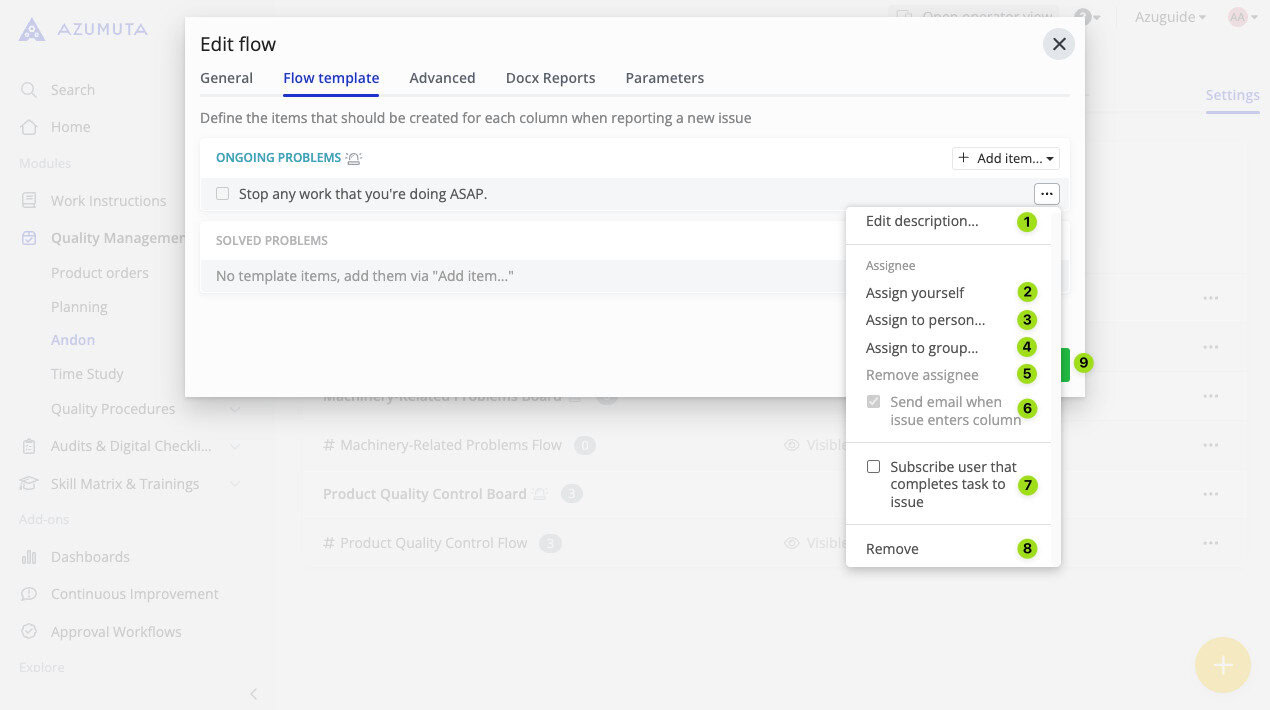
- Edit the task’s description here.
- Click to assign the task to yourself.
- Click to assign the task to a specific person.
- Click to assign the task to a specific user group.
- Click to remove the assigned person/user group (this can only be done if there’s already a person/user group that has been assigned).
- Select whether you want the assigned person/user group to receive an automated email from Azumuta that informs them when an andon issue reaches this column.
- Select whether the person/user group that completes this task will be subscribed to the linked andon issue. If someone is subscribed to an andon issue, then that person will receive an automated email notification whenever that andon issue changes status.
- Click to remove the task.
- When you’re done editing, click Save. However, if you would like to proceed without saving the changes that you’ve made, click Cancel. (This option will appear once you’ve finished editing).
Editing a Signature Request to a Person/to a User Group
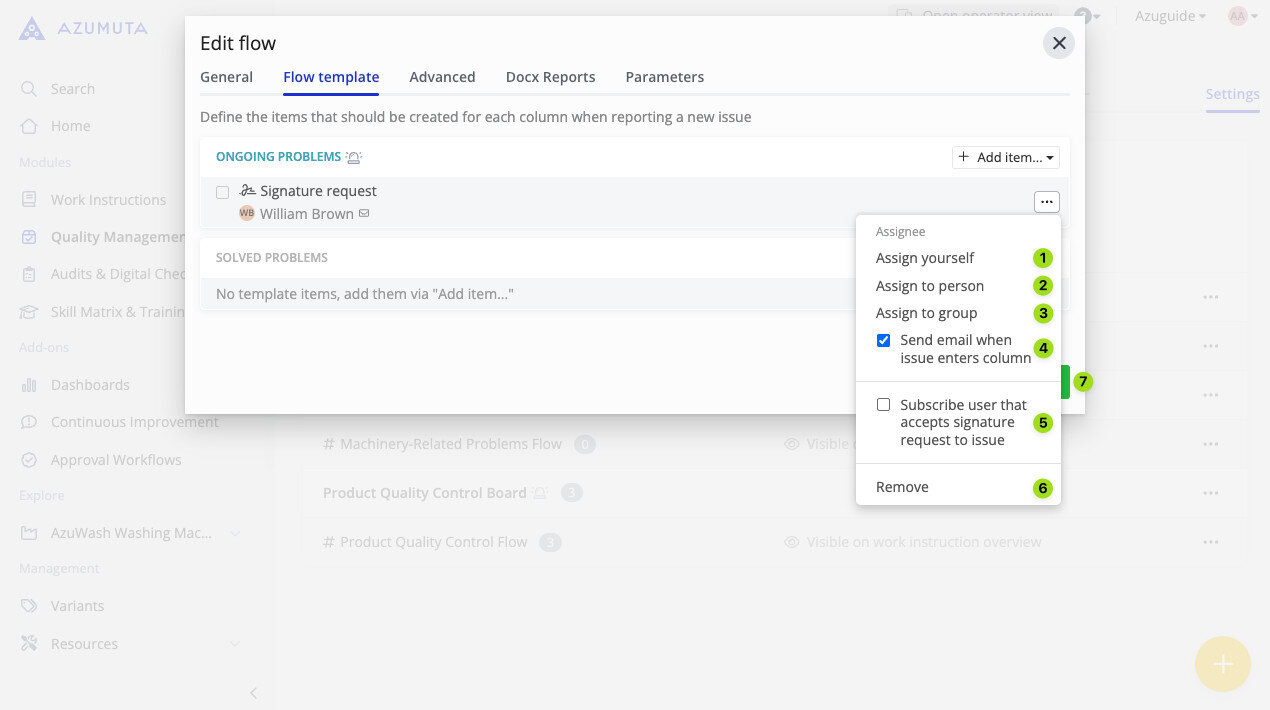
- If you choose this option, then you’re the only person authorized to sign this signature request.
- Select the person who’s authorized to sign this signature request
- Select the user group that’s authorized to sign this signature request.
- Select whether you want the assigned person/user group to receive an automated email from Azumuta that informs them when an andon issue reaches this column.
- Select whether the person/user group that gave a signature to be subscribed to the linked andon issue. If someone is subscribed to an andon issue, then that person will receive an automated email notification whenever that andon issue changes columns.
- Click to remove the signature request.
- When you’re done editing, click Save. However, if you would like to proceed without saving the changes that you’ve made, click Cancel. (This option will appear once you’ve finished editing).
Editing a Checklist
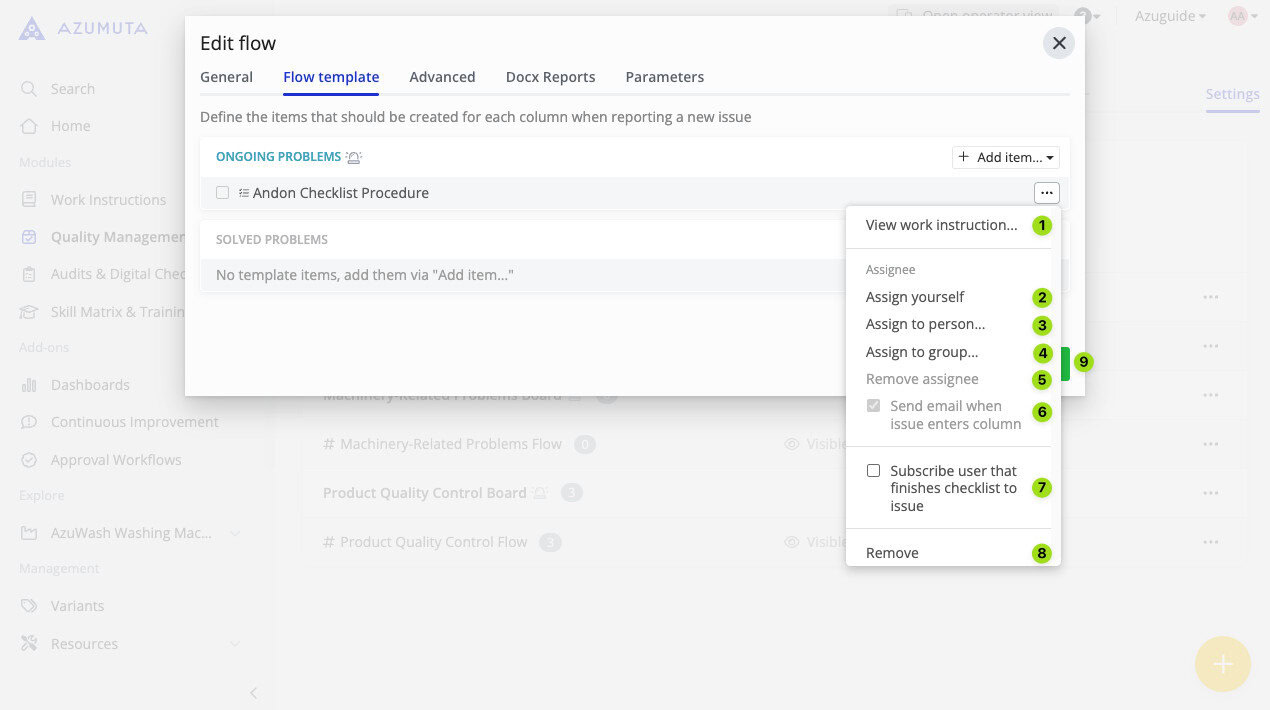
- Click to view the checklist work instruction. A checklist in an andon issue works the same way a checklist in a ticket. See how to add a checklist to a ticket for more about checklists.
- Click to assign the checklist to yourself.
- Click to assign a specific person to fill out the checklist.
- Click to assign a user group to fill out the checklist.
- Click to remove the assigned person/user group (this can only be done if there’s already a person/user group that has been assigned).
- Select whether you want the assigned person/user group to receive an automated email from Azumuta that informs them when an andon issue reaches this column.
- Select whether the person/user group that fills out the checklist will be subscribed to the linked andon issue. If someone is subscribed to an andon issue, then that person will receive an automated email notification whenever that andon issue reaches this column.
- Click to remove the checklist.
- When you’re done editing, click Save. However, if you would like to proceed without saving the changes that you’ve made, click Cancel. (This option will appear once you’ve finished editing).
The Advanced Tab
Previously, we’ve explained about columns on an andon flow. This section explains how to use these columns together.
The Advanced tab consists of 2 elements: columns and transitions. In the Advanced tab, a column represents an action phase that needs to be taken in order to solve an andon issue (just like in the Flow Template tab).
For example, in the image below, we have 2 columns:
- Ongoing Problems
- Solved Problems
Meanwhile, a transition functions as a bridge between columns. A transition leads an item to another column, based on a pre-configured scenario.
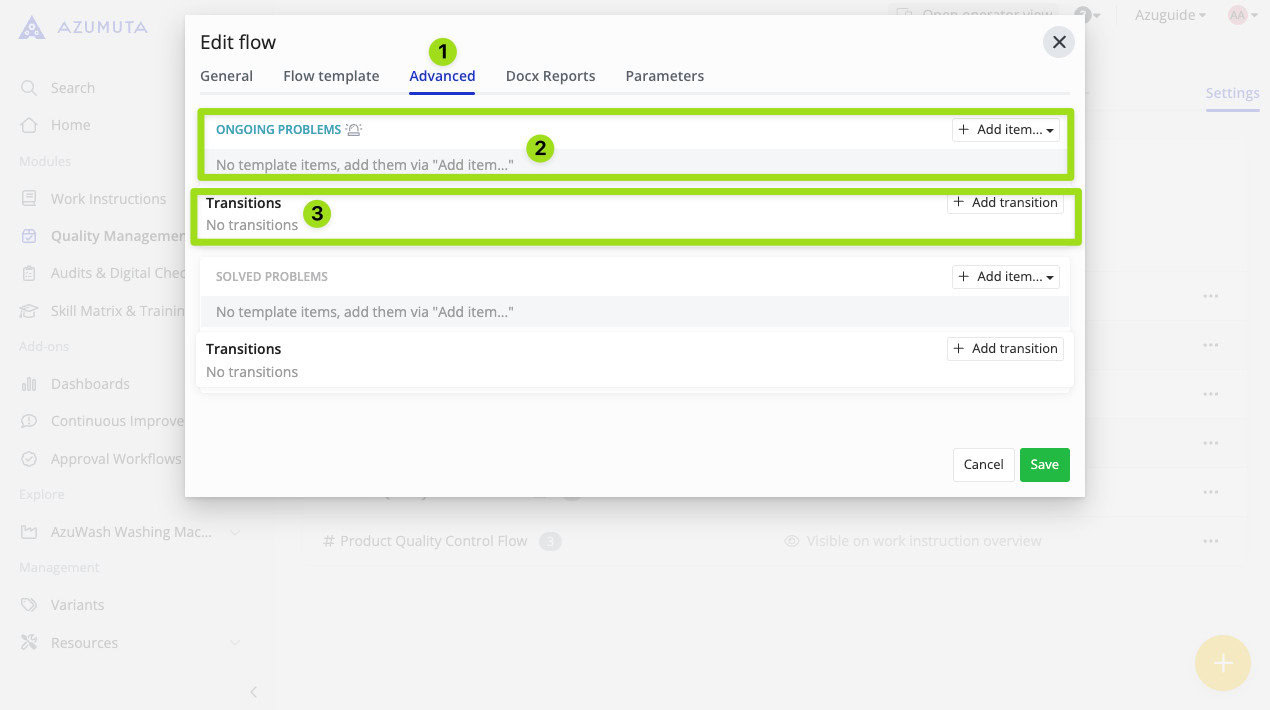
- Click to open the Advanced tab.
- This is a column.
- This is the list of transitions for this column.
Add an item to a column (Advanced tab)
You can add various items to an andon flow column. Here’s how to add one:
- Click Add Item in the targeted column.
- Select the desired item.
- Input the necessary details.
- When you’re done, click Save.
Note: If you added an item on the Flow Template tab, then that item will also appear in the same column on the Advanced tab. And conversely, if you added an item on the Advanced tab, then it will also appear on the same column on the Flow Template tab.
Here are the available item options for each column:
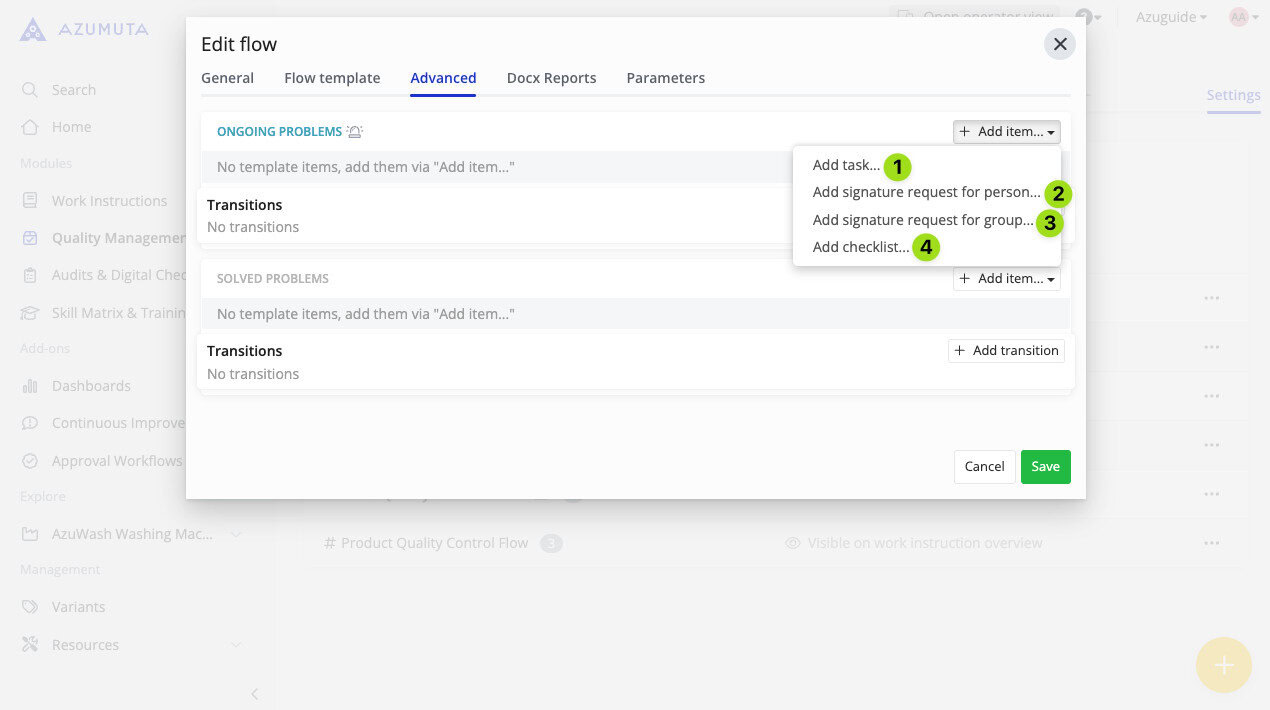
- Click to add a task. You can type the task’s description directly. Choose this item type if the item doesn’t need a signature or a checklist.
- Click to add a signature request for a specific person. A signature signifies that an operator has completed all the required items within a column and is ready to move to the next column, usually requested from a supervisor or a manager.
- Click to add a signature request to a user group.
- Click to add a checklist. A checklist in an andon issue works the same way a checklist in a ticket. See how to add a checklist to a ticket for more about checklists.
Edit an item in a column (Advanced tab)
Editing an item on a column in this tab works the same way as in the Flow Template Tab. Check out the links below to see how you can edit an item on a column based on the item type:
- How to Edit a Task
- How to Edit a Signature Request to a Person/to a User Group
- How to Edit a Checklist
Note: If you edited an item on the Flow Template tab, then that item will also be automatically updated on the Advanced tab. And conversely, if you edited an item on the Advanced tab, then the same item will also be automatically updated on the Flow Template tab.
Add a transition
- Click Add transition on the targeted column.
- Select one of the available options on the When dropdown menu.
- Select one of the available options on the Then move to dropdown menu.
- When you’re done, click Save.
The When and Then Move to dropdown menus have a cause-and-effect relationship.
Whenever the event in the When dropdown menu happens, then it will cause the event in the Then Move to dropdown menu to occur.
Edit a transition
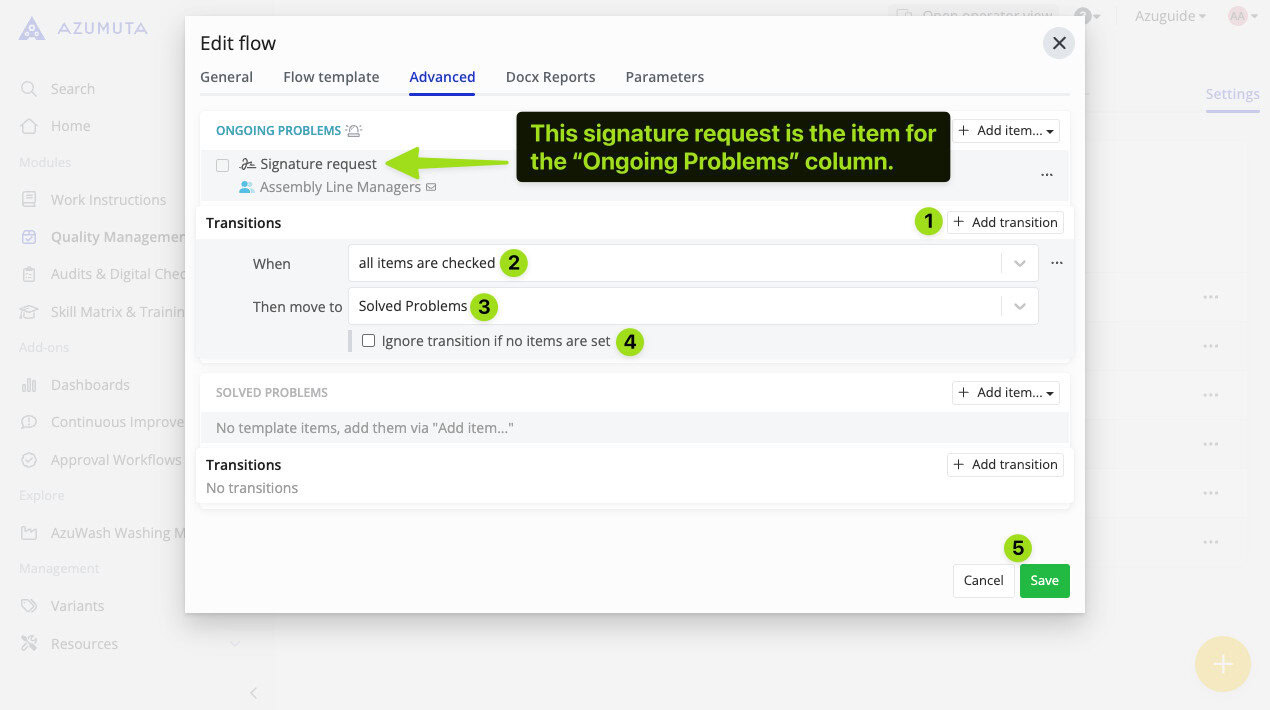
- To add an additional transition to this column, click Add transition.
- Click to change the content on the When dropdown menu.
- Click to change the content on the Then move to dropdown menu.
- In Azumuta, all andon issues will automatically proceed to the next column if there are no outstanding items remaining (be it because all items in this column have been completed or no items were added to this column in the first place). If you want to prevent an andon flow from automatically proceeding to the next column because no items were added to this column, then tick this option.
- When you’re done editing, click Save. However, if you would like to proceed without saving the changes that you’ve made, click Cancel.
The Docx Reports Tab
You can add Docx reports to an andon flow. See docx reporting with ticket information for details (it works the same way as docx reporting for tickets).
The Parameters Tab
You can add parameters to an andon flow. These parameters will be listed on all andon issues that fall under this andon l flow’s umbrella, as well as on all checklists that are linked to those andon flows.
Add a parameter to an Andon flow
- Click Add field.
- Type in the parameter’s Key and Value.
- When you’re done, click Save.
Edit a parameter on an Andon flow
- Do the desired edits. You can do it on the parameter’s Key and/or Value.
- When you’re done, click Save.
Delete a parameter on an Andon flow
- Click the parameter that you would like to delete.
- Click the trash can icon.
- When you’re done, click Save.
Delete an Andon flow
- Click Quality Management on the homepage sidebar.
- Click Andon.
- Click Settings.
- Click the ⋮ (three-dot) icon next to the andon flow that you would like to edit.
- Click Delete flow.
- Click Delete.