
Device Settings: Peripheral-Related
This article focuses on peripheral-related device settings. A peripheral is a hardware device that can be connected to your Azumuta platform. In turn, this peripheral can receive & send data to your Azumuta platform.
For example, a thermometer can provide information about temperature to your computer when performing a product check. Or, another example: you can configure a digital torque wrench to deliver a certain amount of torque (measured in Newton-meter) for a tightening task from your computer.
Access the peripheral-related device settings
- Click Devices under Management.
- Next to the device that you would like to configure, click the ⋮ (three-dot) icon.
- Click Edit device.
- Click the Peripherals tab.
What Are the Possible Configuration Options?
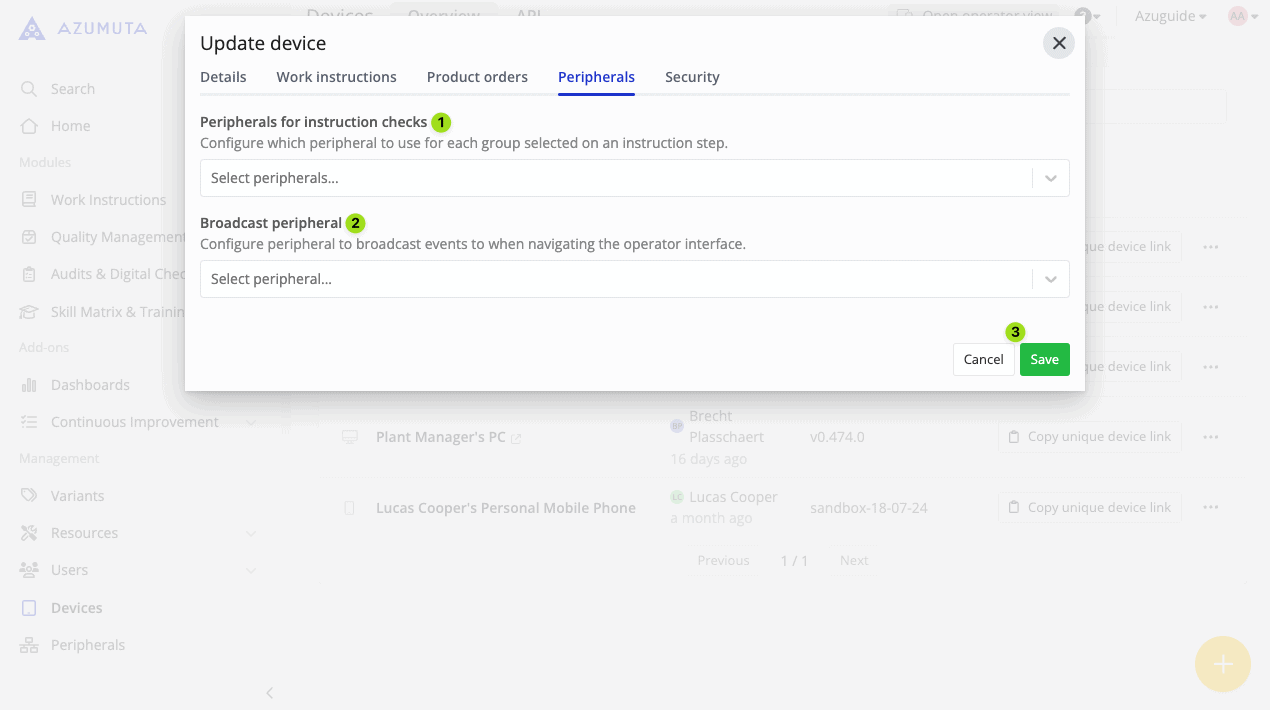
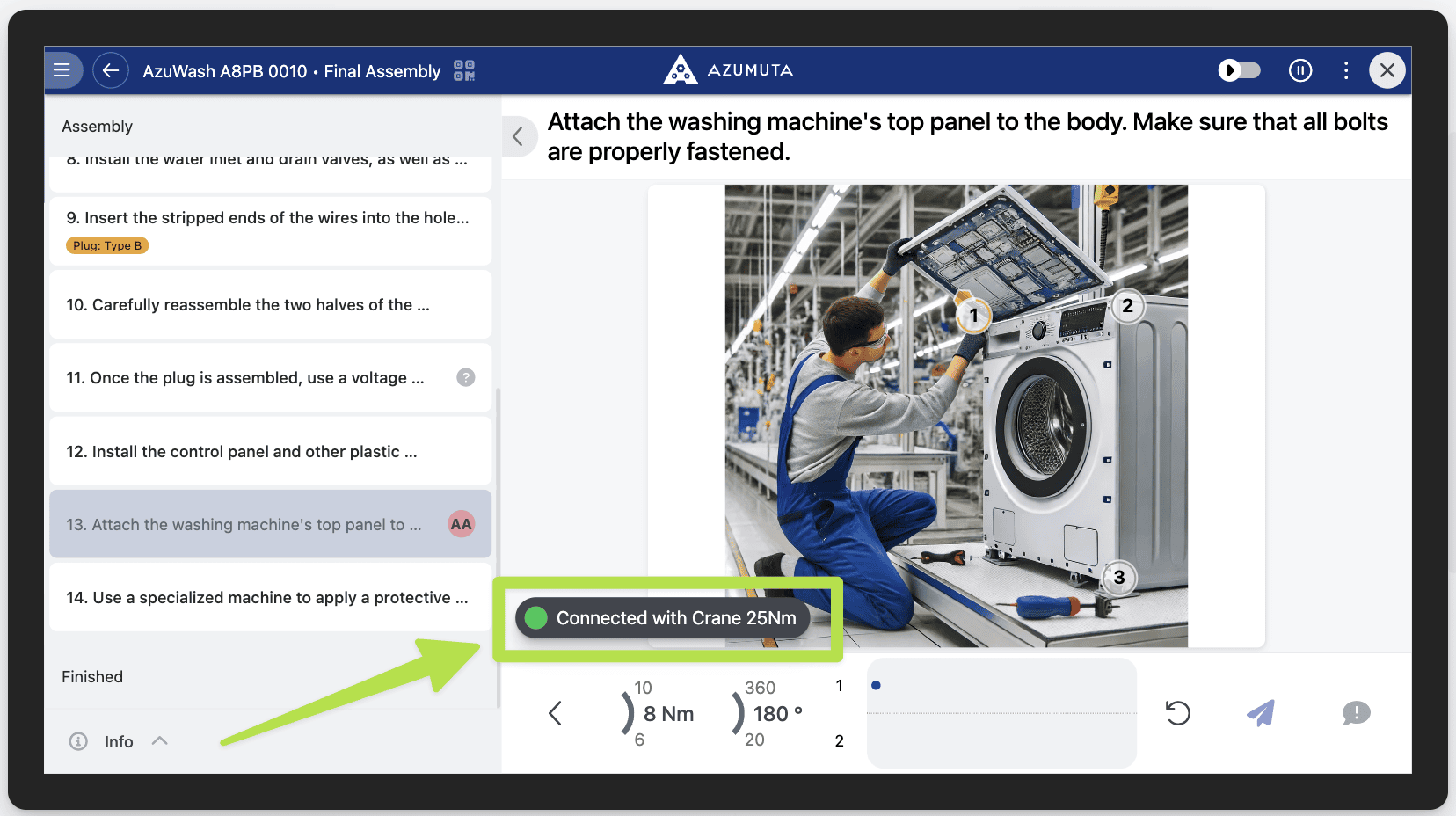
- Select the peripherals that you would like to use in this device. When you’re using a peripheral on an instruction step, make sure that there’s a sign that says that the selected peripheral has been connected, as shown in the image below:
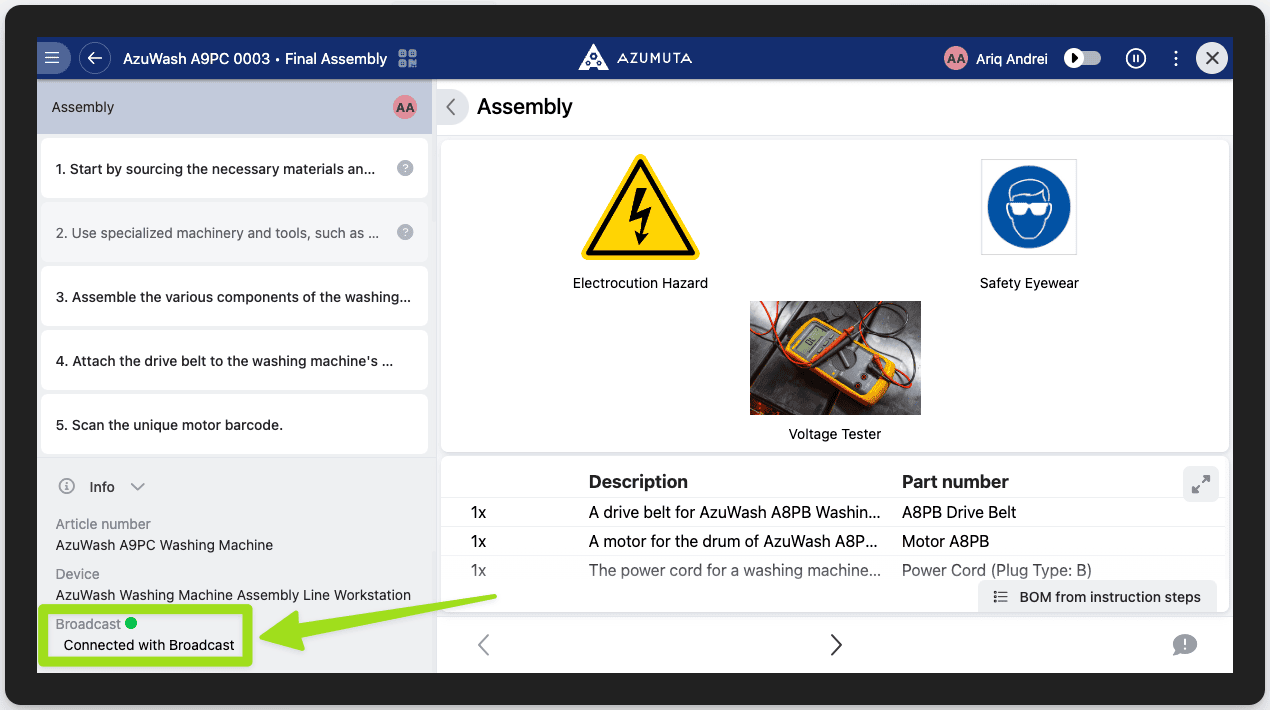
- Select the broadcast peripherals that you would like to use on this device. Currently, Azumuta is only compatible with MQTT. When you’re using a peripheral broadcast on an instruction step, make sure that there’s a sign that says that the selected peripheral broadcast has been connected, as shown in the image below:
Note: If you need any help with integrating a peripheral or a broadcast peripheral to your Azumuta broadcast, please contact us through support@azumuta.com