Adjust Zoom and Select a Date in the Audit Planning Calendar
Choose the time zoom level displayed on the planning tab
You can choose the displayed time zoom on a planning tab by doing the following:
- Click Audits & Digital Checklists on the homepage sidebar.
- Click Planning.
- Select the targeted planning tab.
- Click the existing time zoom level (the default zoom level is Quarter).
- Choose your desired zoom level. Here are the available options:
- Day
- Week
- Bi-week
- Month
- Quarterly
- Year
Furthermore, you can also adjust your view by clicking the plus icon or the minus icon on the bottom right of the screen.
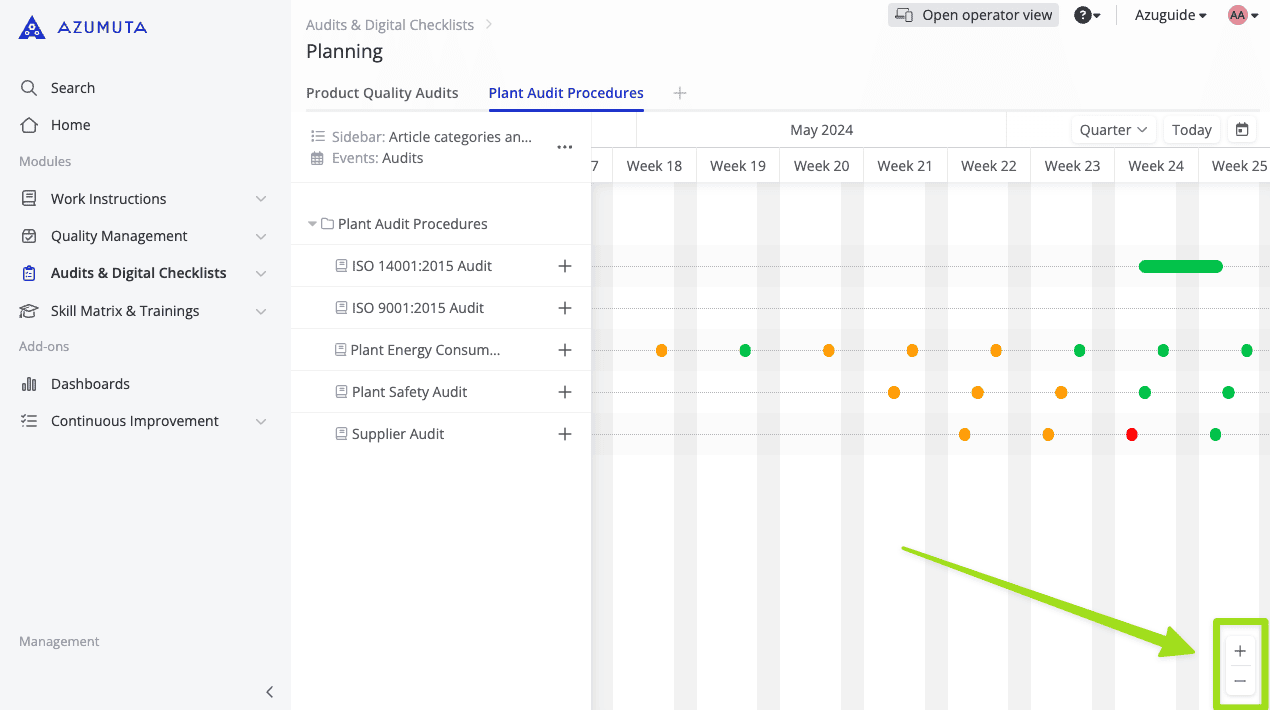
Additionally, you can also use the following keys to adjust your zoom level:
- CTRL + scroll up with your mouse to increase your zoom level.
- CTRL + scroll down with your mouse to lower your zoom level.
Navigate to a specific date on the planning tab
Here’s how to jump to a specific date on a planning tab:
- Click Audits & Digital Checklists on the homepage sidebar.
- Click Planning.
- Select the targeted planning tab.
- Click the calendar icon.
- Select the desired date.
- Click any area outside of the calendar to close the calendar.
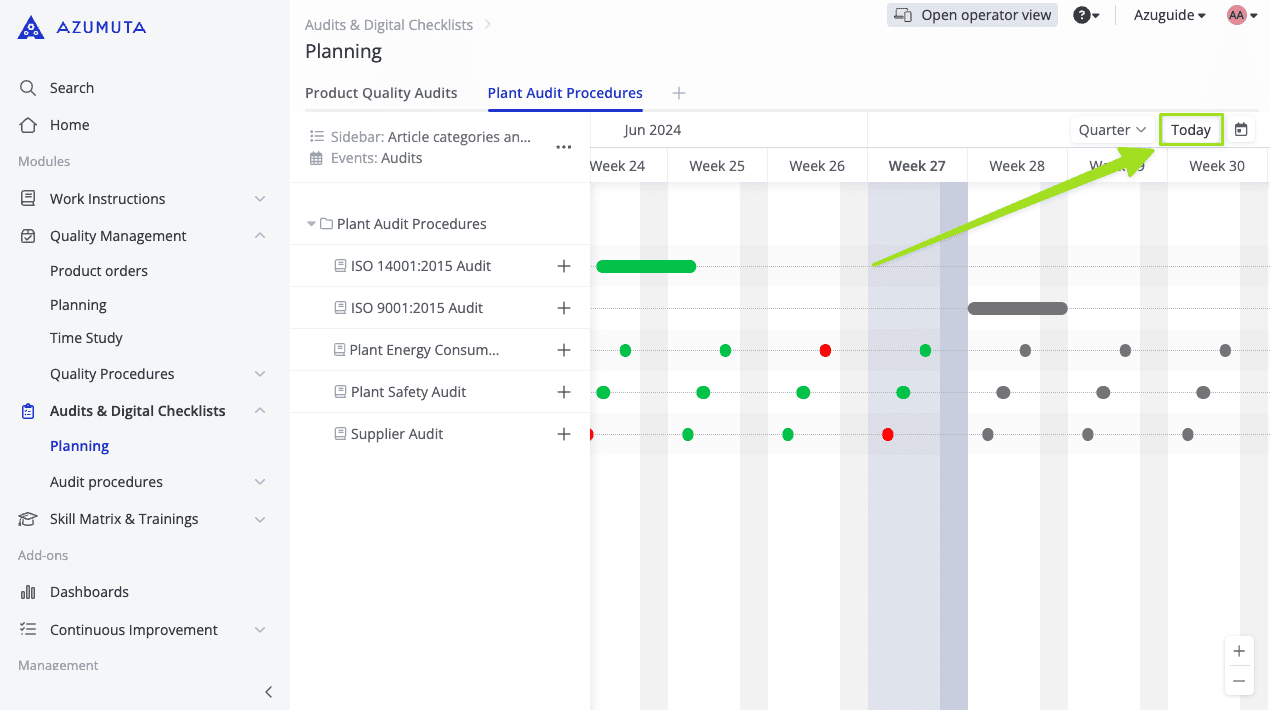
Tip: To navigate to the current day, click the Today button.