User Rights: The Work Instructions Tab

Updated

In this guide webpage, we will explain to you about the Work Instructions tab. As the name suggests, this tab covers work instructions-related user rights.
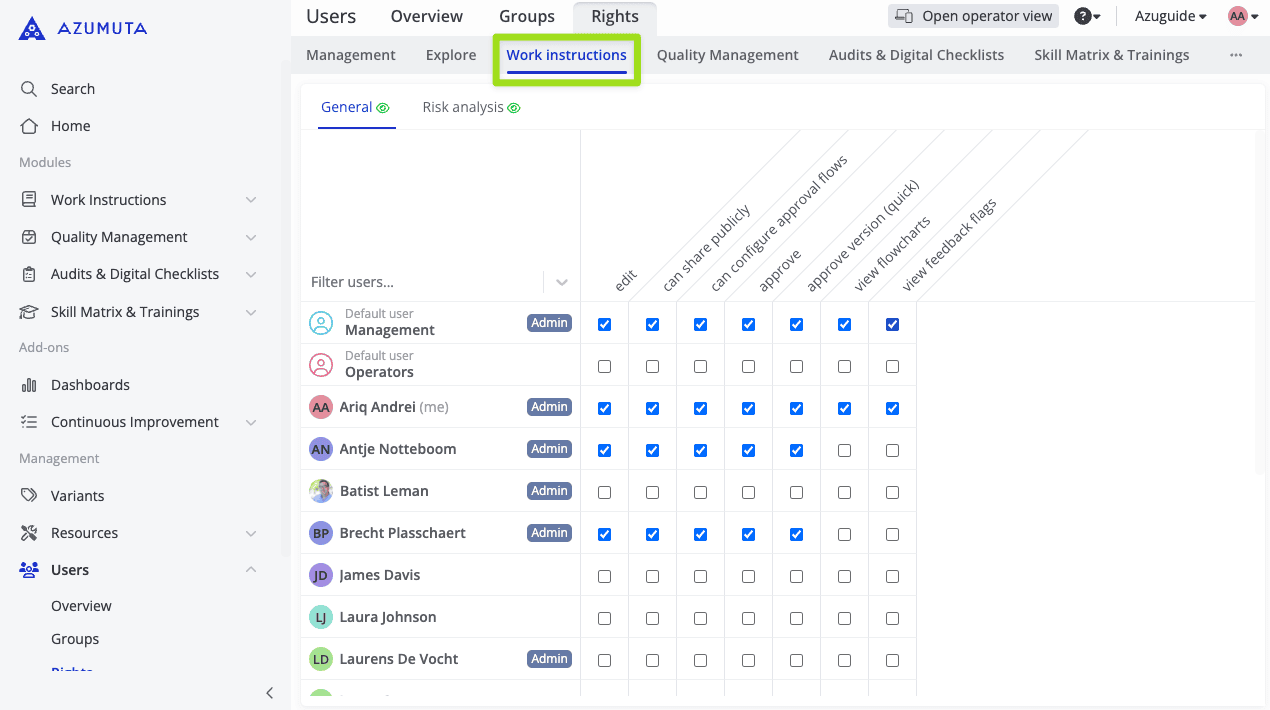
Azumuta user rights management interface displaying the 'Work Instructions' tab. Users and their permissions, such as editing, approval, and version control, are shown in a structured table. Navigation menu on the left includes modules like Work Instructions, Quality Management, and Audits & Digital Checklists.

What Are the Available Configuration Options?

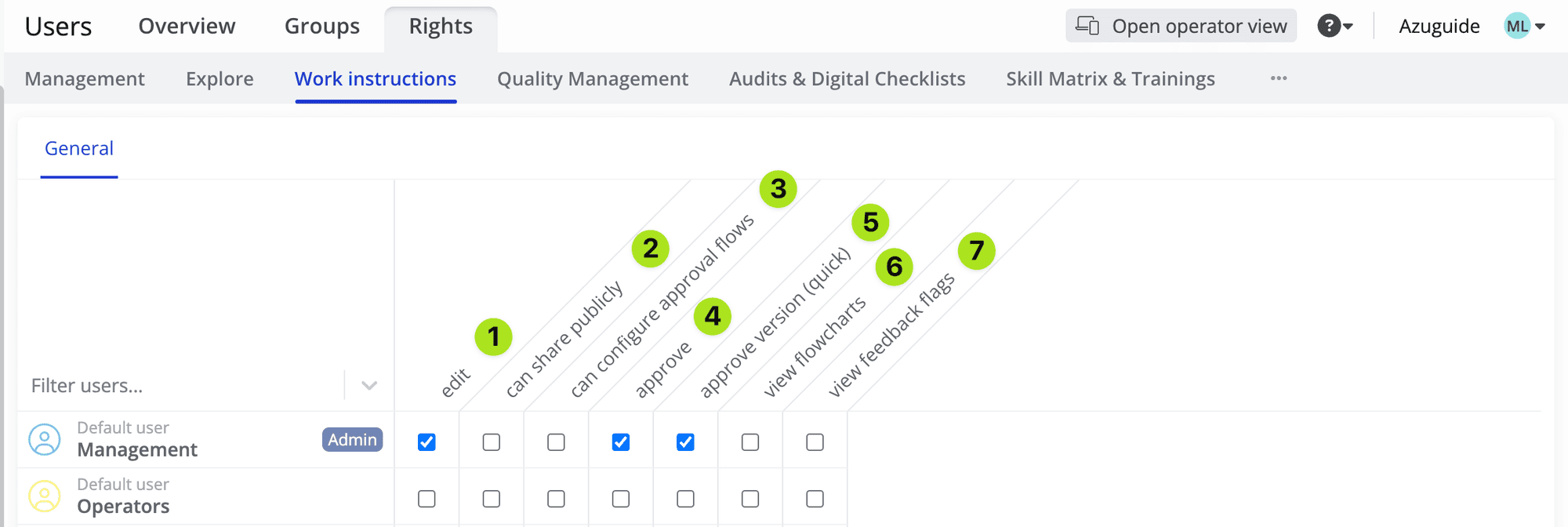
These are the available configuration options (click on the image to enlarge): Azumuta user rights management interface displaying work instruction permissions. Highlighted options include editing, sharing publicly, configuring approval flows, approving versions, and viewing flowcharts and feedback flags. Structured table showing admin and operator user roles with assigned permissions.

  1. If ticked, the user can edit work instructions in any module.
  2. If ticked, the user can share work instructions publicly.
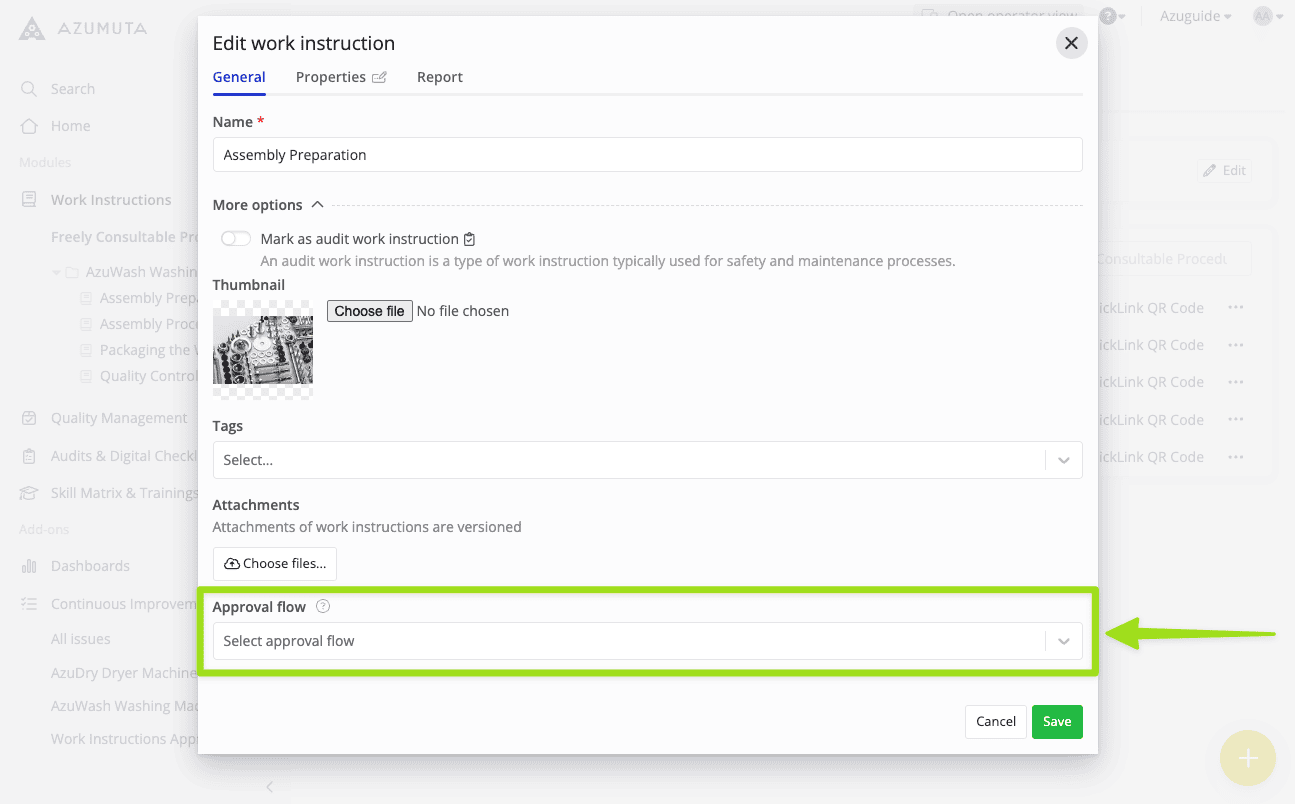
  3. If ticked, the user can link select an approval flow for work instructions, as shown in the image below: Azumuta interface displaying the 'Edit work instruction' window with the 'Approval flow' dropdown highlighted. Users can select an approval process for work instructions. The interface includes options for name, thumbnail, tags, and attachments in the work instruction settings.
  4. If ticked, the user can approve work instructions.
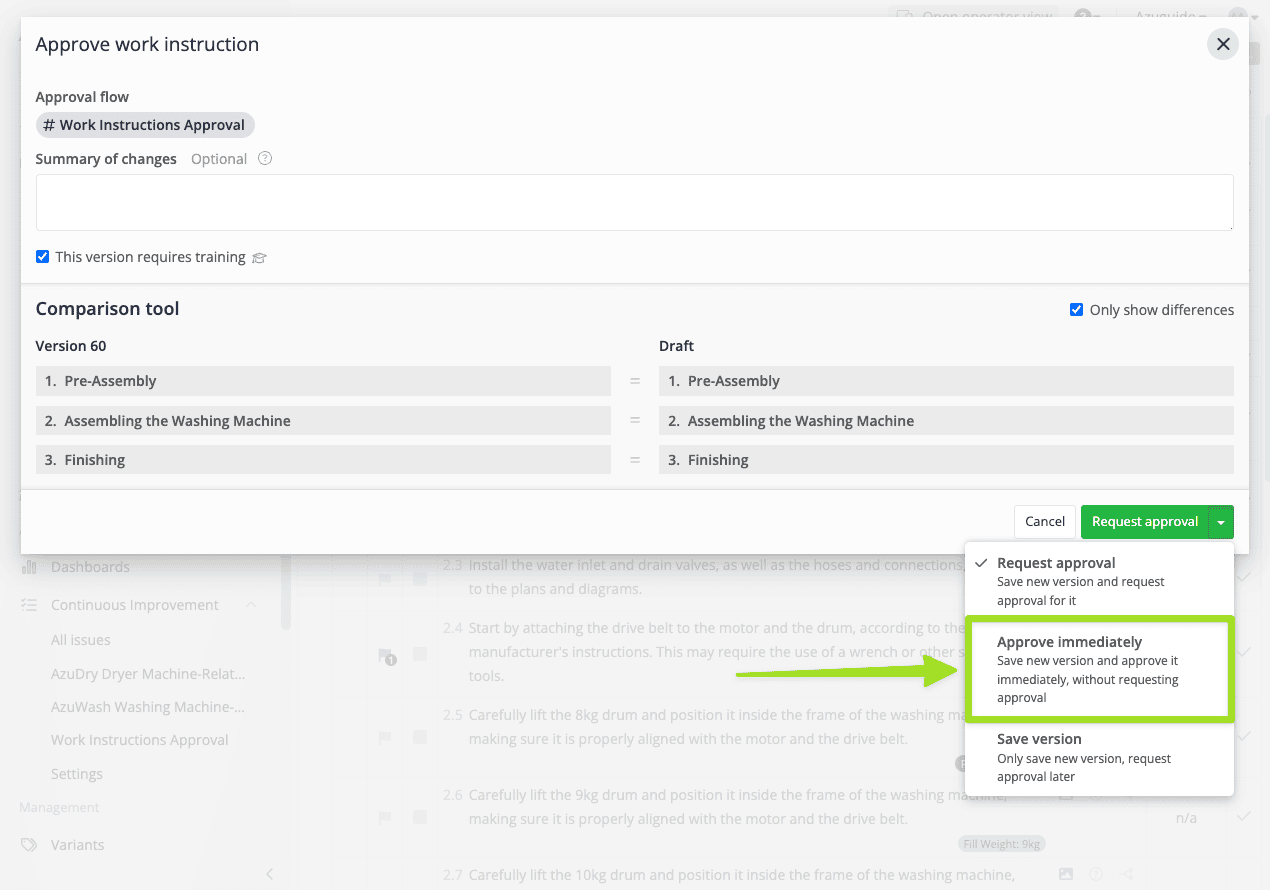
  5. If ticked, the user can immediately approve work instructions on their own – without requesting for approval from the designated manager(s) on an approval flow. This option only applies to work instructions that are already linked to an approval flow. Take a look at the image below to see where the “Approve immediately” option lies: Azumuta interface displaying the 'Approve work instruction' window with the 'Approve immediately' option highlighted. Users can compare draft and versioned work instructions, select approval flows, and choose between requesting approval, immediate approval, or saving a version without approval.
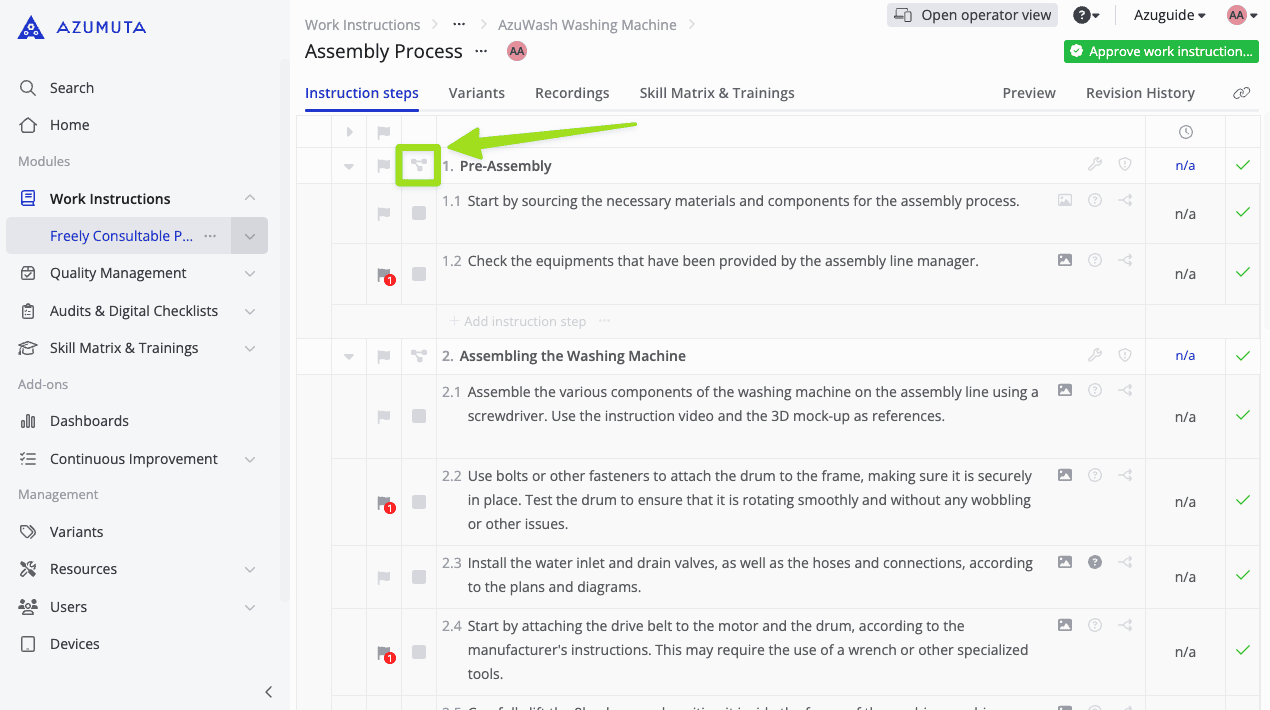
  6. If ticked, the user can see flowcharts. A flowchart is a visual diagram that represents the sequence of steps within an instruction block. You can access a flowchart by clicking on the flowchart icon next to an instruction block, as shown in the image below: Azumuta work instructions interface displaying an assembly process with structured instruction steps. The expand/collapse icon for the 'Pre-Assembly' step is highlighted, allowing users to manage sub-steps efficiently. The left panel includes navigation for work instructions, quality management, audits, and skill matrix & training modules.
  7. If ticked, then the user will be able to see the list of issues within a work instruction.

Note: In order to create approval flows and to see the list of issues within a work instruction, you will need access to the Continuous Improvement add-on. Please contact us through maurice.belpaire@azumuta.com to learn more.

Join The Digital Shop Floor Revolution!