
Editing or Deleting an Andon Board
Previously, we’ve elaborated on how to create an andon board. Now, we will explain how to edit or delete it.
Get to the Andon board editor
Here’s how you can access the andon board editor:
- Click Quality Management on the homepage sidebar.
- Click Andon.
- Click Settings.
- Click the ⋮ (three-dot) icon next to the andon board that you would like to edit.
- Click Edit board.
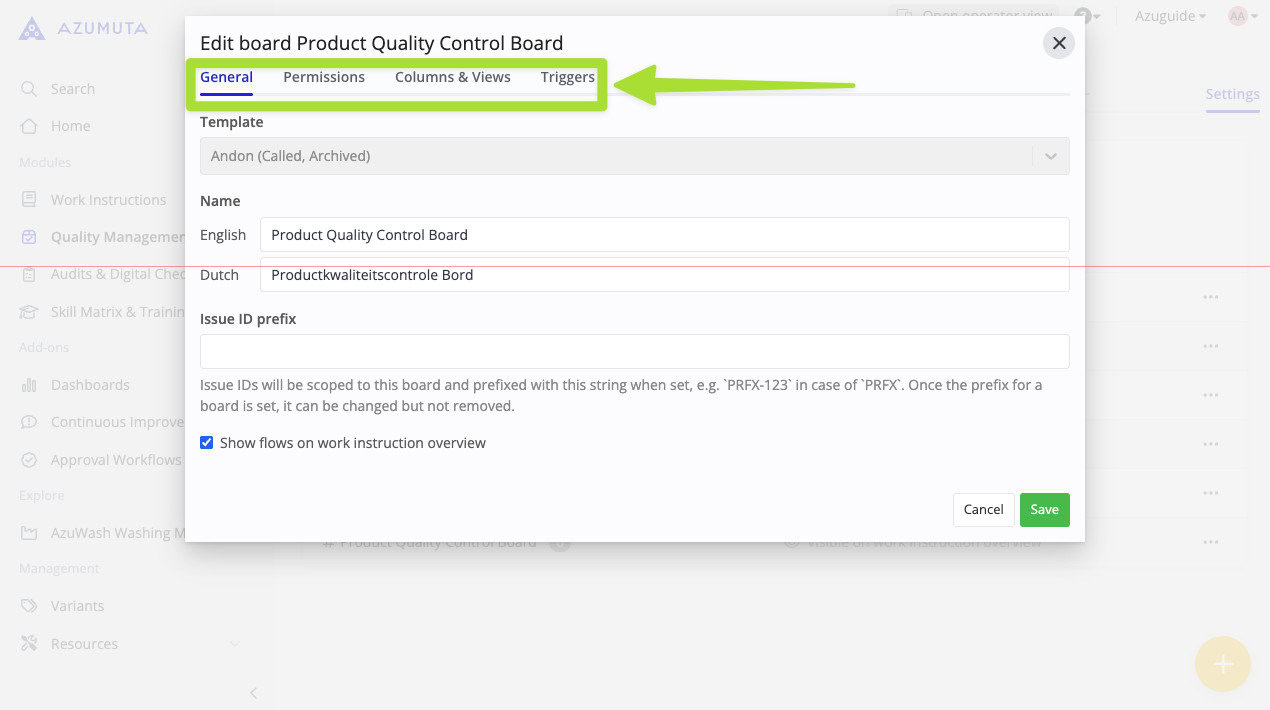
There, you will see 4 editor tabs: General, Permissions, Columns & Views, and Triggers. Click a tab to open it. We will cover each tab further in the sections below:
The General Tab
The General tab is the first tab that will appear whenever you open the andon board editor. Here’s what you can edit on this tab:
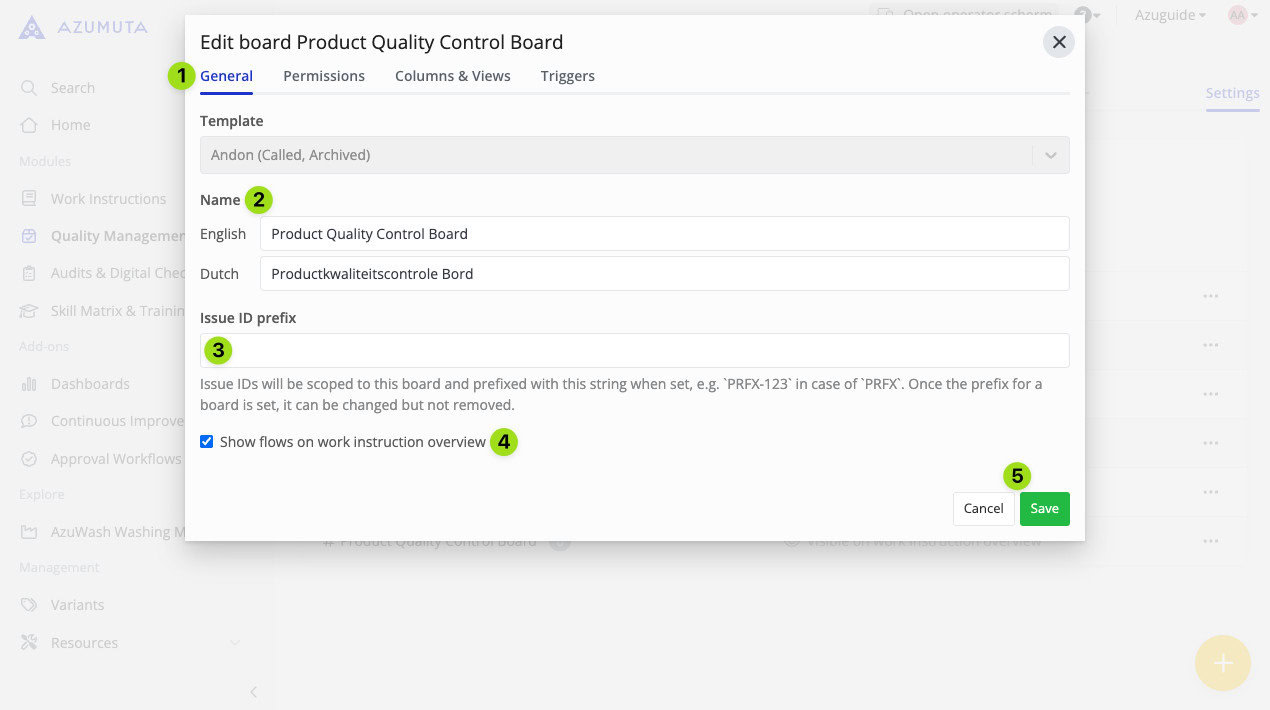
- Click to open the General tab.
- You can edit the andon board’s name here.
- If you want the andon issues that fall under this andon board to have a predetermined prefix, then type the predetermined prefix here. Please be aware that there’s a 5-character limit for the prefix. For example, you can use the prefix ANDON . Thus, the andon issues in this andon board will be named ANDON-1, ANDON-2, and so forth.
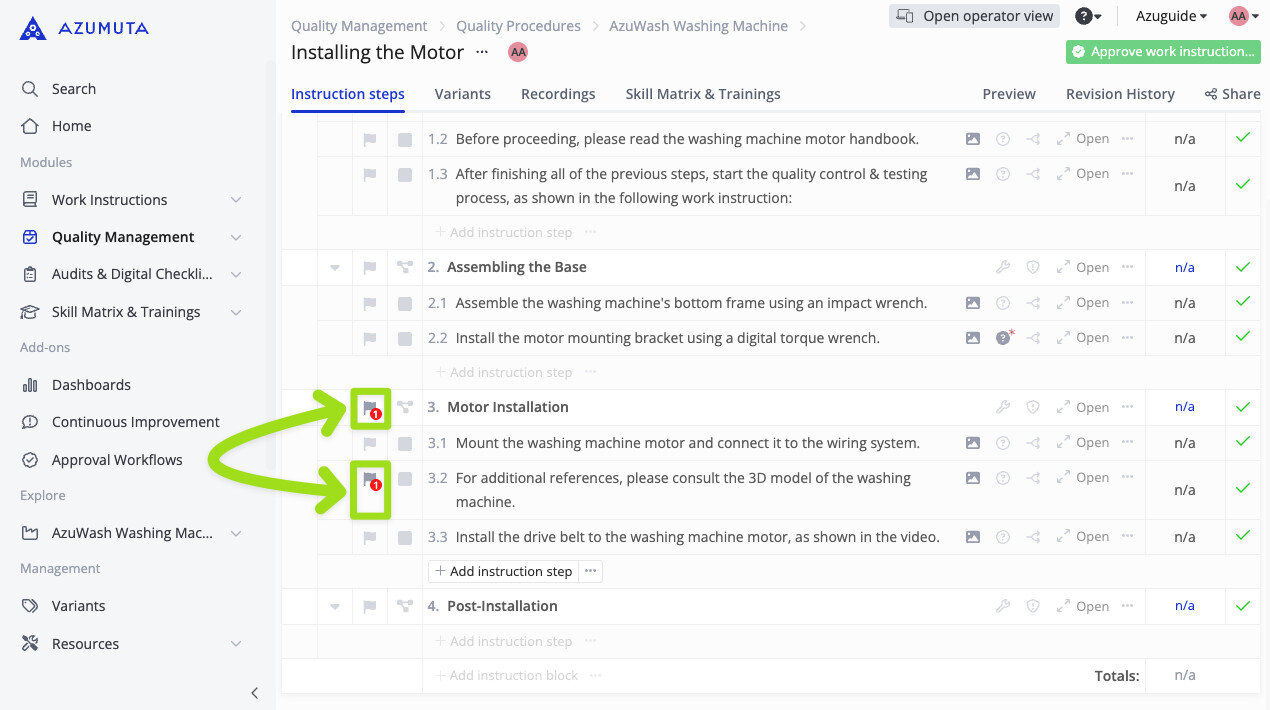
- Select whether to display the andon issue from this andon board on the related instruction step & instruction block on the work instruction editor, as shown in the image below (please pay attention to the highlighted flag icons):
- When you’re done, click Save. However, to cancel, click Cancel.
The Permissions Tab
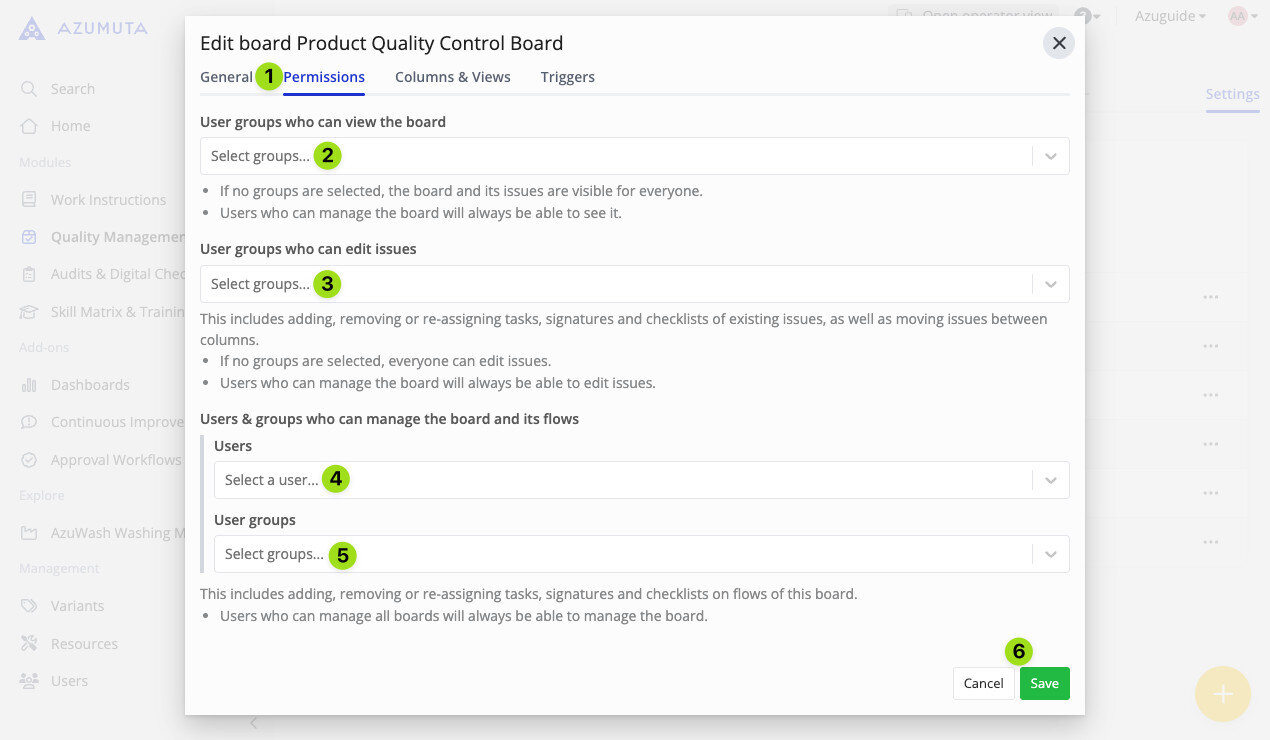
- Click to open the Permissions tab.
- Select which user groups can view this andon board. If no groups are selected, then it will be visible to everyone.
- Select which user groups can create and edit andon issues on this andon board. If no groups are selected, then everyone will be able to do it.
- Select which users can manage this andon board and all andon flows that fall under it.
- Select which user groups can manage this andon board and all andon flows that fall under it.
- When you’re done, click Save. However, to cancel, click Cancel.
The Columns & Views Tab
This tab allows you to edit columns within an andon board and adjust their visibility. It consists of two main settings: the Columns Settings and Views Settings, which we will further explore in the two sections below.
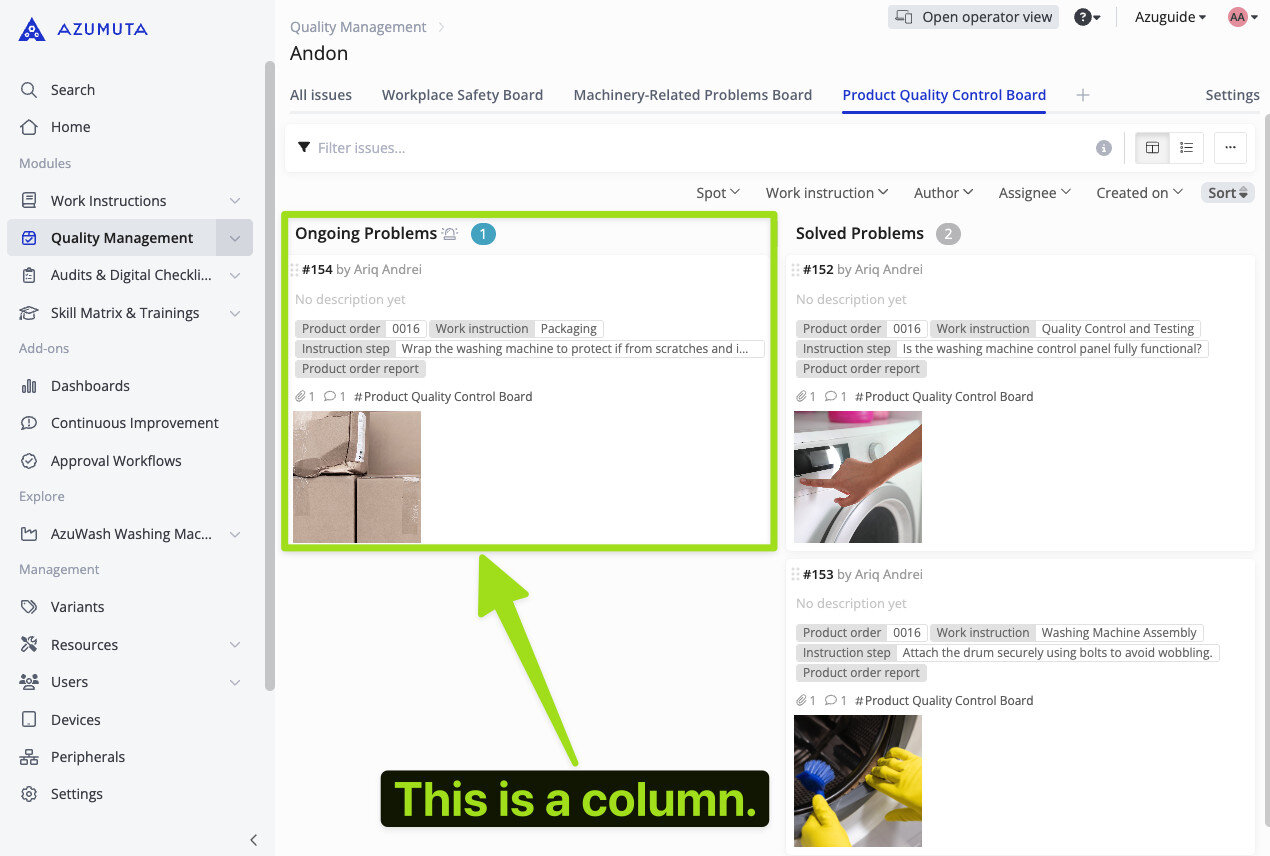
In an andon board, a column represents the status of an andon issue, such as the Ongoing Problems column shown in the screenshot below. On this andon board, there are 2 columns in total (the Ongoing Problems and Solved Problems columns).
The Columns Settings
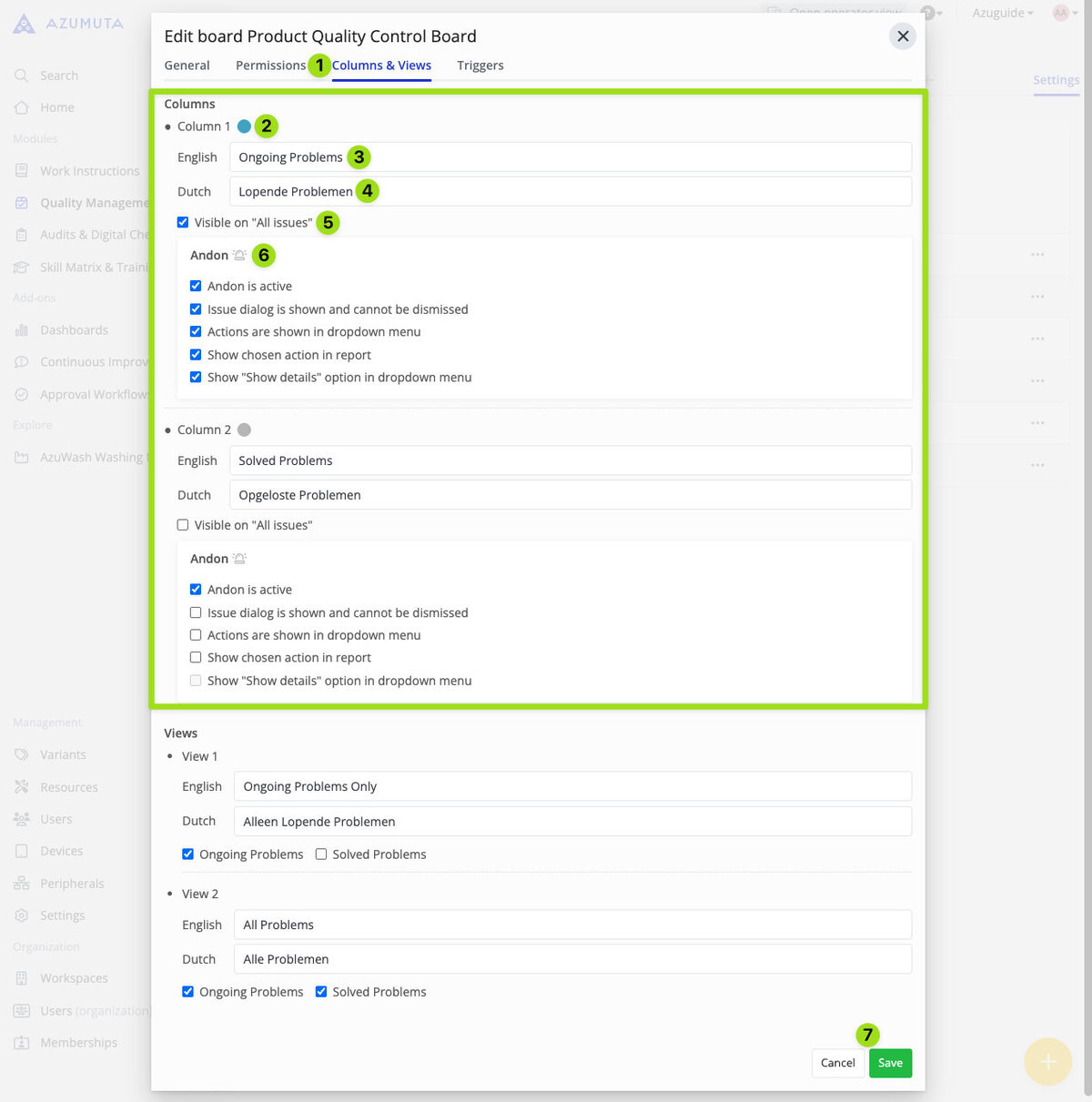
- Click to open the Columns & Views tab.
- Click to change this column’s color.
- Click to change this column’s name in English.
- Click to change this column’s name in Dutch (or in any other interface languages that are enabled in your workspace).
- If you tick this option, then all andon issues in this column will also be displayed on the All issues tab.
- Use this menu to adjust the andon settings for this column. Tick the checkbox to enable a feature, and untick it to disable a feature.
- When you’re done, click Save. However, to cancel, click Cancel.
The other column has the same editing options as No.2-6.
Note: By default, there are only 2 columns. However, you can also request for extra columns by contacting us via our support@azumuta.com email address.
The Views Settings
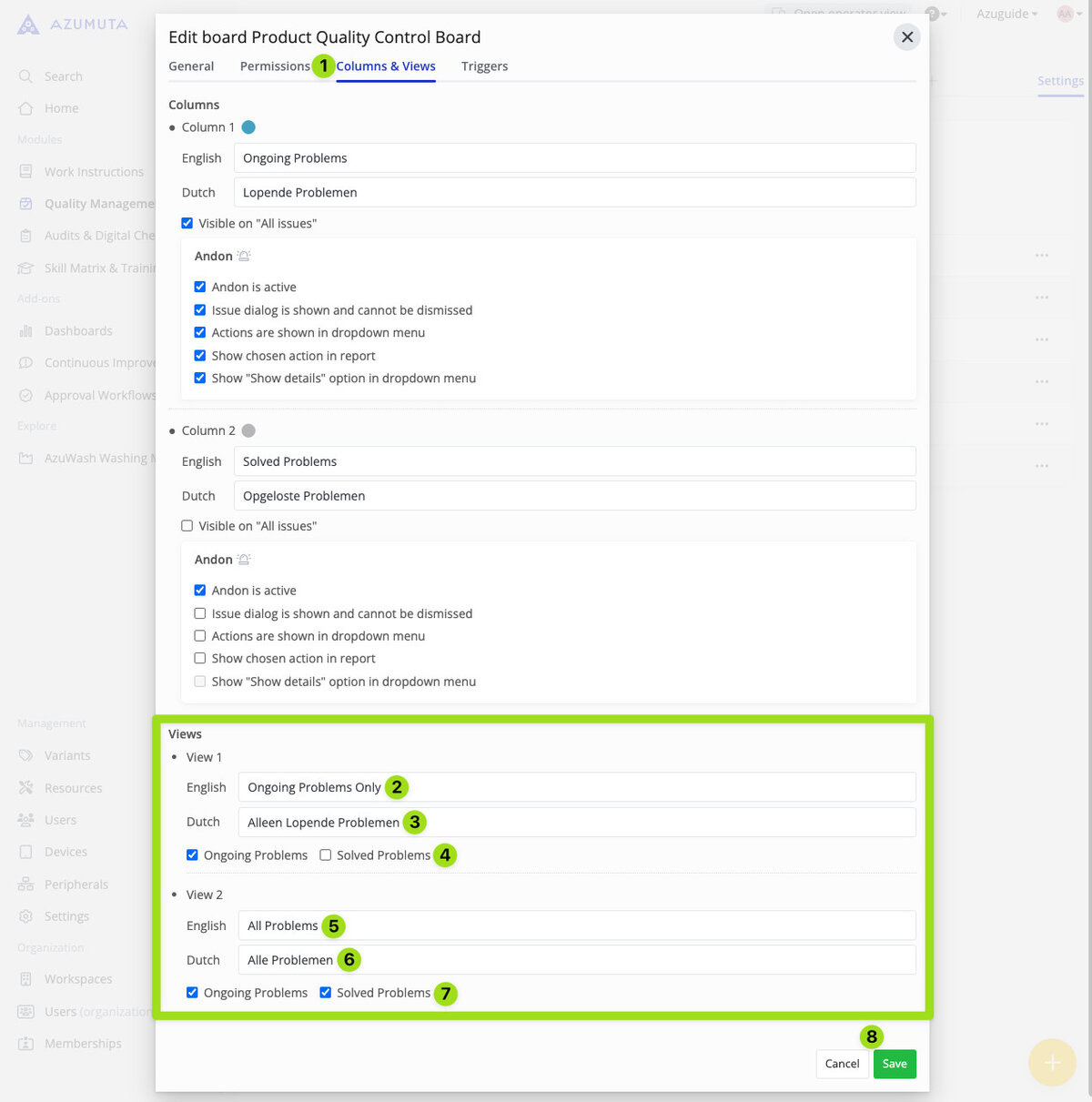
- Click to open the Columns & Views tab.
- Click to change View 1’s name in English.
- Click to change View 1’s name in Dutch (or in any other interface languages that are enabled in your workspace).
- Select which columns are to be displayed on View 1.
- Click to change View 2’s name in English.
- Click to change View 2’s name in Dutch (or in any other interface languages that are enabled in your workspace).
- Select which columns are to be displayed on View 2.
- When you’re done editing, click Save. However, if you would like to proceed without saving the changes that you’ve made, click Cancel.
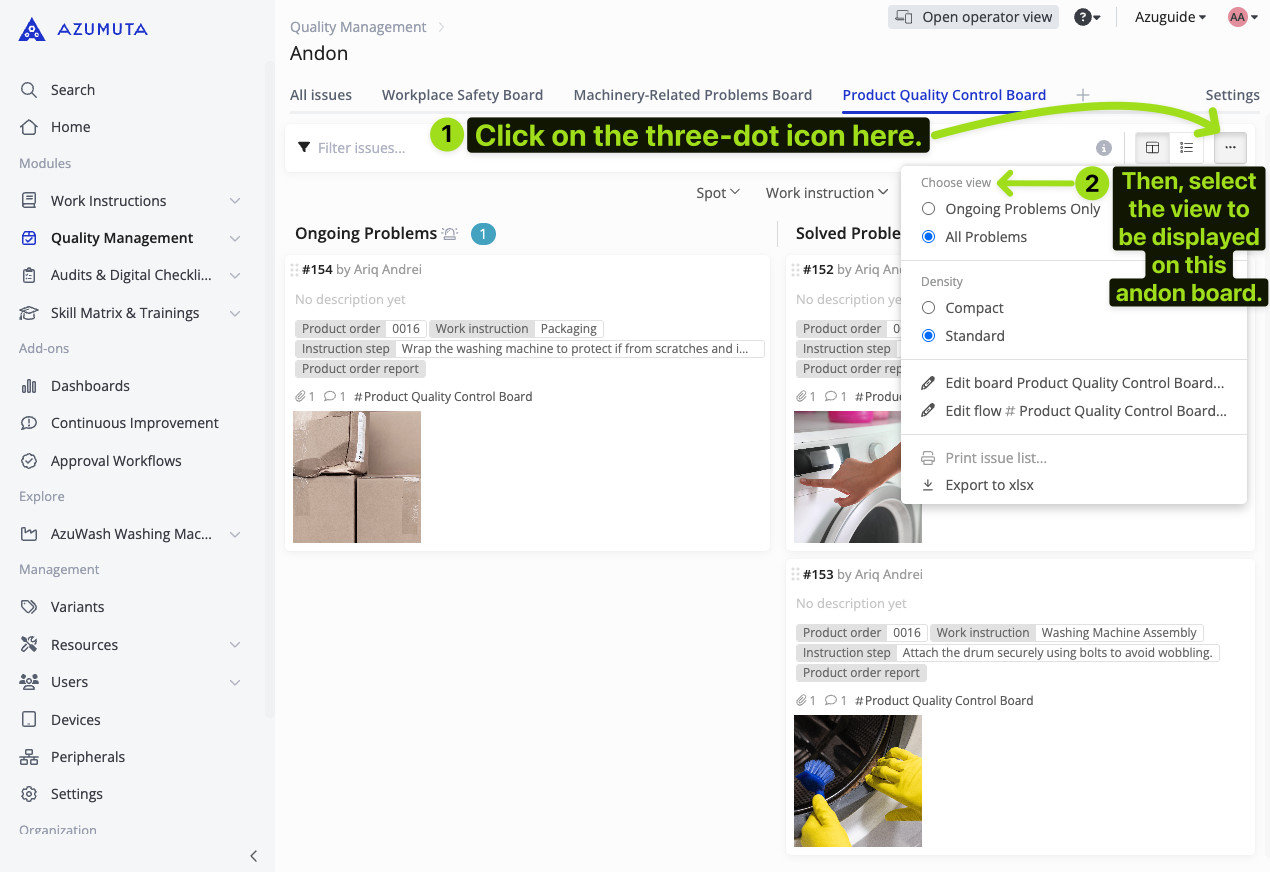
After you’ve configured the Views Settings, you can choose the view that you would like to use on your andon board by following the steps below:
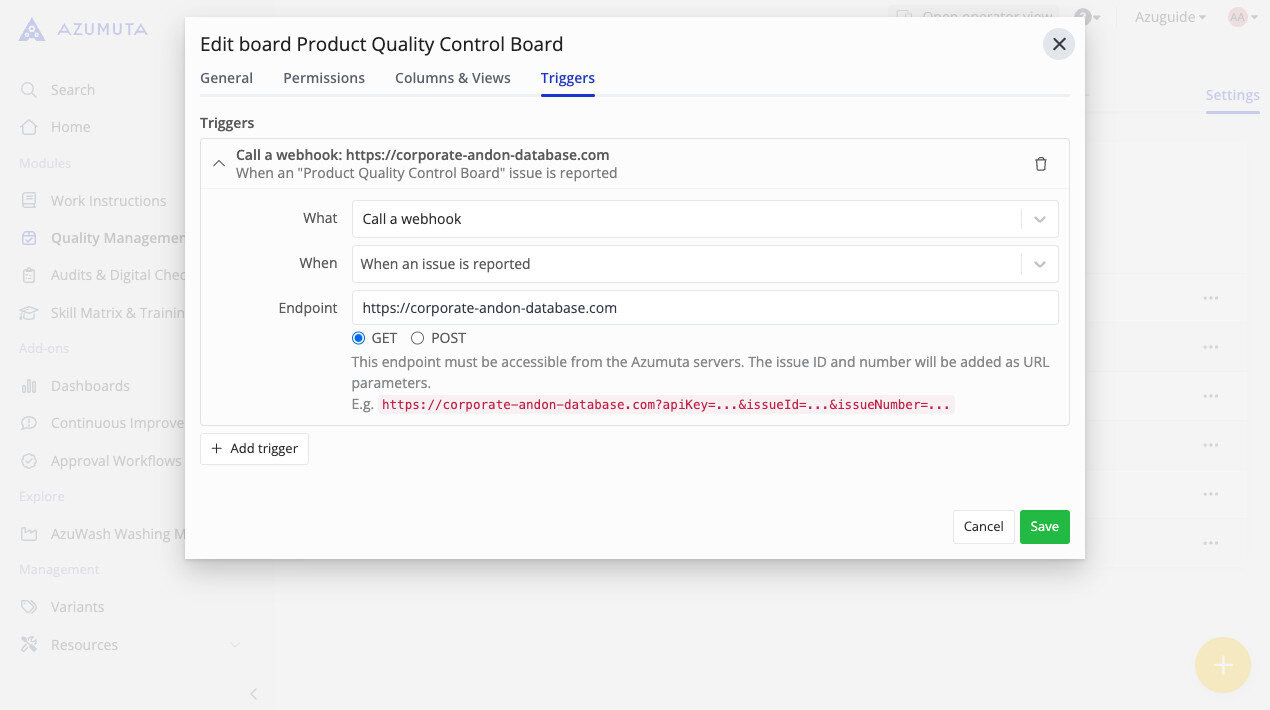
The Triggers Tab
A trigger is a tool that is used to automate a certain process based on an event that takes place within an Azumuta workspace. With triggers, you can automate various tedious tasks, saving both you and your employees valuable time.
See the triggers guides to learn more about triggers.
Delete an Andon board
- Click Quality Management on the homepage sidebar.
- Click Andon.
- Click Settings.
- Click the ⋮ (three-dot) icon next to the andon board that you would like to delete.
- Click Delete board.
- Click Delete.
Note: Before deleting an andon board, make sure that there are no andon flows that fall under it. If there are, you must delete these andon flows first before deleting the andon board.