
Image, Iframe, and Company Logo Widgets
Besides charts and KPI widgets, a dashboard can hold three general building blocks: an Image widget, a Company logo widget, and an Iframe widget. Use them to add a reference visual, brand a board, or embed an external page next to your existing widgets.
Add one of these widgets
- Click Dashboards in the sidebar and open the dashboard you want to edit.
- Click Add widget.
- In the widget picker, scroll to the General section and select Image, Company logo, or Iframe.
The widget is placed directly on the board, with no extra setup dialog. Click it to select it, and its settings open in the sidebar on the right.
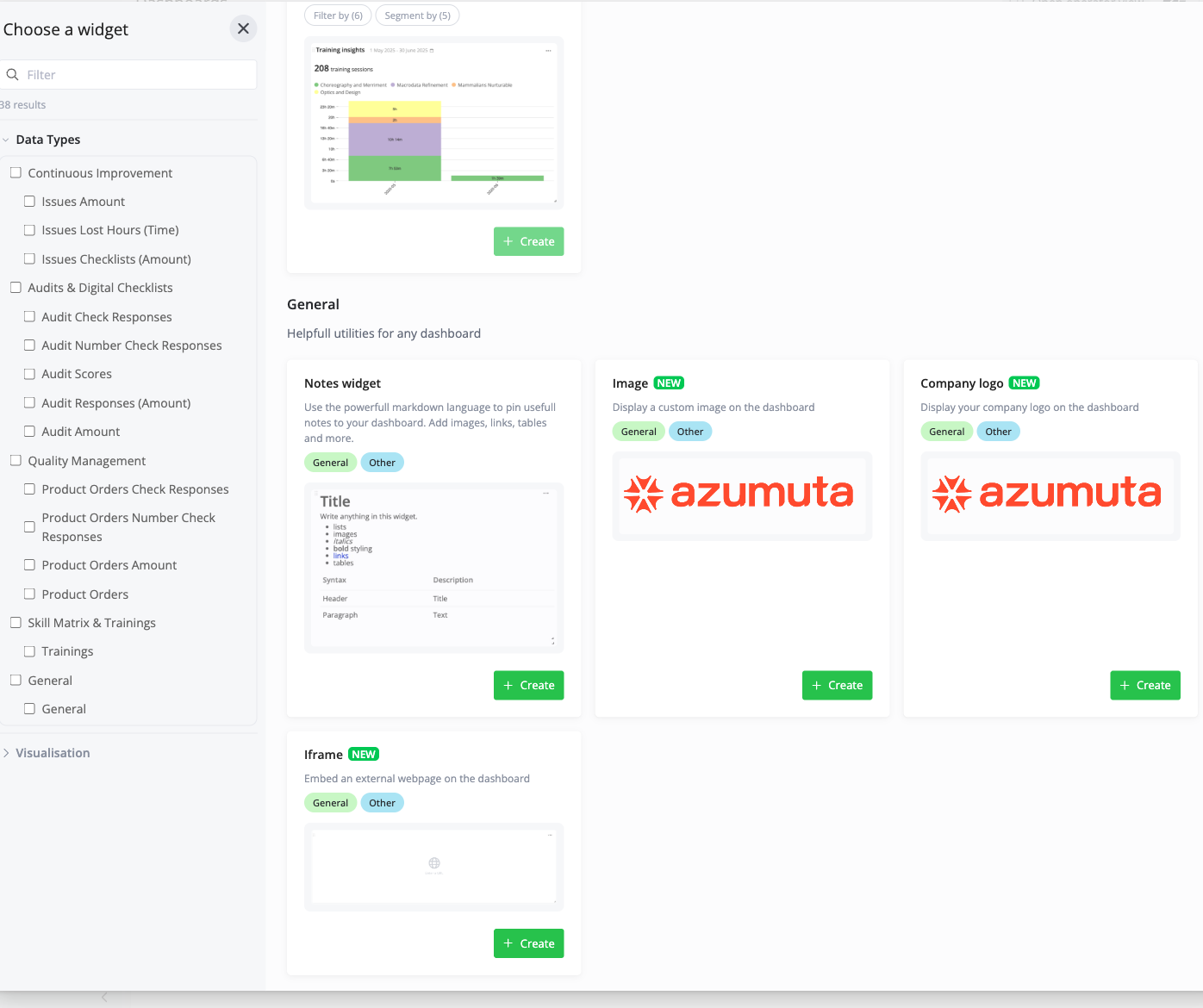
Image Widget
The image widget puts a reference image, diagram, or photo on the board.
- Select the widget to open its sidebar.
- Click Add image to upload a file, or Replace image to swap one that is already set.
- Optionally set a Background color and the Padding around the image (S, M, or L). The padding defaults to M.
Company Logo Widget
The company logo widget brands a board with your company logo.
The logo is taken from your company settings, the same one used on PDF templates, so there is nothing to upload on the widget itself. If no company logo is configured, the widget falls back to the Azumuta icon. You can still adjust the Background color and the Padding.
Iframe Widget
The iframe widget embeds an external web page directly on the dashboard.
- Select the widget to open its sidebar.
- In the URL field, enter the full address, starting with
https://(orhttp://).
The target site must allow being embedded. If a page blocks embedding in an iframe, it will not display inside the widget.
Learn more about adding a widget and a dashboard in Azumuta.