
Plan or Start a Task with a QR Code
A QR code turns a printed label, workstation tag, or document into a one-scan shortcut: an operator scans it with the app and lands exactly where you want them. For an article there are two different QR codes, and it is important not to mix them up:
- An article QR code opens the article in the app, so an operator jumps straight to the right content.
- A create product order QR code starts a new product order for that article, so an operator begins work without searching for the order first.
Both codes are generated from the same place. In the Admin tree, open the article category that holds the article, go to its Sharing tab, and find the Article QR card. There you pick the article you want a code for.
Article QR Code (open the article)
- In the Article QR card, select the article. The Azumuta QR code for [article] dialog opens.
- Set the print options (see below) and click Print.
When an operator scans this code, the app opens the article. Use it on a workstation or document to send operators straight to the instruction they need.
Create Product Order QR Code (start an order)
- In the same Article QR card, open the Create product order QR section. The Product order QR for [article] dialog opens.
- Set the print options and click Print.
This code only works for articles that have an automatic numbering format (set on the article), because each scan creates a new, uniquely numbered order. If the article has no automatic numbering, the dialog tells you so instead of generating a code.
When an operator scans it, the app opens the Create product order dialog with the article already selected. The Identifier is pre-filled from the article's numbering format; the operator can adjust it, add an optional Due date and Notes, then tap Create product order.
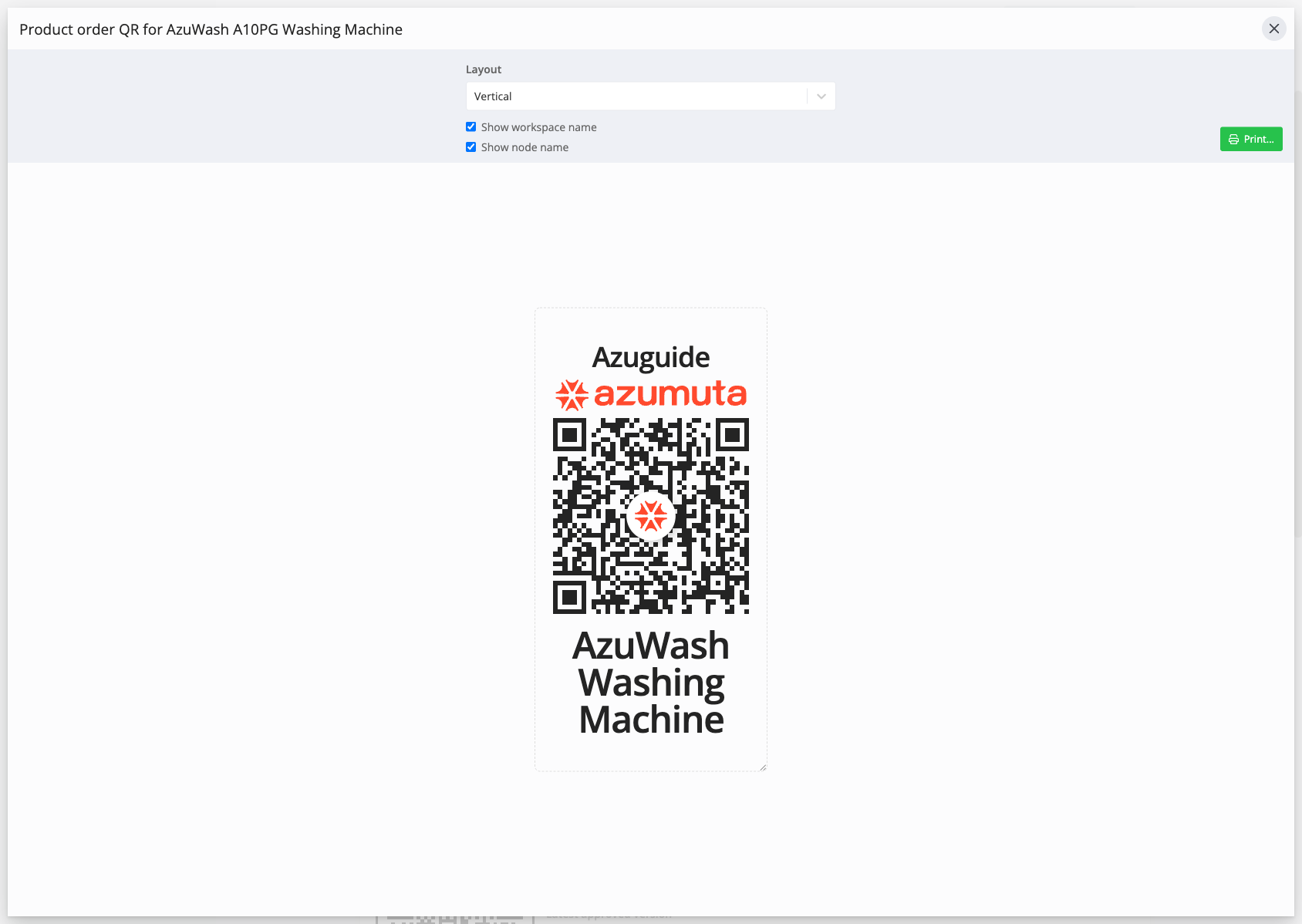
Print Options
Both dialogs share the same options:
- Layout: Vertical or Horizontal.
- Show company logo, Show workspace name, and Show node name to control what prints around the code.
- Print to send the label to your printer.
Audits work the same way: an audit work instruction has a Plan audit QR code on its Sharing tab that starts a new audit when scanned.
Learn more about activating a product order and seeing product orders from the app in Azumuta.