
Content sync
Content sync copies a top-level item and the content under it from one workspace to another, so a central team can maintain one set of work instructions and roll it out to every site that uses them. The workspace where content is authored is the source. Each workspace that receives a copy is a destination. One top-level item can be synced to several destinations, with a separate content sync for each.
A sync copies:
- The folders, article categories, and work instructions under the top-level item, with their names and order.
- The articles and variants of each article category, and the notes, attachments, and thumbnails of the synced items. A variant with the same code in the destination is reused and updated to match the source.
- What the steps use: images, videos, files, and the parts, equipment, and symbols. The sync adds its own copy of each part, even if the destination already has the same part.
- Shortcuts, as long as the item they point to is part of the sync.
Only the latest approved version of a work instruction is copied, never a draft. A work instruction without an approved version is skipped, and so is anything that's archived in the source.
Some content isn't copied. The rest of the work instruction still syncs, with a warning in the history:
- On a work instruction: its properties, approval flow, linked improvement flows and boards, and automatic identifier format.
- On a step: PFMEA requirements, markers, and step codes.
- On a check: Docx templates, email attachments, peripheral presets, webhook credentials, and link-product settings.
- Visuals that show another work instruction, another step's visuals, a Docx template, or a reporting widget.
Content sync is managed from the source workspace, by admins with access to Settings under Management. People in the destination can't see or run it. It only shows up once Azumuta has turned it on for the source workspace. Read more about user rights for the Management tab.
Set up a content sync
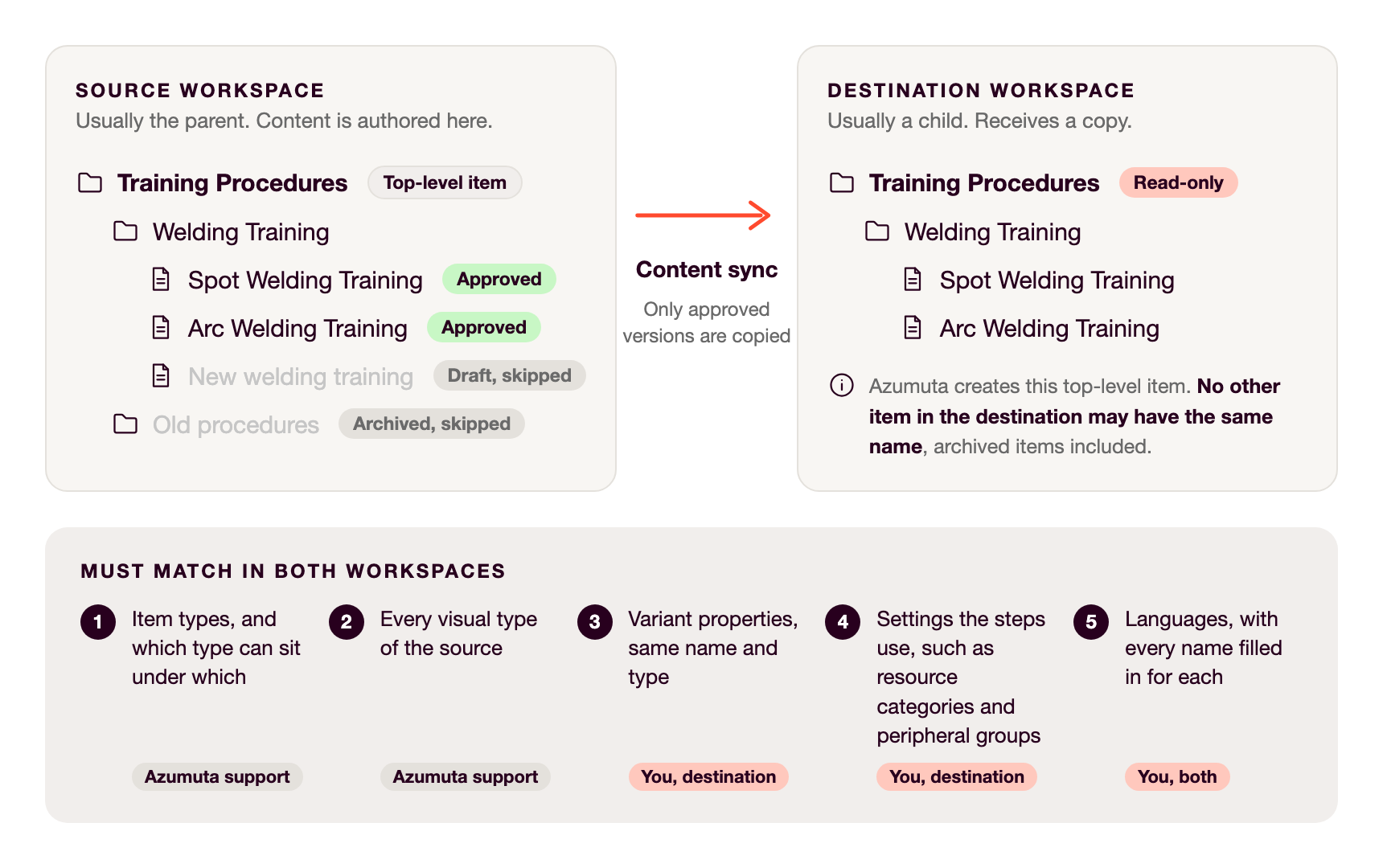
Azumuta support sets up each content sync and changes its options. Prepare both workspaces first, as shown in the diagram.
Source (left): put the content under one top-level item. A sync starts from a top-level item, never from a folder inside it.
Destination (right): no item may have the same name as that top-level item, archived items included. Azumuta creates the top-level item there for you.
Both workspaces (1 to 5): the sync copies content, not settings. It looks for matching settings in the destination, so they must already exist there. Azumuta support aligns 1 and 2. You prepare 3 to 5, mostly in the destination.
- Item types, and which type can sit under which.
- Visual types: every one the source has, even unused ones.
- Variant properties of the synced variants: add them under Settings > Properties > Variants, with the same name and type, and for a choice property exactly the same choices. A mismatch fails the whole run.
- Settings the steps use. A mismatch fails that work instruction.
- The resource categories of the parts, equipment, and symbols, with the same name and resource type.
- The properties of those parts, equipment, and symbols, on the same tab with the same name, type, and resource categories, and for a choice property exactly the same choices.
- The improvement flows that step rules use, with the same name and type, and the same setting for Visible when reporting issues from operator screens.
- The peripheral groups that checks use, under Peripherals in the sidebar, with exactly the same name and check type.
- Languages: give both workspaces the same languages. Then, in both, fill in the names from 3 and 4 in every language. Names are compared per language, so a name that's empty or different in one language won't match. A peripheral group has one name for all languages.
In your request, name the source top-level item, the destination workspace and the sync options you want. Anything still missing shows up in the first run's history:
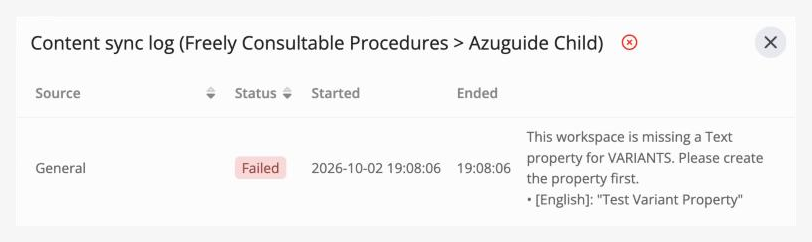
Open content sync
- In the sidebar, click Settings (the gear icon).
- Under Organization, click Content sync.
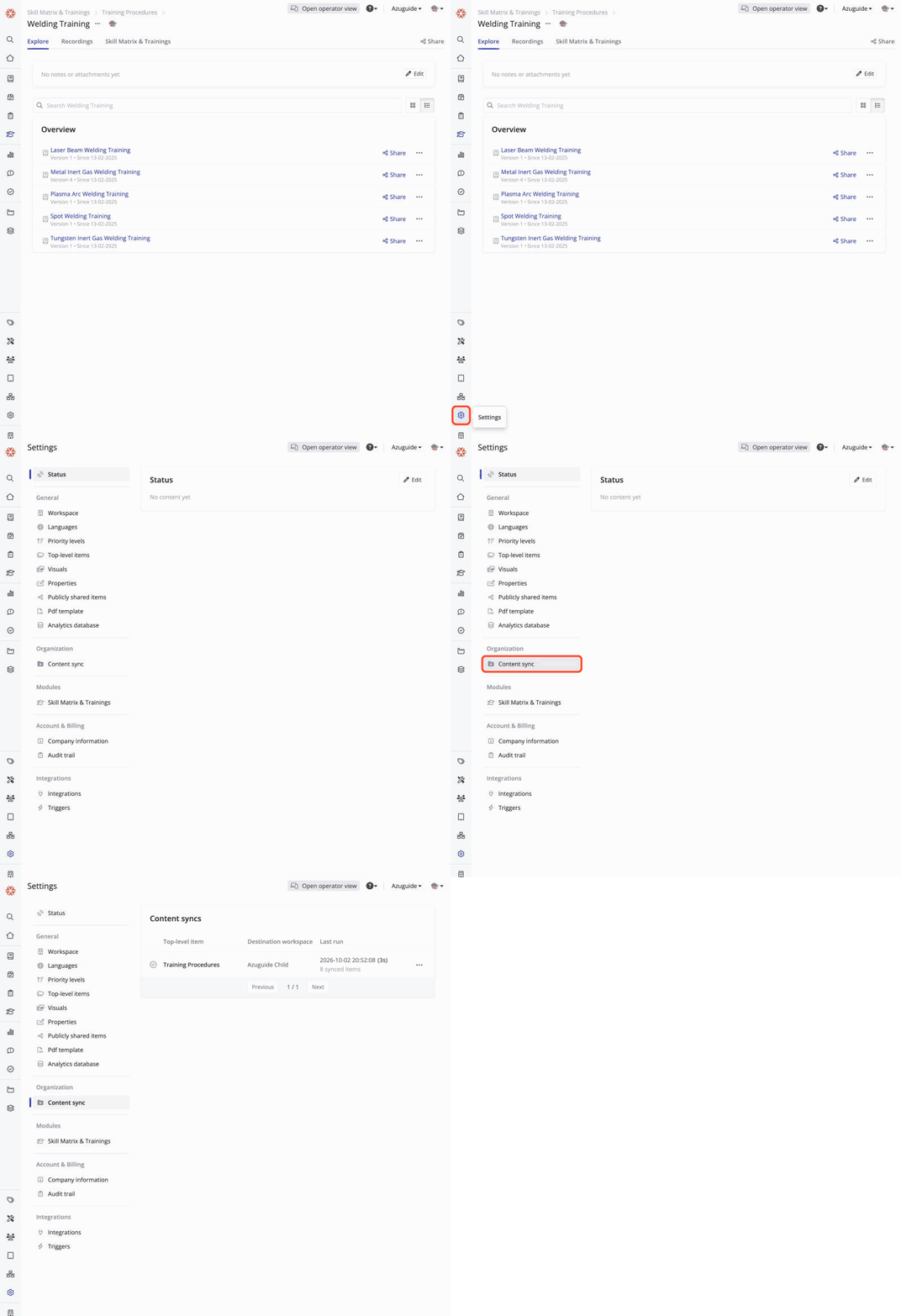
The list shows each content sync with its top-level item, destination workspace, and last run.
Choose what syncs
A sync doesn't have to copy everything under the top-level item. To choose which folders, article categories, and work instructions it includes:
- Next to the sync, open the ⋯ (three-dot) menu and click Edit...
- Select the items to include and save.
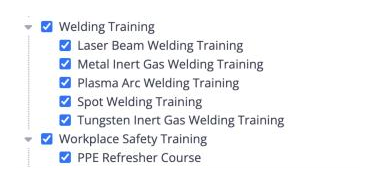
Selecting an item includes everything under it, even content added there later. The folders above it are copied too, so it keeps its place in the tree. You can change the selection at any time without contacting support.
Run a sync
Hover over the status icon at the start of the sync's row and click the play icon that appears, or click the play icon at the top of the sync's history.
Syncs don't run on a schedule. A sync only runs when you start it, or right after a work instruction in the selection is approved in the source, if Automatically sync work instructions on approval is on for that sync.
The two kinds of run differ in what they touch:
- A manual run goes through the whole selection. It also archives everything in the destination's synced tree that's no longer part of the selection, such as items deleted, archived, or deselected in the source.
- An automatic run after an approval only updates that one work instruction and the folders above it. It never archives anything.
The sync archives items rather than deleting them, so their history stays available in the destination. Shortcuts are removed instead. When you restore an archived item in the source, the next sync restores it in the destination too. If an incoming article needs a number that an archived article in the destination still holds, the sync deletes the archived article to free the number up.
Check sync status and history
The list shows the status of each sync as an icon, followed by when its last run ended, how long it took, and how many items it covered:
| Icon | What it means |
|---|---|
 |
Everything came through. |
 |
At least one item was skipped or has a warning. |
 |
At least one item failed or has a merge conflict, even if everything else copied over cleanly. |
 |
The sync is queued or running. It can't be started again until it's done. |
 |
The sync hasn't run yet. |
To see what happened to each item, open the ⋯ menu next to the sync and click Show history... to open the Content sync log. It lists every item of the last run with its status and messages. Use the pages at the bottom to see earlier runs.
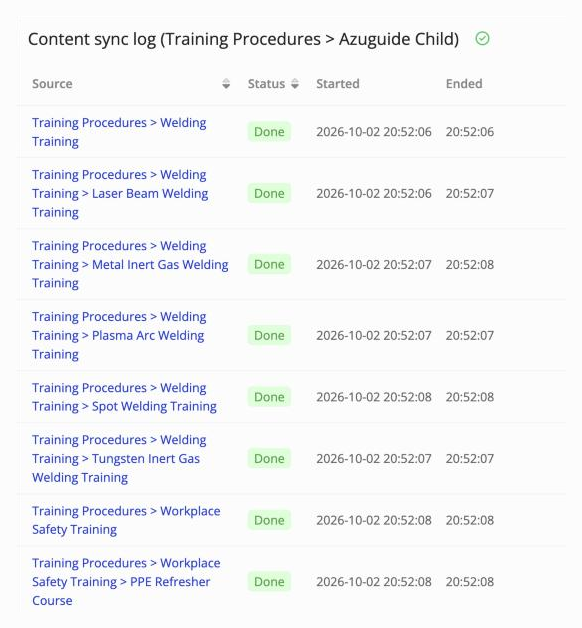
| Status | What it means |
|---|---|
| Done | The item was copied or updated. |
| No difference | Nothing changed since the previous run. |
| Warning | The item was copied, but some of its content couldn't be carried over, or the sync replaced local work in the destination. The message lists what. |
| Skipped | The item wasn't copied, for example a work instruction without an approved version. |
| Merge conflict | The source and the destination both changed this work instruction, so nothing was copied for it. See handle conflicting edits. |
| Failed | The item couldn't be copied. The message says why, for example an article number that's already used by other content in the destination. |
Sync options
Azumuta support sets these options for each content sync. You can see them, locked, in the sync's Edit... window.
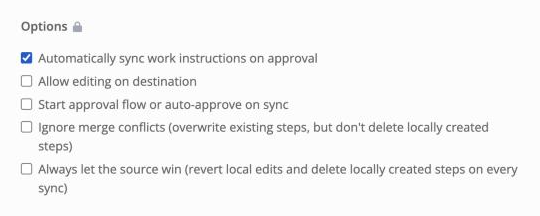
- Automatically sync work instructions on approval: runs a sync for a work instruction as soon as it's approved in the source. See run a sync.
- Allow editing on destination: see allow editing on the destination.
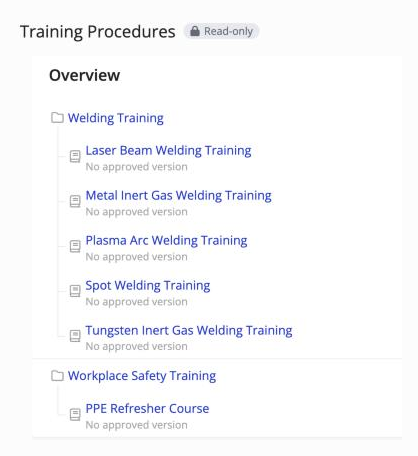
- Start approval flow or auto-approve on sync: decides what happens to a synced change in the destination. When it's off, the change arrives as unapproved changes to the work instruction, and someone in the destination approves it the usual way. Until then, a newly synced work instruction shows No approved version in the destination. When it's on, the sync saves a new version right away and sends it into the destination's approval flow, or approves it directly if no approval flow applies.
- Ignore merge conflicts and Always let the source win: see handle conflicting edits.
Allow editing on the destination
By default, synced content is locked in the destination: people there can open and use it, but can't change it, and the synced items show a Read-only tag. This keeps the source as the single point of truth across every site.
Ask Azumuta support to turn on Allow editing on destination if a site needs to adapt its copy, for example to edit steps to fit local tooling or language.
| Action | Locked | Editable |
|---|---|---|
| Rename, move, reorder, add, or delete items | Not allowed | Allowed, but see below |
| Edit work instruction steps and checks | Not allowed | Allowed |
| Edit notes and attachments | Not allowed | Allowed, but see below |
| Receive updates from the source | Yes | Yes, except for a work instruction with a merge conflict |
| Approve a new version of a synced work instruction | Yes | Yes |
Locking only affects the synced content itself. The destination's own settings on a synced item, such as its approval flow, audit review flow, improvement flows, and automatic numbering, stay editable either way, and the sync doesn't overwrite them. The one exception is the numbering of articles, which always comes from the source.
Operators can always open, follow, and complete a synced work instruction, locked or not, as long as it has an approved version in the destination. See Start approval flow or auto-approve on sync under sync options.
Even when editing is allowed, the source stays in charge of the tree and of folder and article details:
- The name, order, and position of each synced item are reset to the source's on every sync that includes it.
- A folder's description, tags, notes, and attachments are reset to the source's whenever they differ from it. So is everything about an article, including its notes, attachments, and variants.
- An item added directly in the destination's synced tree is archived on the next manual run.
- A synced item that's deleted in the destination is copied again by the next sync that includes it.
Handle conflicting edits
This only matters once editing is allowed on the destination. When the source approves a new version of a work instruction, the sync merges it into the destination's copy step by step. A conflict is a step the destination changed locally that the source also changed or deleted. Two sync options decide what happens:
- Both off (default): the work instruction is held back with the status Merge conflict, and the history lists what forcing the sync would change. Everything else in that sync still applies normally. The work instruction stays held back until the conflict is resolved, for example by turning on Ignore merge conflicts.
- Ignore merge conflicts: the source's version replaces the conflicting steps, and a step the source deleted is deleted in the destination too, local edits included. Local edits to steps the source didn't change, and steps the destination added on its own, are kept. The history lists what was replaced, and the item shows a Warning.
- Always let the source win: each new source version makes the destination's copy match the source exactly. Local edits are reverted, and steps the destination added on its own are deleted, even when the source didn't touch them. Conflicts never hold a work instruction back. Turning this on also covers Ignore merge conflicts.
For example, a work instruction has one step. The destination edits that step and adds a second step of its own. The source later changes the first step too and approves a new version.
- With both options off, that work instruction is held back with Merge conflict.
- With Ignore merge conflicts on, the next sync applies the source's version of step one and keeps the destination's step two untouched.
- With Always let the source win on, the next sync applies the source's version of step one and deletes step two.
A step that's deleted in the destination is added back with the next source version, whichever option is on.
Recognize synced content in the destination
In the destination, the synced top-level item has a small badge next to it, in the side panel (when it's expanded) and in the list under Top-level items in Settings. Hover over it to see which workspace the content comes from, and either when it last synced (when the last run ended, even if nothing changed or it failed) or that a sync is running. The badge only appears on the web, not in the operator interface.

Stop a content sync
Ask Azumuta support to stop a content sync. There are two ways to do it:
- Unlink destination tree: the sync stops, and the destination keeps its copy as regular content it can edit freely.
- Delete destination tree: the sync stops, and the destination's synced top-level item is removed, with everything under it.