The Audit Trail
What the Audit Trail Is
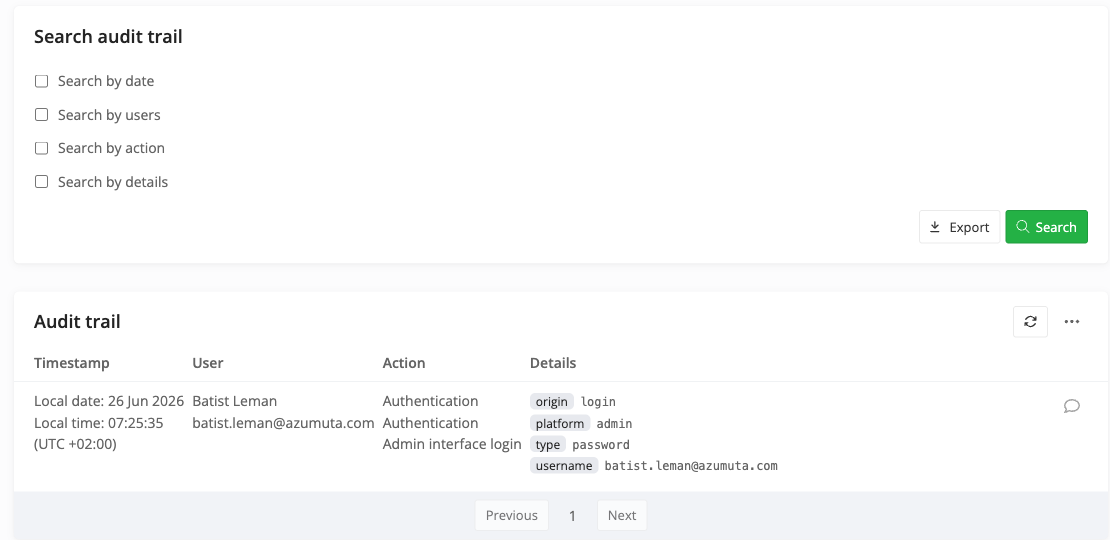
The Audit Trail is a workspace-wide, read-only log of actions taken in Azumuta. Each entry records who performed an action, what changed, and when, so quality and compliance teams can reconstruct the full history of an item.
You will find it under Management → Settings → Audit Trail. Opening it requires the View Settings right under Management, so it is limited to administrators; operators on the shop floor cannot open it. Azumuta staff can additionally review trail entries that span workspaces.
What Gets Recorded
The trail captures actions from across the workspace, including:
- Sign-ins, both successful and failed, including the provider, the intent (login or signup), and the platform (admin, web app, or native app) for single sign-on.
- Approval and signature activity, including approval-flow lifecycle events such as requests, column moves, and quick-approve actions.
- Issue actions, renames, and feature-toggle changes.
- Archiving, unarchiving, and deletion, with a separate entry written for each affected item when an action cascades through a subtree.
- Effective-date board transitions.
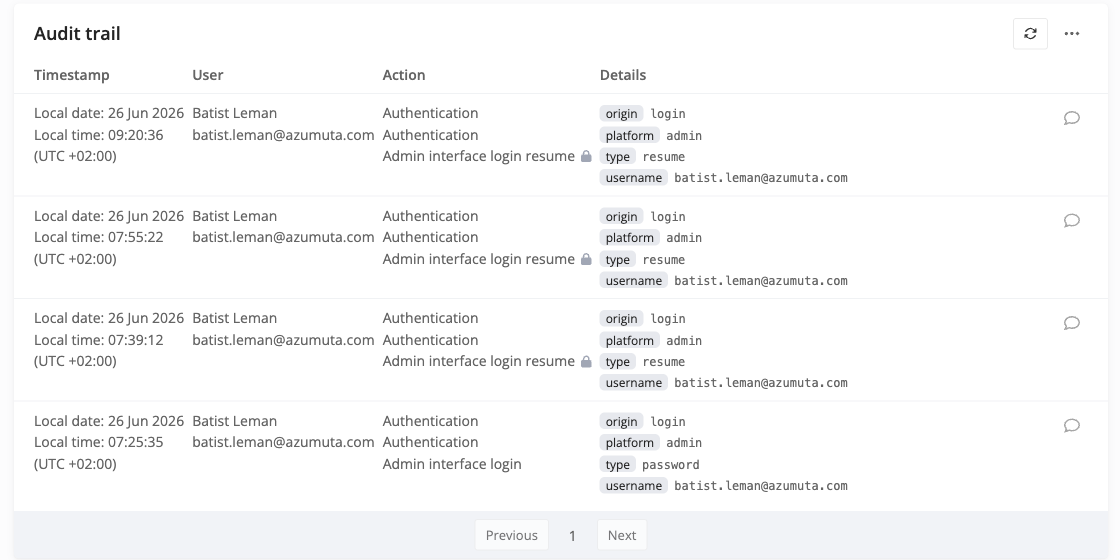
Every entry resolves the readable name of each referenced item next to its ID, and those names are captured at the moment the entry is written, so the history stays clear even after an item is later renamed. Usernames are preserved even for hidden or deleted users. When several actions happen within the same second, the trail shows them in the order they actually occurred.
The trail focuses on actions that create, change, approve, sign off on, archive, or remove data, together with sign-in activity. Routine searches and most read-only browsing are not recorded.
How Entries Are Protected
Entries are immutable. Each one is written once, and no part of the application can change or delete it afterward: there is no edit or delete action for trail entries for any role, including administrators and Azumuta staff. This makes the trail suitable for GMP and other regulated environments where records must be attributable, time-stamped, and unalterable.
Entries are retained for the life of the workspace. They are never automatically expired or purged.
Each entry's time is stored in UTC and shown to you in your own local timezone, both on screen and in exports, so the underlying record stays consistent across sites and reviewers.
Filtering and Searching
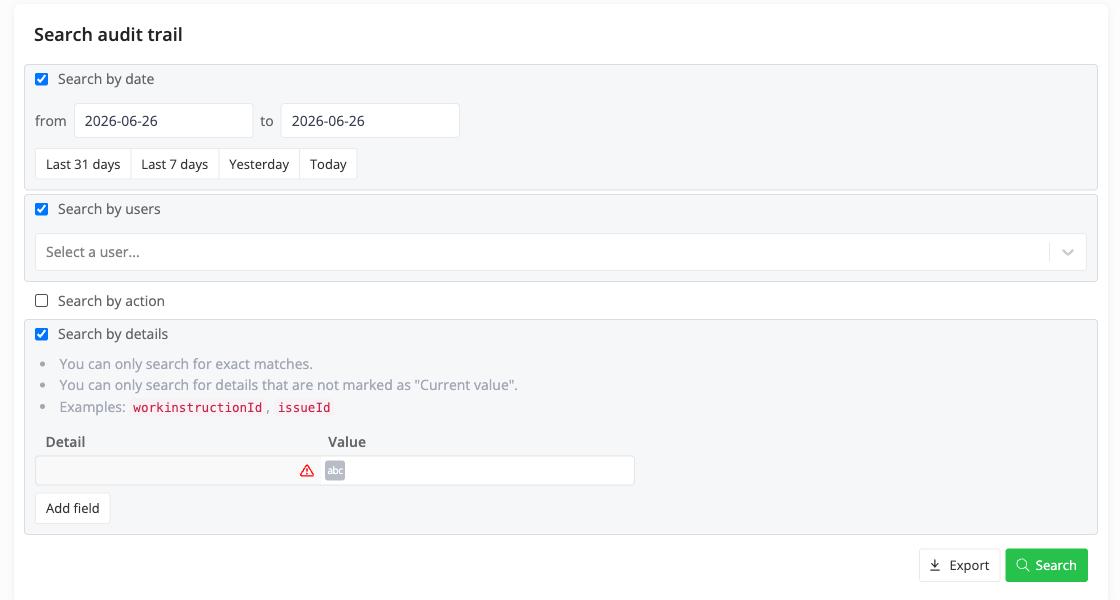
Narrow the trail by date range, by user, by action type, and by specific argument values (for example an entity ID or an issue ID) to focus a review. Changing the search and running it again returns you to the first page of results, so a smaller result set never leaves you looking at an empty page.
Adding Comments
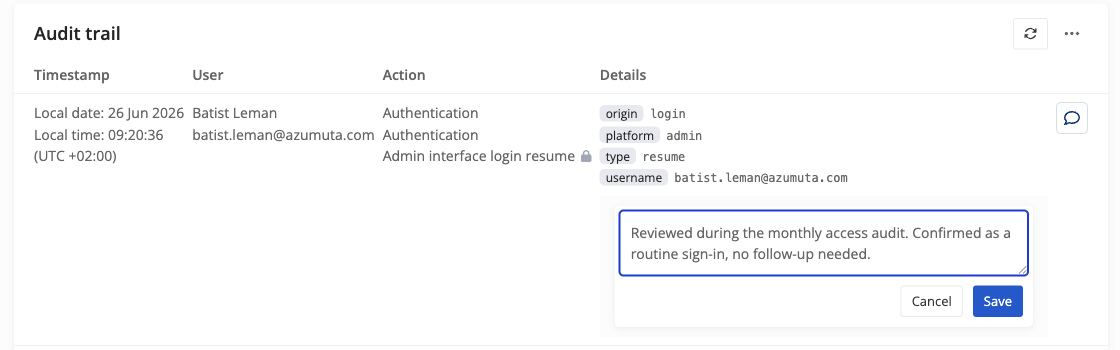
You can add an explanatory comment to a trail entry, for example to record the reason behind a change or the outcome of an investigation. Each comment is attributed to the user who wrote it and is timestamped, and editing a comment keeps the previous text as version history. Comments are stored separately from the entry they annotate, so they never alter the original record and the trail itself stays immutable.
Exporting
Export the filtered trail to a CSV file for archival or external review. Each row includes both human-readable values and the raw IDs, the local date and time, and the UTC offset that was applied. Sensitive fields such as passwords, API keys, and login identifiers are removed from the export.
The maximum number of rows per export is configurable per environment, with a default of 10,000. When an export reaches that limit it is truncated and you are told the limit was applied, so you can refine your filters and export a more specific set. An export is a point-in-time copy for review; the in-app Audit Trail remains the authoritative record.