
Restrict Improvement Flows and Boards per Tree Node
You can control which improvement boards and flows operators can pick when they report an issue from a specific node in your content tree (the left-hand hierarchy of Spots, Work Instructions, and Article Categories). An improvement board groups one or more flows, and you can restrict by whole board or by individual flow, keeping the operator's reporting screen focused on what is relevant to the node they are working on. With no selection anywhere in the tree, operators can still choose from all flows.
Before You Start
The picker only lists improvement boards that are set to show on the operator screen. If a board is missing from the list, open that board's settings and enable Show on operator screen first.
Restrict the flows for a tree node
- In the Admin tree, open the edit modal of a Spot, a Work Instruction, or an Article Category.
- Expand More options.
- Open the Improvement flows section. Until you open it, it reads Select improvement flows.
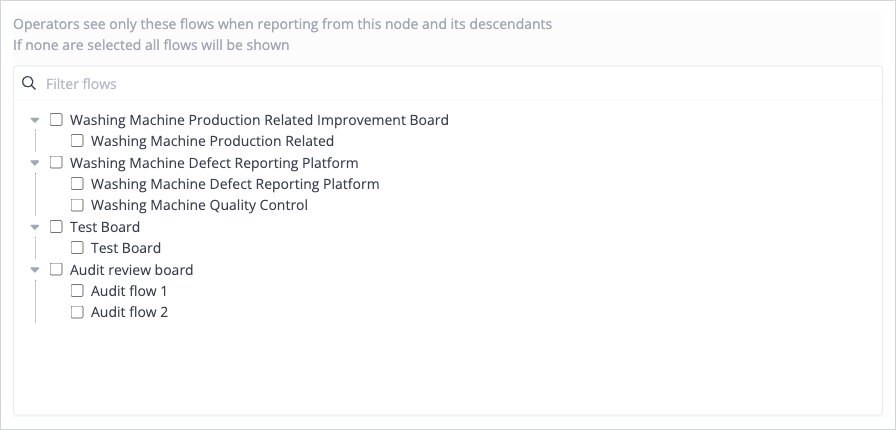
- In the picker, tick the boards and flows operators should see for this node:
- Tick a board to include the whole board, including any flows added to it later.
- Tick an individual flow to include just that flow.
- Use the Filter flows box to find a specific board or flow.
- Save the modal.
The note under the section confirms the effect: "Operators see only these flows when reporting from this node and its descendants".
How Inheritance Works Down the Tree
Selections flow down the tree, so a child node inherits everything selected on its ancestors:
- Inherited boards and flows appear locked, labelled with the node they came from, and cannot be removed on the child. To change them, edit that ancestor node.
- A child can still add its own boards and flows on top of what it inherits.
- If nothing is selected anywhere up the tree, operators can choose from all flows.
What Operators See
When an operator reports an issue while working in a work instruction, the improvement flows they can choose from are limited to the selection on that work instruction or an inherited ancestor (Spot or Article Category):
- While executing the work instruction, the operator taps Report issue.
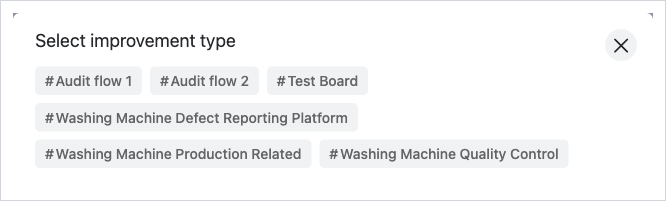
- Under Select improvement type, only the configured boards and flows appear, so the choices match what was selected on the node in Admin.
If nothing is selected anywhere up the tree, the operator continues to see all flows.
Learn more about creating an improvement board and flow and submitting a ticket as an operator in Azumuta.