
Use Azumuta MCP
BETA: Azumuta MCP is currently in beta and may still evolve. It is available by opt-in only. To join the beta or ask questions, contact support@azumuta.com.
Azumuta MCP lets your preferred AI assistant retrieve selected data from your workspace. The assistant can summarize this data and compare records. First, connect your AI assistant to Azumuta.
What you can ask about
The API key controls which tools are available. A tool is an action that the assistant can use to retrieve data.
| Data | Examples |
|---|---|
| Work instructions | Find instructions, read steps and supported check settings, and compare versions. |
| Recordings | Read execution details, recorded answers, and report data. A recording is one execution of a work instruction. |
| Product orders | Find orders and inspect their work instructions, statuses, parameters, and linked recordings. |
| Issues and boards | Find issues, read board and flow definitions, and inspect issue status changes. |
| Users | Find people by name or email and read available profile details. |
| Zones | Find zone names and identifiers to use in other searches. |
Try these examples
These examples use sample records in a separate demo workspace. Cursor is shown in Zen Mode. The animations show live requests and responses, with shorter pauses. Replace the sample names with names from your workspace.
- Open the assistant connected to Azumuta MCP.
- Send one of the prompts below.
- Review the tool calls and retrieved records before you use the answer.
Summarize an approved work instruction
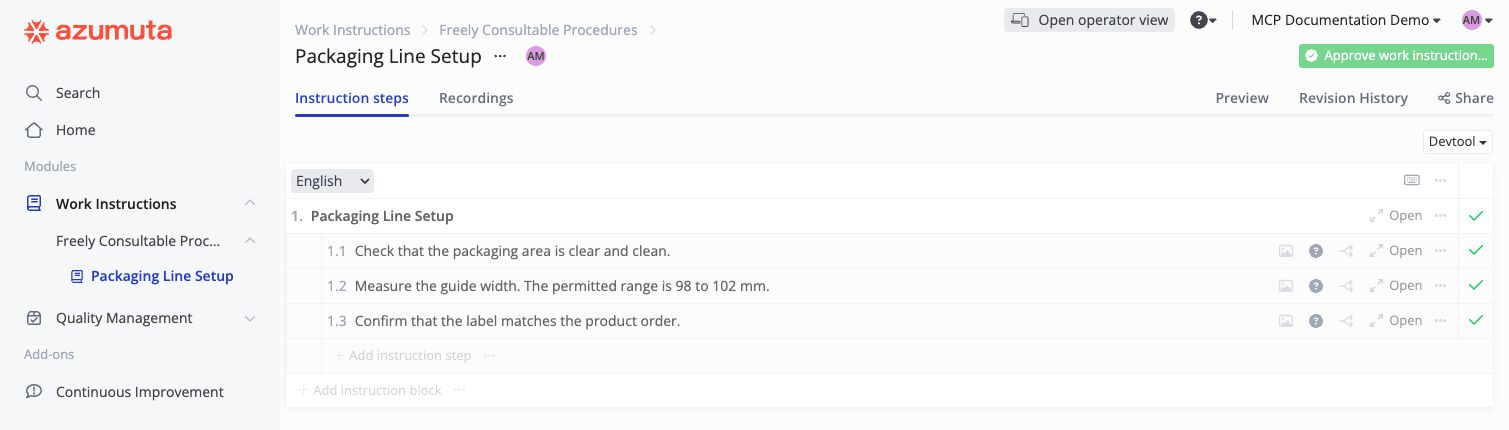
This work instruction contains the checks that the assistant summarizes below.
Use only Azumuta MCP. Find "Packaging Line Setup". Summarize the current approved version that is effective now. Include its version number and main checks. Do not use the draft instead. Keep the answer under 150 words and state what I must verify.
An approved version with a future effective date is not yet the current effective version. Always check which version the assistant used.
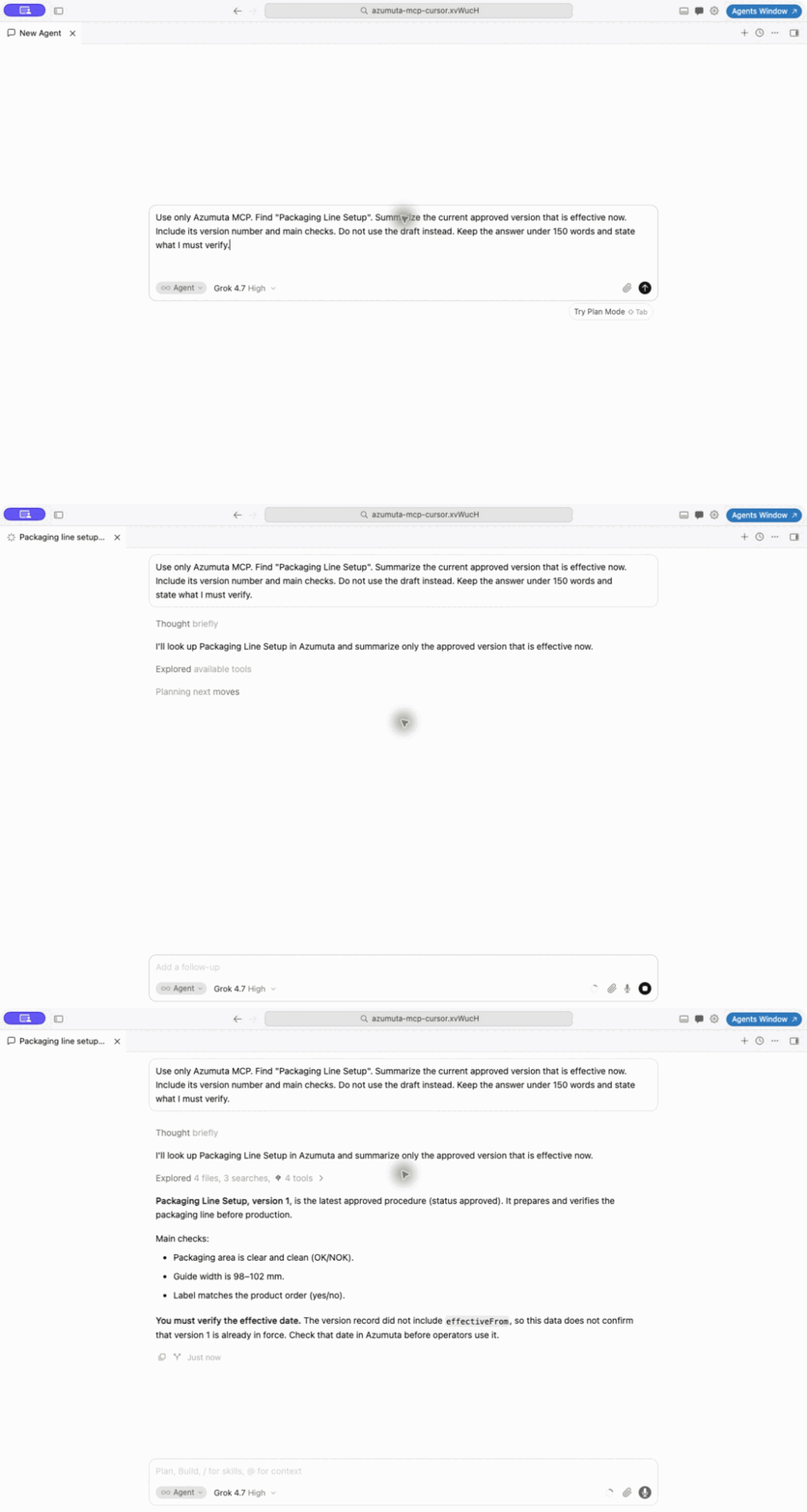
In this response, the assistant asks you to verify the effective date in Azumuta. Do not use an AI summary as approval to start work.
Inspect a product order
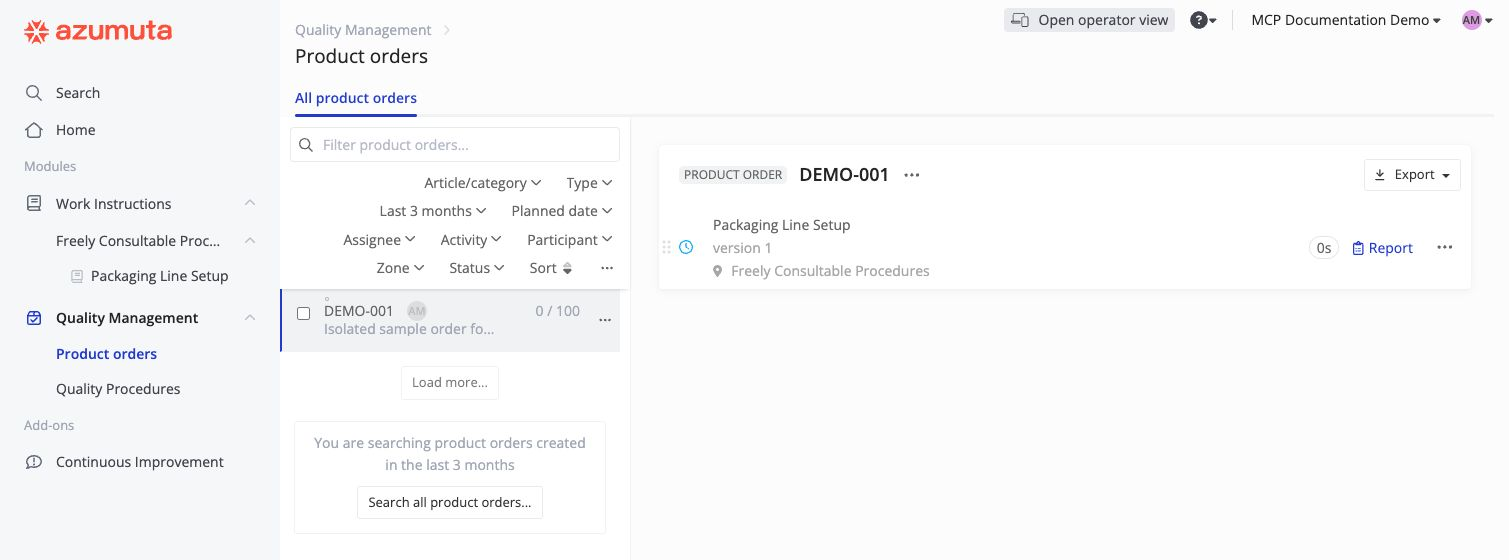
This product order contains the work instruction that the assistant inspects below.
Use only Azumuta MCP. Find product order "DEMO-001". List its work instructions, statuses, and recording IDs. Compare their versions with the version history. Recording and order version values start at 0; version history numbers start at 1. For queued work, report the selected version, not completed execution. Distinguish finished work from successful results. State what is missing.
A finished order does not prove that every check passed. Inspect the linked recordings before you draw a conclusion.
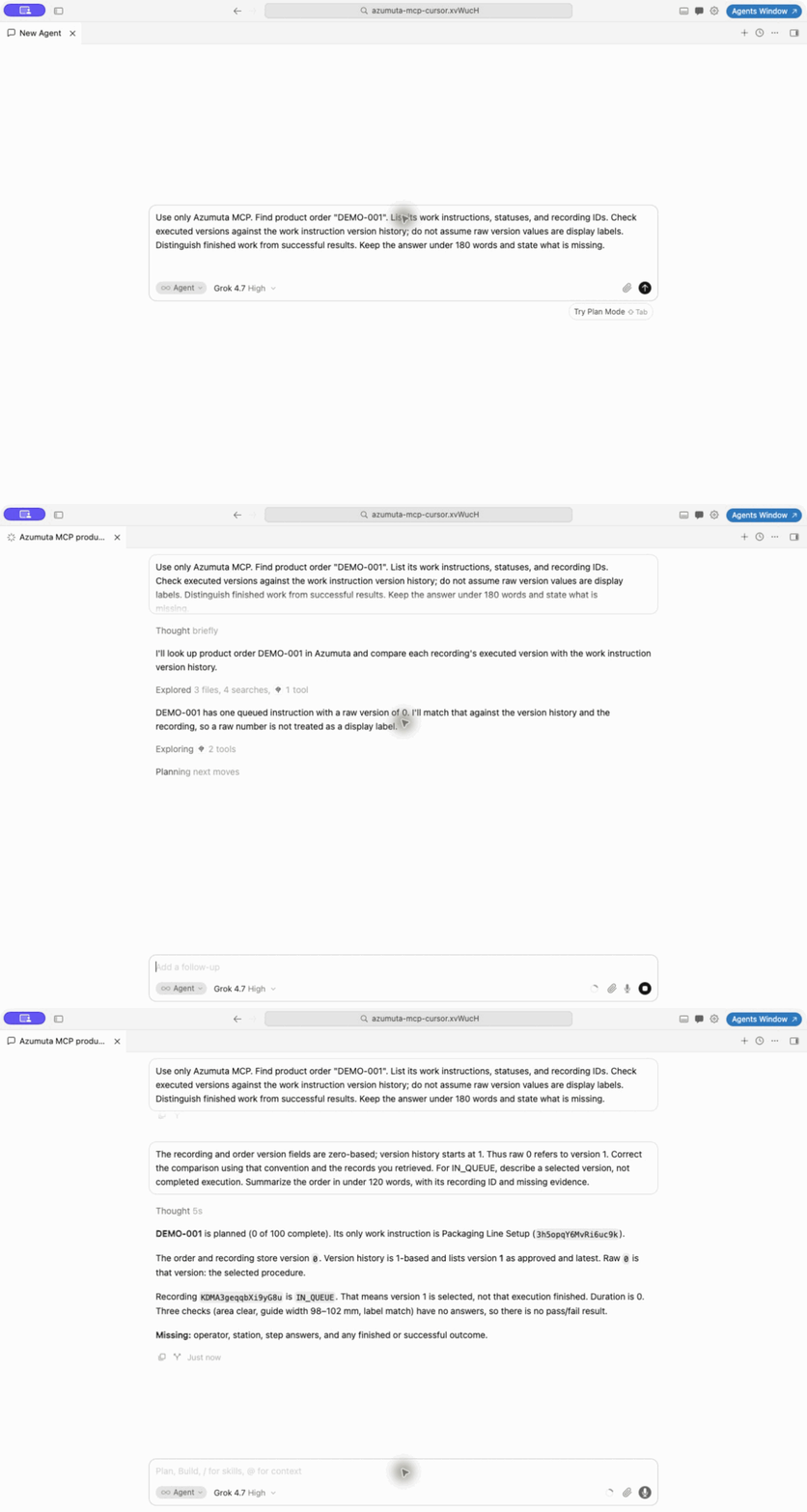
The follow-up in this example corrects the version-number interpretation. The recording is queued and has no answers. It does not provide evidence of successful execution.
Review issue status changes
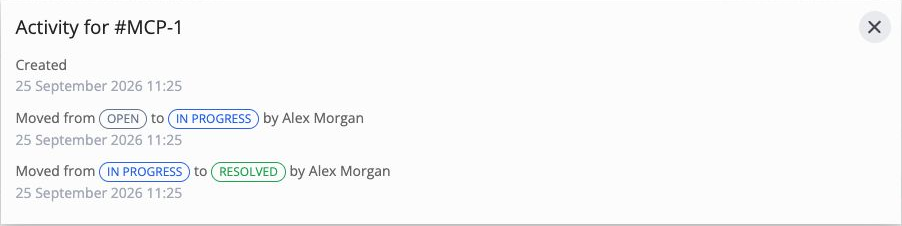
The activity for issue MCP-1 shows the status changes that the assistant summarizes below.
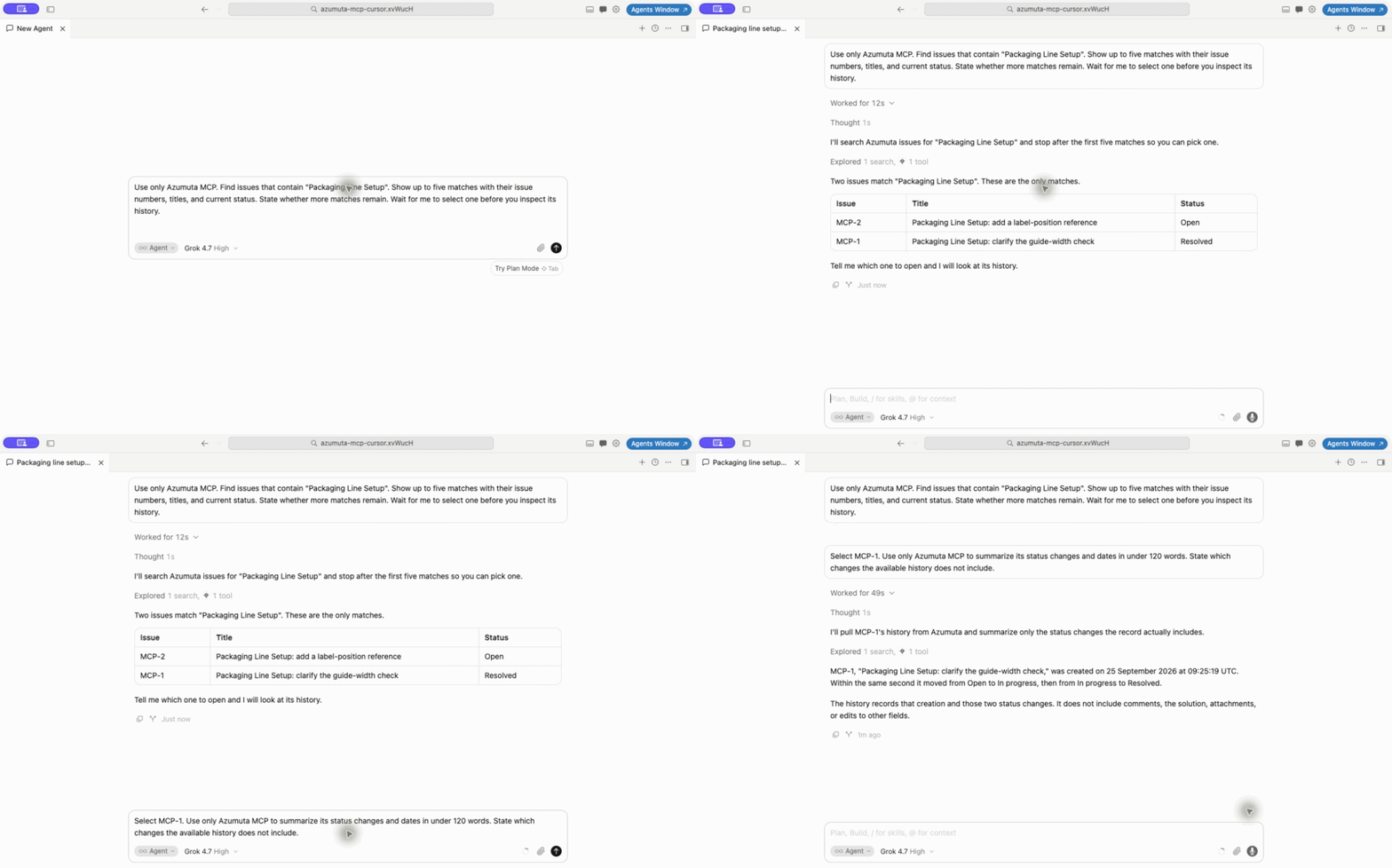
Use only Azumuta MCP. Find issues that contain "Packaging Line Setup". Show up to five matches with their issue numbers, titles, and current status. State whether more matches remain. Wait for me to select one before you inspect its history.
After you select an issue, send a follow-up:
Select MCP-1. Use only Azumuta MCP to summarize its status changes and dates in under 120 words. State which changes the available history does not include.
The issue history tool returns creation and column-change events. It does not return the full history of comments, solutions, or field changes.
Possibilities and limits
- Read-only access: Azumuta MCP cannot create, edit, approve, or delete records. Other tools in your AI assistant can have different permissions.
- Selected data only: MCP does not expose every Azumuta feature or provide direct SQL access. It uses the workspace and access scopes of the configured API key, not your open browser session.
- Text and structured data: Work instruction data does not include every image shown in Azumuta. Recording reports return structured data, not a PDF or spreadsheet download.
- Partial results: Lists have page limits. Large responses can be cut off. Use a name, date range, or status to narrow the request. Ask whether more results remain before you rely on a total.
- Different date meanings: State whether your question concerns planning, start, or finish dates. Ask the assistant which date it filtered.
- Review required: AI answers can contain errors. Ask for record identifiers, versions, filters, and missing information. Verify important conclusions in Azumuta. Use an AI service approved by your organization for the data you retrieve.