
Export a PDF from a trigger
Use a trigger to send a PDF to your document storage when an event occurs. Your team can then access approved instructions and execution records from that location.
Select the document to export
An approved work instruction describes the work to do. A recording report contains the results of one execution.
| Document | Action | Example event |
|---|---|---|
| Approved work instruction | Export the approved work instruction pdf | An approval request moves to Effective on a selected Approval Board. |
| Audit recording report | Export a report, with Default recording report | When an audit is finished |
| Product-order recording report | Export a report, with Default recording report | When a work instruction is finished |
The approved-work-instruction export uses the approved version linked to the approval request. It includes the extra information sheets for that version.
The Default recording report uses the results of the applicable recording. It does not require a DOCX template. Azumuta exports this report as a PDF, so there is no format selection.
The exported recording report can differ from the report in Azumuta on Web. Check the exported PDF for the information that your team requires.
Before you start
You need a destination that Azumuta can access. The supported destinations are an SFTP server and a SharePoint site. SFTP is a protocol for secure file transfer. See the SFTP integration overview and the SharePoint integration overview for background.
Note: For questions or assistance with setup and configuration, please contact us at support@azumuta.com. This includes the following tasks:
- Configure the export destination in your workspace.
- Configure connection credentials and permission to write files at the destination.
- Configure the PDF service required for automatic generation.
- Confirm that your work instruction PDF template supports automatic generation.
You can edit triggers from an Approval Board or an article when you have the applicable permissions.
- For an Approval Board, you need permission to manage the board and the manage boards & flow settings right.
- For an article, you need the edit articles (ERP configuration) right.
Export an approved work instruction
This example uses the Approval Board Work Instruction Approval and its Effective column. Use the applicable board and column in your workspace.
The approval flow must move the request to this column at the correct time. The column name does not set the effective date. The linked version must already be approved when the export starts.
- Open the Approval Board editor.
- Open Triggers.
- Select Add trigger.
- Expand the new trigger.
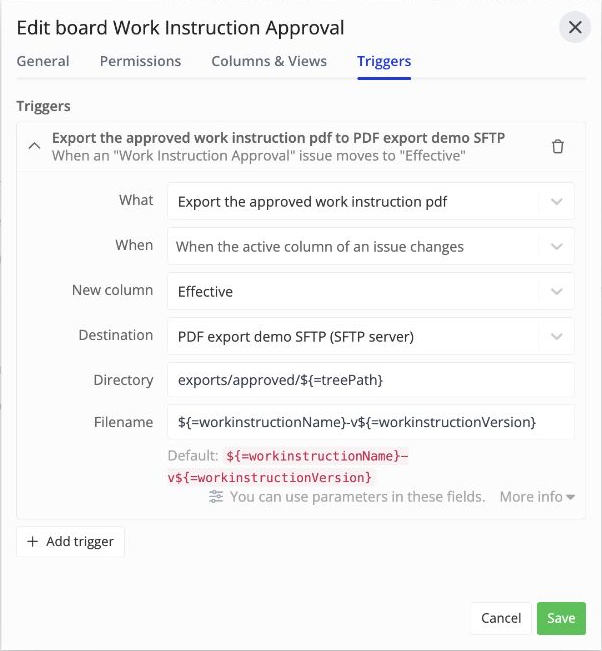
- Under What, select Export the approved work instruction pdf.
- Under When, select When the active column of an issue changes.
- Under New column, select Effective.
- Select the configured Destination.
- Enter the Directory as described in Set the folder and filename.
- Enter the Filename, or leave it empty to use the default.
- Select Save.
The board editor sets the trigger scope to that board. New column is available only for a specific board. To export from another Approval Board when its request changes columns, configure a trigger for that board.
Azumuta can reuse a PDF that it has already generated for the approved version. If the PDF is not ready, Azumuta generates it before it sends the file.
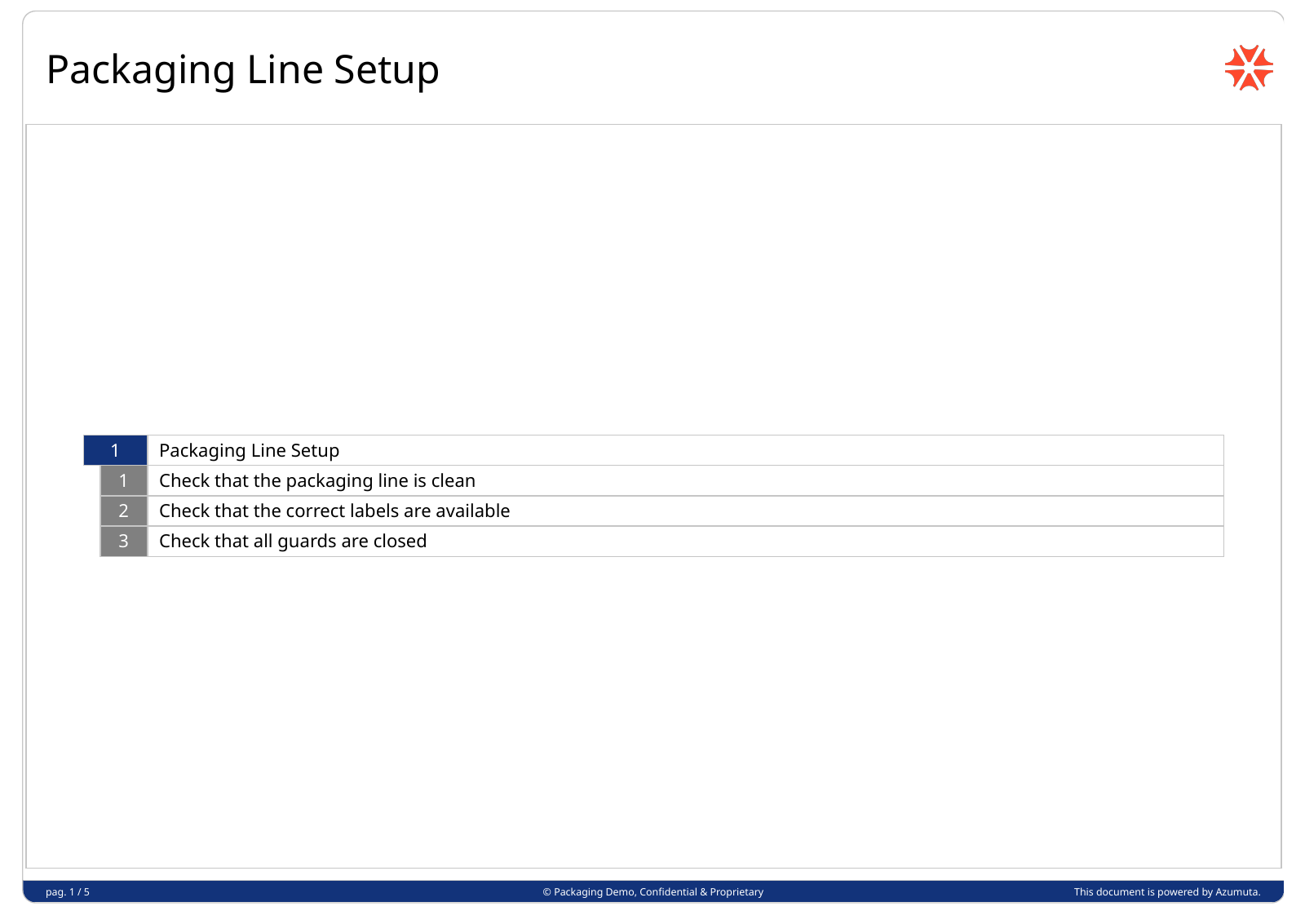
The following image shows the first page of an approved instruction PDF delivered to the test destination.
For an export at approval time, the alternative event is When an approval request for a work instruction is approved. Use this event only if the export must not wait for a later effective date.
Audit recording export settings
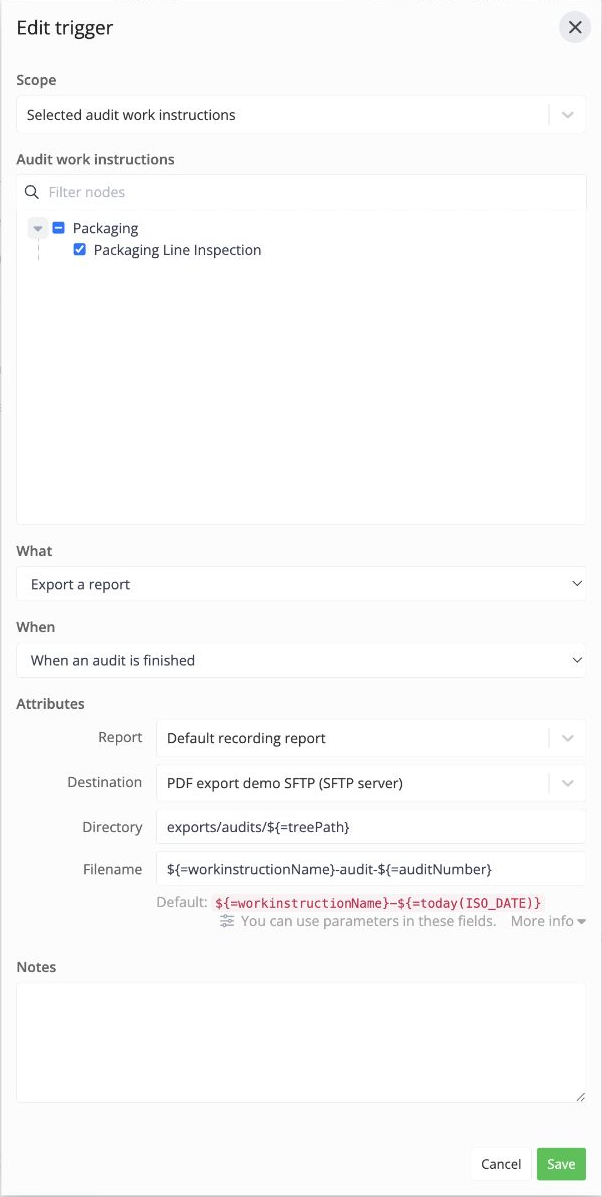
An audit recording export uses the following settings:
- Scope: Selected audit work instructions, with the applicable audit work instructions.
- When: When an audit is finished.
- What: Export a report.
- Report: Default recording report.
- Destination: The configured storage integration.
- Directory and Filename: The folder and filename for the exported PDF.
The trigger exports the recording of each applicable audit when that audit finishes. It does not export the audit work instruction as a blank document.
This example shows the configuration prepared by support.
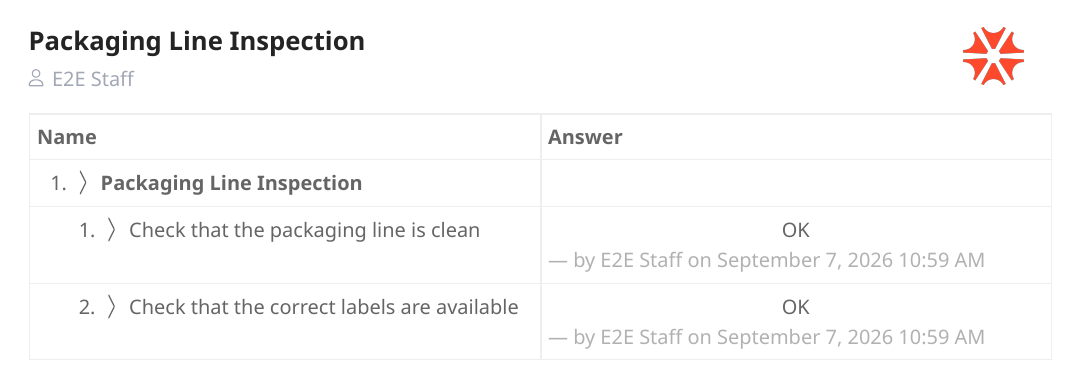
The following excerpt shows two answers in the PDF delivered to the test destination.
The alternative event When an audit is put into rework mode exports the recording when it enters rework. It does not wait for the rework to finish. The recording-report action is not available when an audit is only created or started.
Export a product-order recording
You can configure a trigger for an article from its Work instructions tab. The export applies to the work instruction's recording within an applicable product order.
- Open the article.
- Open Work instructions.
- Select Edit triggers.
- Select Add trigger.
- Expand the new trigger.
- Under What, select Export a report.
- Under When, select When a work instruction is finished.
- Under Work instruction, select Packaging Line Setup, or the applicable work instruction.
- Under Report, select Default recording report.
- Select the configured Destination.
- Enter the Directory.
- Enter the Filename.
- Select Save.
Select (Any) under Work instruction only if the trigger must export each finished work instruction's recording in the scope.
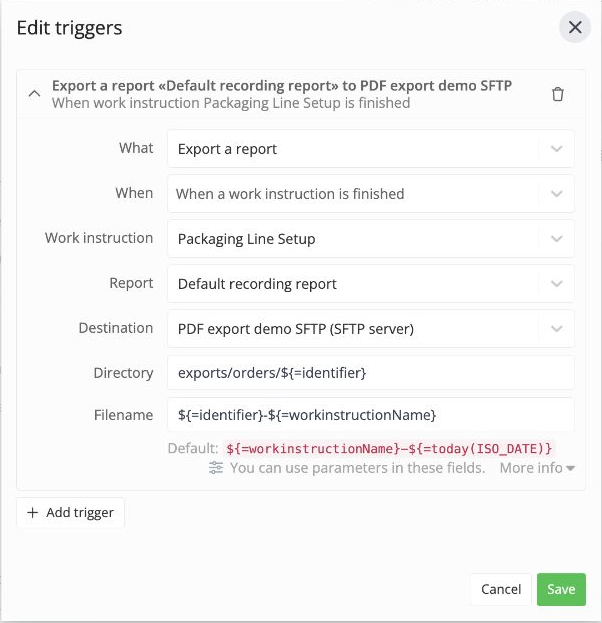
This option exports one recording at a time. When a product order is finished does not support Default recording report. It does not combine all recordings into one PDF.
The alternative event When a work instruction is put into rework mode exports the recording when it enters rework. The report is not available for creation or start events.
An existing DOCX-template export remains a separate option. See Exporting a report for its template and format settings.
Set the folder and filename
Destination selects the configured integration. Directory specifies the folder at that destination. Confirm the folder path with the person who manages your storage.
Filename specifies the file name. Azumuta adds the .pdf extension. You can also include .pdf in the field; Azumuta does not add it twice.
If Filename is empty, Azumuta uses these defaults:
| Export | Default filename pattern | Example result |
|---|---|---|
| Approved work instruction | ${=workinstructionName}-v${=workinstructionVersion} |
Packaging Line Setup-v3.pdf |
| Audit recording | ${=workinstructionName}-${=today(ISO_DATE)} |
Packaging Line Setup-2026-09-07.pdf |
| Product-order recording | ${=identifier}-${=workinstructionName}-${=today(ISO_DATE)} |
PO-2026-0042-Packaging Line Setup-2026-09-07.pdf |
The date in the recording default is the export date. It is not necessarily the execution date.
Use the following values in Directory or Filename:
| Value | Available for | Meaning |
|---|---|---|
${=workinstructionName} |
All three exports | Name of the work instruction |
${=treePath} |
All three exports | Folder path that contains the work instruction in Azumuta |
${=workinstructionVersion} |
Approved work instruction | Approved version number |
${=issueNumber} |
Approved work instruction | Approval request number |
${=auditNumber} |
Audit recording | Audit number |
${=identifier} |
Product-order recording | Product order identifier |
${parameterName} |
All three exports | An approval-request parameter, audit-recording parameter, or product-order parameter, respectively |
The tree path does not include the top-level node. For example, if the folders below that node are Packaging/Line 1, use exports/${=treePath} to get exports/Packaging/Line 1. If the work instruction is directly below the top-level node, the tree path is empty.
Use ${=treePath(1)} to remove the first folder from that path. Use ${=treePath(-1)} to keep only the last folder.
Use ${=auditNumber} only if the audit has a number. The audit numbering format must be configured before the audit is created. A missing number or parameter can cause the export to fail.
For recording reports, include an audit number or product order identifier in the filename:
| Export | Example filename pattern | Example result |
|---|---|---|
| Audit recording | ${=workinstructionName}-audit-${=auditNumber} |
Packaging Line Setup-audit-1042.pdf |
| Product-order recording | ${=identifier}-${=workinstructionName} |
PO-2026-0042-Packaging Line Setup.pdf |
Note: An export can replace an existing file at the same path. The default recording filename can be the same for two executions on one day. An audit number or order identifier does not distinguish repeated exports of the same recording. Agree on the required file naming and retention rules before you use the trigger.
Check an export
- Complete the applicable approval or recording event in a test example.
- Open the destination folder.
- Check the PDF filename.
- Open the PDF.
- Check that the PDF contains the intended approved version or recording results.
The following excerpts show successful runs checked through the support history view.
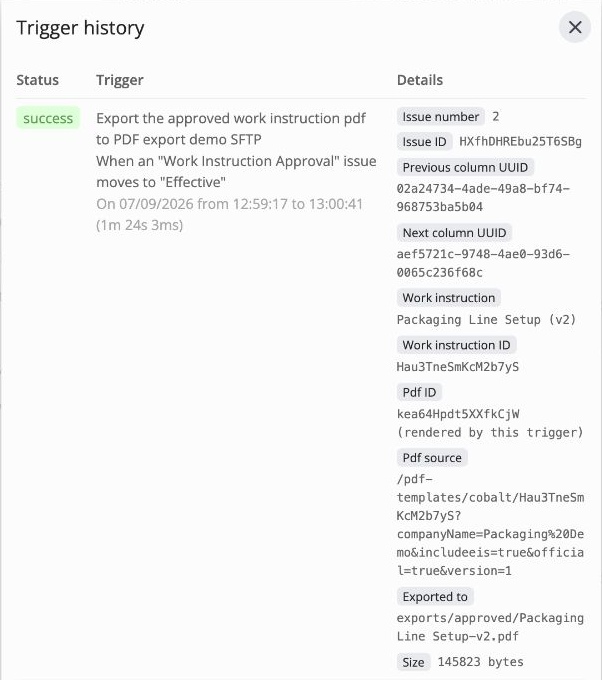
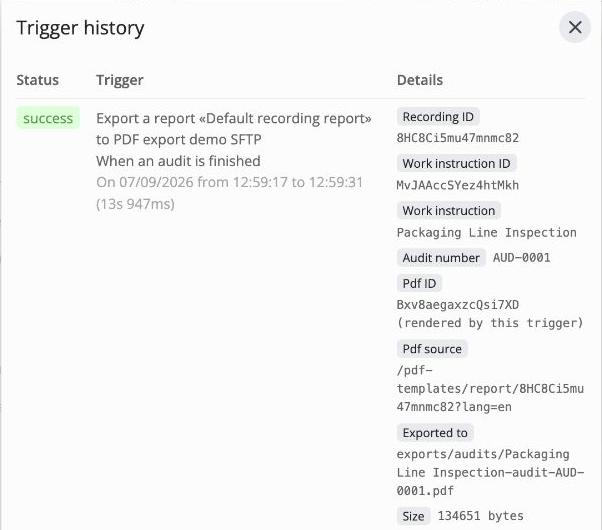
PDF generation and delivery can take time. The trigger run does not report success until the export completes. Recording-report exports generate a new PDF for each run.
Creating a trigger does not export earlier approved versions or completed recordings. The trigger applies when a matching event occurs after setup.