
Connect Microsoft Power Apps to Azumuta with device API tokens
Note: This article is technical, so we recommend involving someone with the right technical expertise. If you have questions or need help with the setup, contact support@azumuta.com.
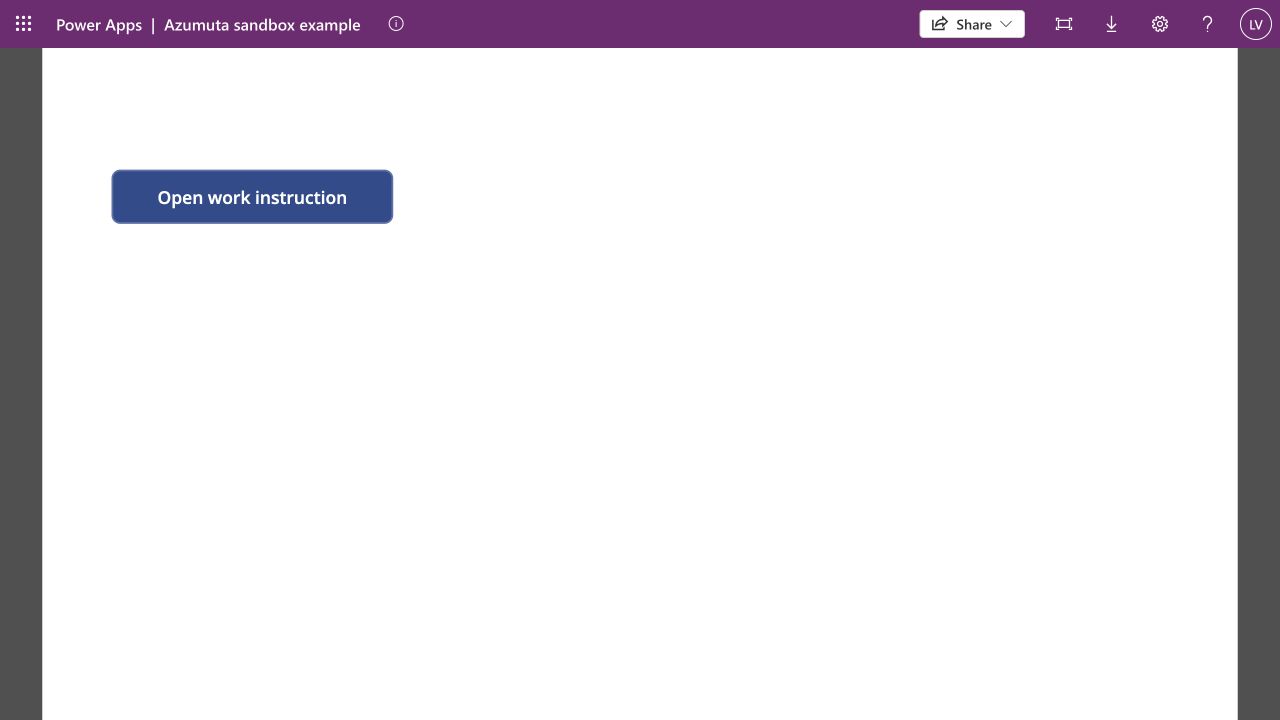
This example adds an Open work instruction button to a Microsoft Power Apps canvas app. The button calls a Power Automate flow, which requests a session token from Azumuta and returns it to the app. Power Apps then opens the work instruction in the Azumuta App.
The long-lived device API key stays in a Power Platform connection. The flow returns only a session token to the canvas app. It can sign in once within 60 seconds; after sign-in, the page uses its normal Azumuta session. This example opens a work instruction for consultation through /view/, which normally creates a consultation recording. If consultation recording is disabled for the instruction, the page opens a standalone preview instead.
How the connection works
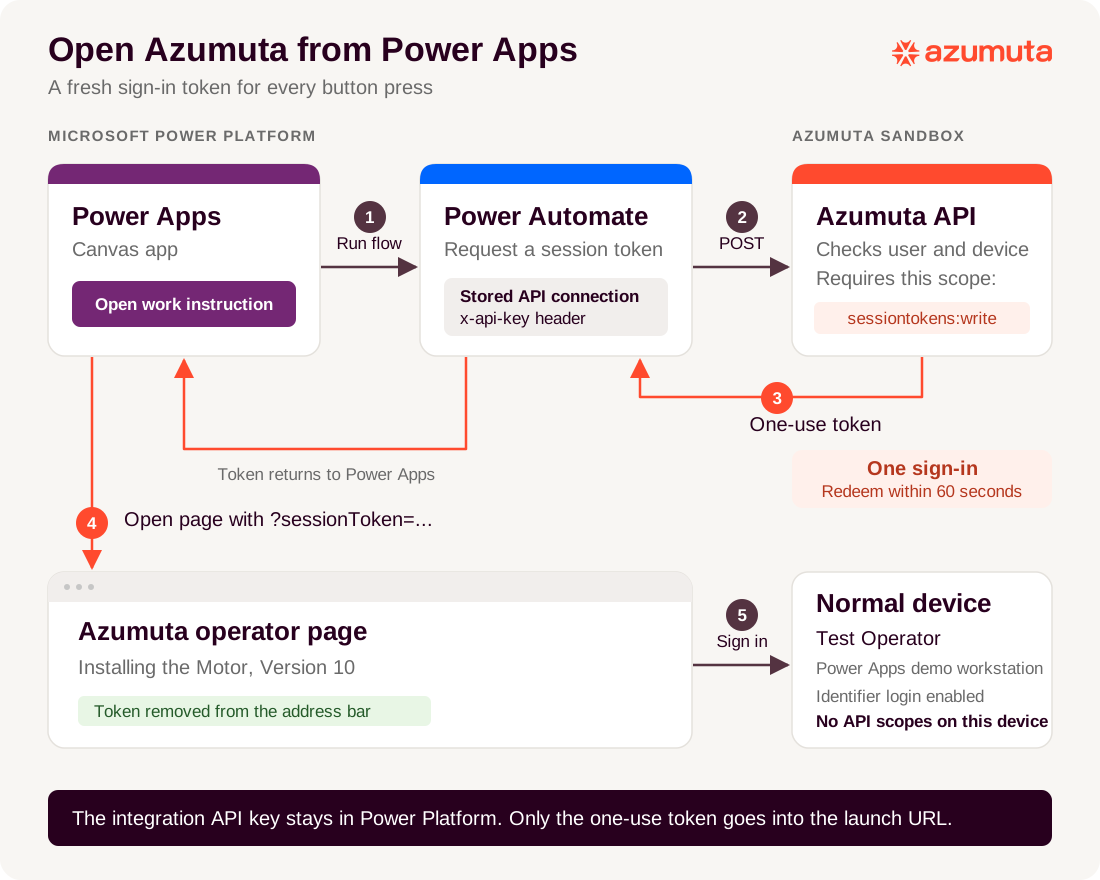
- Power Apps runs the flow when the user presses the button.
- Power Automate calls
POST /api/v1/auth/sessionTokenswith the integration API key in thex-api-keyheader and the targetdeviceIdandloginIdentifierin the JSON body. - Azumuta validates the request and returns a one-use token. The flow passes that token back to Power Apps.
- Power Apps opens
/view/WORK_INSTRUCTION_ID?sessionToken=.... The integration API key is never part of that URL. - The Azumuta page signs in as the permitted operator on the normal device, removes the token from the address bar, and loads the work instruction and media.
Open other Azumuta App pages
This example opens a work instruction. The same connector and flow can open other pages, such as a recording, a product order or a spot. Change the destination URL in the Power Apps button and request a new token each time. See Open Azumuta App pages from another application for the pages and their options.
The running example
The example was verified on 16 November 2026 using these resources:
| Resource | Example |
|---|---|
| Azumuta environment | https://sandbox.azumuta.com |
| Work instruction | Installing the Motor, approved Version 10 |
| Sandbox user | Test Operator |
| Microsoft developer environment | Azumuta Power Apps Docs |
| Canvas app | Azumuta sandbox example |
| Power Automate flow | AzumutaOpenInstruction |
| Custom connector | Azumuta Sandbox |
Use your own sandbox access and test operator when following the steps. All keys, login identifiers and document IDs below are placeholders; the example does not distribute credentials for the sandbox.
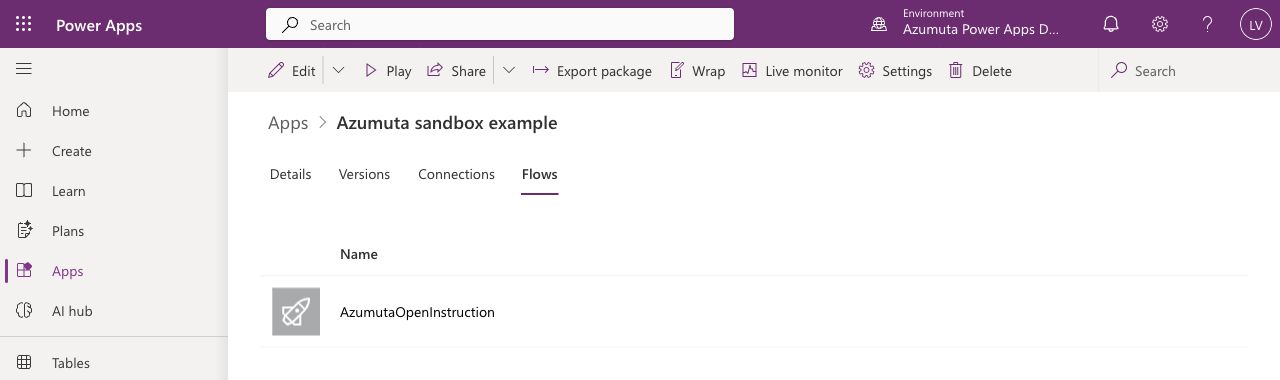
In the completed example, the app's Flows tab lists AzumutaOpenInstruction. The environment selector is in the upper-right corner.
Before you start
You need:
- An Azumuta sandbox workspace and permission to manage devices and view users.
- Access to the workspace's in-app REST API documentation.
- An active sandbox operator with a login identifier who is currently switched to that workspace.
- An approved work instruction the operator can consult.
- A Microsoft work or school account, a Power Platform development environment, and permission to create a custom connector, cloud flow and canvas app in that environment.
The Power Apps Developer Plan supports development and testing with custom connectors. Enroll the account that will build and run this example. Creating an environment alone does not assign that account a Power Apps plan: the app can work in Studio preview while its published player still asks for a license. Microsoft 365 Developer Program membership alone is insufficient.
Follow Microsoft's current environment provisioning requirements. From 15 November 2026, Developer Plan signup no longer creates an environment automatically. Ask your administrator for a managed developer environment, or use a suitable trial environment. Managed environments require an additional premium license, even when a maker runs their own test app or flow; the free Developer Plan does not include those use rights. Production use also requires appropriate Microsoft licensing.
The running example was verified in an unmanaged developer environment. Microsoft schedules these environments for suspension from 15 December 2026 and deletion from 15 January 2027. Treat it as a temporary test and arrange a licensed environment or move the solution before suspension. See Microsoft's Developer Plan lifecycle guidance.
Keep the app, flow and connector in the same Power Platform environment throughout this procedure.
1. Prepare two Azumuta devices
The integration and the operator page use different devices:
| Device | Example name | Configuration | Used by |
|---|---|---|---|
| API device | Power Apps documentation demo | Only sessiontokens:write |
Power Automate |
| Normal device | Power Apps demo workstation | Allows login identifier authentication; no API scopes | The operator page |
Create the integration API device
- In Azumuta on Web, open Management > Devices > API.
- Use the yellow plus menu to Add device.
- Enter Power Apps documentation demo and select Api Device as its type.
- Open Security. Enable Restrict this API key to a subset of operations if it is not already enabled.
- Clear the ordinary scopes using (select all). Under Sensitive scopes, select Session tokens (
sessiontokens:write). Leave all other scopes unselected for this example. - Click Add, then use the device's row menu to Copy API key. Keep it available for the Power Platform connection in step 2.
Full access and (select all) do not include the sensitive session-token scope. You must select it explicitly. See Create and manage API keys for general key management.
Prepare the operator device and user
- In Devices > Overview, add a dedicated normal device named Power Apps demo workstation. Do not select Api Device.
- Under Security, leave Restrict this API key to a subset of operations off. Enable Allow authentication using login identifier. Limit User groups allowed to authenticate with login identifier to the sandbox operator's group.
- Save the device and copy its Device ID from its details. This is the target
deviceId; do not use the integration API device's ID. - Under Management > Users, check the test operator's Login identifier and group membership. A login identifier is not necessarily the operator's email address or Microsoft account name.
- Open the approved work instruction in Azumuta on Web. Open Help (the question mark in the top-right corner) > API attributes and copy Work instruction ID. The separate Tree node ID in that dialog, also used in the
/nodes/workinstruction/...address, will not work in/view/. See Using your data in the REST API for finding API attributes.
The scope restriction must be off on the target device. Leaving it on with every scope unchecked still configures an empty scope list, which the session-token endpoint rejects. The operator page uses this normal device for its own requests after sign-in, including media downloads.
2. Create a custom connector
The connector stores the device API key in a connection and sends it to Azumuta as a request header. The canvas app will call the flow, rather than receive this key.
Open Power Automate and select your development environment.
Open More > Discover all. Under Data, select Custom connectors, then New custom connector > Create from blank. Name it Azumuta Sandbox. If Custom connectors is already in the left navigation, open it directly.
Under General, configure:
Field Value Scheme HTTPS Host sandbox.azumuta.comBase URL /Under Security, select API Key authentication:
Field Value Parameter label Azumuta device API key Parameter name x-api-keyParameter location Header Under Definition, add an action with summary Create session token and operation ID CreateSessionToken.
In Request, choose Import from sample. Use verb POST, URL
https://sandbox.azumuta.com/api/v1/auth/sessionTokens, and this body, replacing both values with your sandbox values:{ "deviceId": "NORMAL_DEVICE_ID", "loginIdentifier": "SANDBOX_OPERATOR_LOGIN_IDENTIFIER" }Make both body properties required. Set the request content type to
application/json. Do not add the API key to the sample body, URL or action parameters.Under Response, add a default response using this sample structure:
{
  "object": "sessionToken",
  "token": "EXAMPLE_ONLY_NOT_A_VALID_TOKEN",
  "expiresAt": 1794826860000
}
Save the connector and resolve any definition validation errors.
Under Test, select New connection and enter the integration device's API key. Enter the key alone, without a
Bearerprefix. Create the connection.
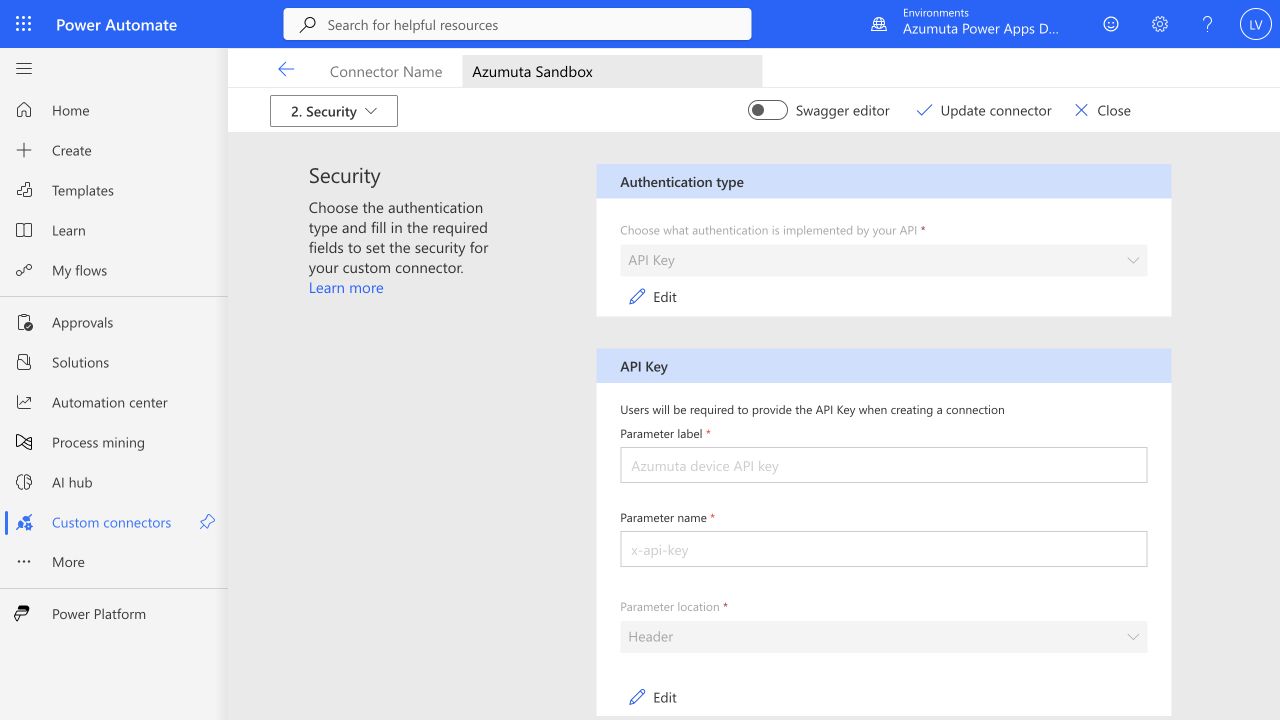
For the full connector wizard, see Microsoft's Create a custom connector from scratch.
An actual successful request returns HTTP 200 with object, token and expiresAt. The expiry is a timestamp in milliseconds since the Unix epoch. A token generated in the connector's test panel is separate from the token the app will request later; do not save it for reuse.
3. Build the Power Automate flow
For this private example, fix the operator and device in the flow. The Power Apps trigger needs no inputs. Keep the flow restricted to the person testing it: each successful call permits sign-in as that sandbox operator.
In Power Automate, create an Instant cloud flow named AzumutaOpenInstruction with trigger When Power Apps calls a flow (V2).
Add the Create session token action from Azumuta Sandbox, using the connection you just created. If the designer asks for a connection, enter a connection name and the same dedicated sandbox API key there.
Rename the action CreateSessionToken. Set
deviceIdandloginIdentifierto the fixed sandbox values from step 1.Open the action's Settings and enable Secure inputs and Secure outputs before running it.
Add Respond to a Power App or flow. Add a Text output named
sessionTokenand select body/token from CreateSessionToken in the dynamic content picker. In the expression editor, the equivalent is:body('CreateSessionToken')?['token']Enable Secure inputs on the response action; its settings explain that this also secures the outputs. Leave Asynchronous response off and the run-after condition set to the successful completion of CreateSessionToken.
Save the flow. Do not add the API key to the response.
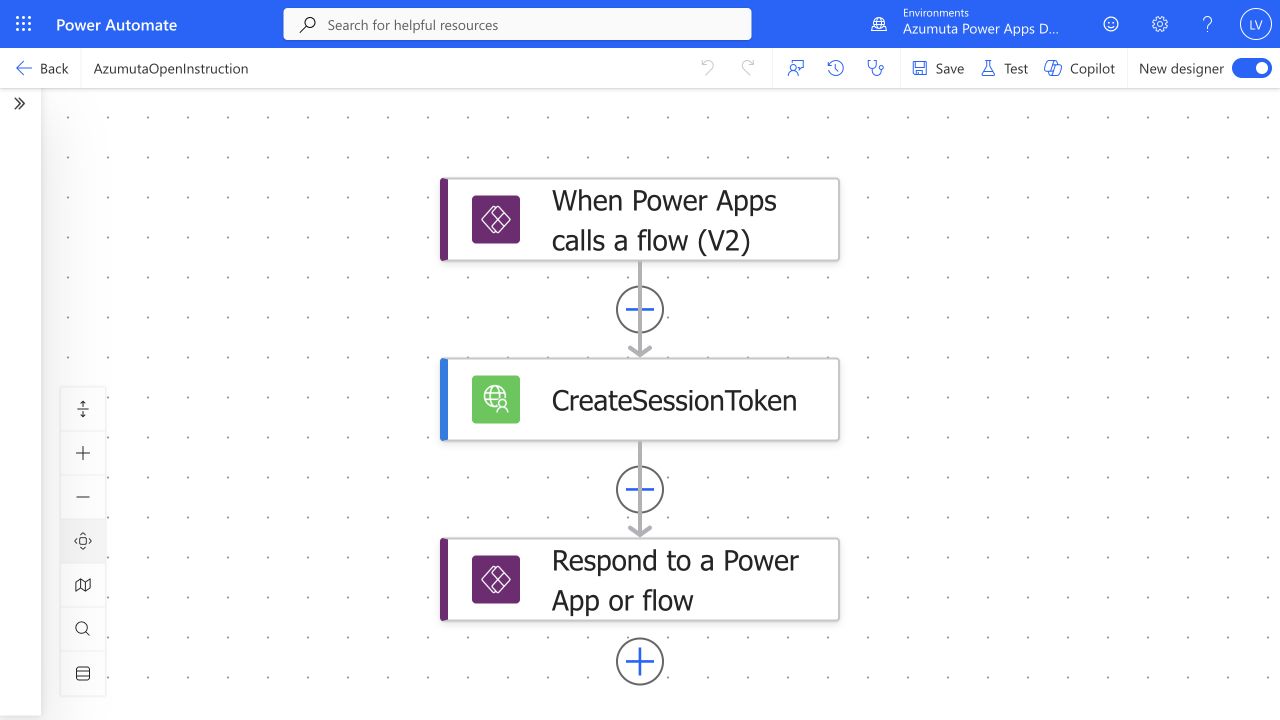
Secure inputs and outputs hide sensitive values in run history. They do not prevent a flow owner from editing the flow. Microsoft's guidance on securing cloud-flow data explains these settings.
4. Add the Power Apps button
In Power Apps, select the same development environment. Choose Start with design > Create from blank > Tablet. Save the canvas app as Azumuta sandbox example.
In Power Apps Studio, open the Power Automate pane and add the existing AzumutaOpenInstruction flow.
Insert a button with text Open work instruction.
Set the button's OnSelect property to the following formula. Replace
WORK_INSTRUCTION_IDwith your approved work instruction's ID:IfError( With( { result: AzumutaOpenInstruction.Run() }, If( IsBlank(result.sessiontoken), Notify("Azumuta did not return a session token", NotificationType.Error), Launch( "https://sandbox.azumuta.com/view/WORK_INSTRUCTION_ID", { sessionToken: result.sessiontoken }, LaunchTarget.New ) ) ), Notify("Could not open the Azumuta work instruction", NotificationType.Error) )Check the response field name offered by Power Apps autocomplete. Use the generated name if its casing differs from
sessiontoken. If the flow was changed after it was added to the app, refresh or remove and re-add the flow.Save the app and preview it. In locales that use semicolons as Power Fx argument separators, adapt the formula separators to the editor's locale.
After testing, save and publish the app version if you want to reopen it through its web link. Publishing a version and granting other people access are separate steps; keep this fixed-identity example private.
On the first launch, Power Apps may ask to allow the app to use Azumuta Sandbox through its Power Automate flow. Check that the listed action is Create session token, then allow the connection for your test app.
The flow runs on every button press, immediately before navigation. Do not generate tokens at app startup or keep a token to reopen the page later.
5. Verify the complete example
- In app preview, click Open work instruction and allow the new browser tab if the browser asks.
- Confirm that the work instruction opens as the intended sandbox operator on Power Apps demo workstation. Check both text and media.
- Check the address bar: Azumuta removes
sessionTokenafter reading it. The launch URL must contain noapiKey,deviceIdorloginIdentifier. - Inspect the flow run. It should succeed, with the token-bearing action inputs and outputs hidden.
- Click the Power Apps button again. It should request a fresh token and open the page again.
- For a separate replay test, open the custom connector's Test tab. Enter the normal device's
deviceIdand test operator'sloginIdentifier, then select Test operation. Use the returnedtokento constructhttps://sandbox.azumuta.com/view/WORK_INSTRUCTION_ID?sessionToken=DISPOSABLE_TOKEN, substituting your instruction ID and this disposable token. Open that exact URL twice in fresh tabs. Only the first sign-in should succeed. A reload of the already signed-in tab may resume that session; it is not a replay test. - Use Test operation again to generate another disposable token, leave it unused for more than 60 seconds, and open its URL in a fresh tab. Sign-in should fail. Click the Power Apps button to request a new token. Keep the flow's secure inputs and outputs enabled throughout these tests.
Do not record token values in screenshots, article examples or shared test notes.
In the verified example, the canvas button opened Installing the Motor, Version 10, and the images loaded, both in Studio preview and from the published app player. The flow succeeded with both token-bearing actions' inputs and outputs hidden. Replaying the consumed token returned 403 Access denied; opening an unused token after its expiry returned 403 Expired.
Troubleshooting
| Symptom | Check |
|---|---|
| HTTP 401 | The connection's API key and sandbox host match; the key is sent in the x-api-key header |
HTTP 403 mentioning sessiontokens:write |
The API device has explicit scopes and Session tokens selected; full access is insufficient |
| HTTP 400 about the target device | deviceId names a normal device, with no API scopes and login identifier authentication enabled |
| HTTP 400 about the user | The operator is active and currently switched to the same workspace |
| HTTP 403 about user groups | The operator belongs to a group permitted on the target device |
| HTTP 404 | The normal device and operator login identifier exist in the API key's workspace |
| Page sign-in fails | Request a fresh token and navigate immediately; expired or consumed tokens cannot be used again |
| Work instruction or media does not load | Check the approved instruction, operator access and target device configuration; keep API scopes on the integration device only |
| Flow or custom action does not appear | Check that all resources are in the same Power Platform environment; allow connector changes to propagate, then refresh |
| Published app asks to start a Power Apps trial | Check the signed-in account's Power Apps entitlement; having a developer environment and a successful Studio preview is not enough |
Adapt the example
For a production app, replace the fixed test identity with a server-validated mapping from the authenticated Microsoft caller to the permitted Azumuta operator. Do not accept an unrestricted loginIdentifier or target deviceId from a canvas text field: the device key authorizes the integration, not the person running the app. Restrict who may run and edit the flow, and provision the required Microsoft licenses before sharing it.
For another REST operation, add that action to the connector and grant only its documented API scopes. Keep sending the key in the header. Use the workspace's REST API documentation for request and response details.
When the example is no longer needed, disable the flow and revoke its sandbox credential through your workspace's API device management.